
Invoice life cycle
The stages an invoice moves through, from created to paid, and how Xero moves them along.
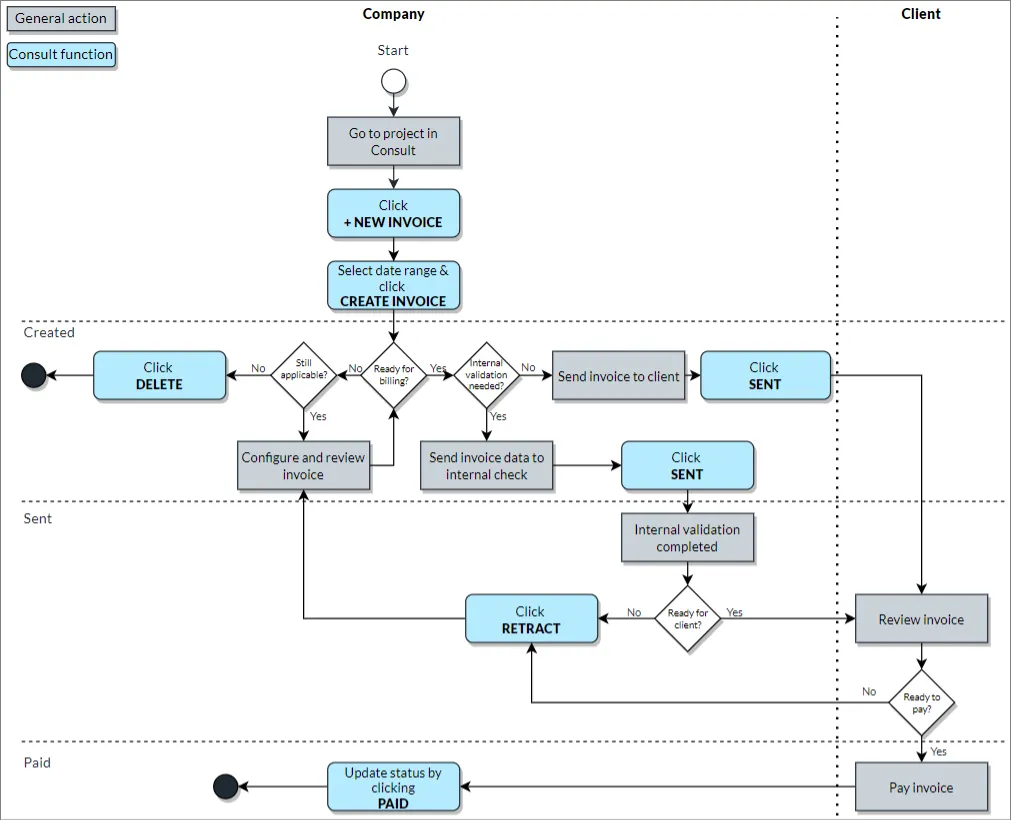
Invoice life cycle flow
The following diagram shows how an invoice moves through its life cycle in Consult:
Stages
An invoice shows its stage on the timeline at the top of the invoice page, and in the status column of the invoices list:
- Created: The invoice has been raised and can still be edited.
- Sent: The invoice has been sent to the client.
- Partially paid: Part of the invoice has been paid. This stage is only shown for invoices exported to Xero, since Consult learns about part payments from Xero.
- Paid: The invoice has been paid in full.
For an invoice kept in Consult, Sent is set by clicking Sent on the invoice, and Paid by clicking Mark as Paid. Retract takes a sent invoice back so it can be edited.
Invoices exported to an accounting system
Exporting an invoice to Xero, QuickBooks, or Sage locks it, so it can no longer be edited. Mark as Paid is still offered on an exported invoice until it is paid, which is how an invoice exported to QuickBooks or Sage is marked as paid, since Consult does not follow payments there.
For an invoice exported to Xero, Consult moves it through the stages by itself as it changes in Xero:
- Approving the invoice in Xero marks it as Sent.
- A part payment shows it as Partially paid.
- Settling it in full, whether by payment or by credit notes, marks it as Paid.
- Deleting or voiding it in Xero returns it to Created, marks it Removed in Xero, and removes the link, so it can be edited and exported again.
Credit notes do not move an invoice between stages unless they settle it in full. See track payments from Xero.