
Notification catalogue
The notifications Consult sends, what each one tells you, the channels it uses, and how each is routed.
Consult sends notifications across three channels: email, the in-app inbox, and Telegram (tenant-enabled on request). This page lists every notification, the event that triggers it, and the information it carries on each channel. Example names, dates, and reference numbers below are illustrative.
Channels
- Email: Sent from the Consult email address (
app@consultplanner.app). - In-app inbox: Stored in your notifications inbox in Consult.
- Telegram: Sent through the linked Telegram bot.
Note: The Telegram channel is off by default and can be enabled for a client on request.
Where a notification renders the same information on more than one channel, that is noted rather than repeated.
Notification preferences
You manage your preferences from Profile > Notifications:
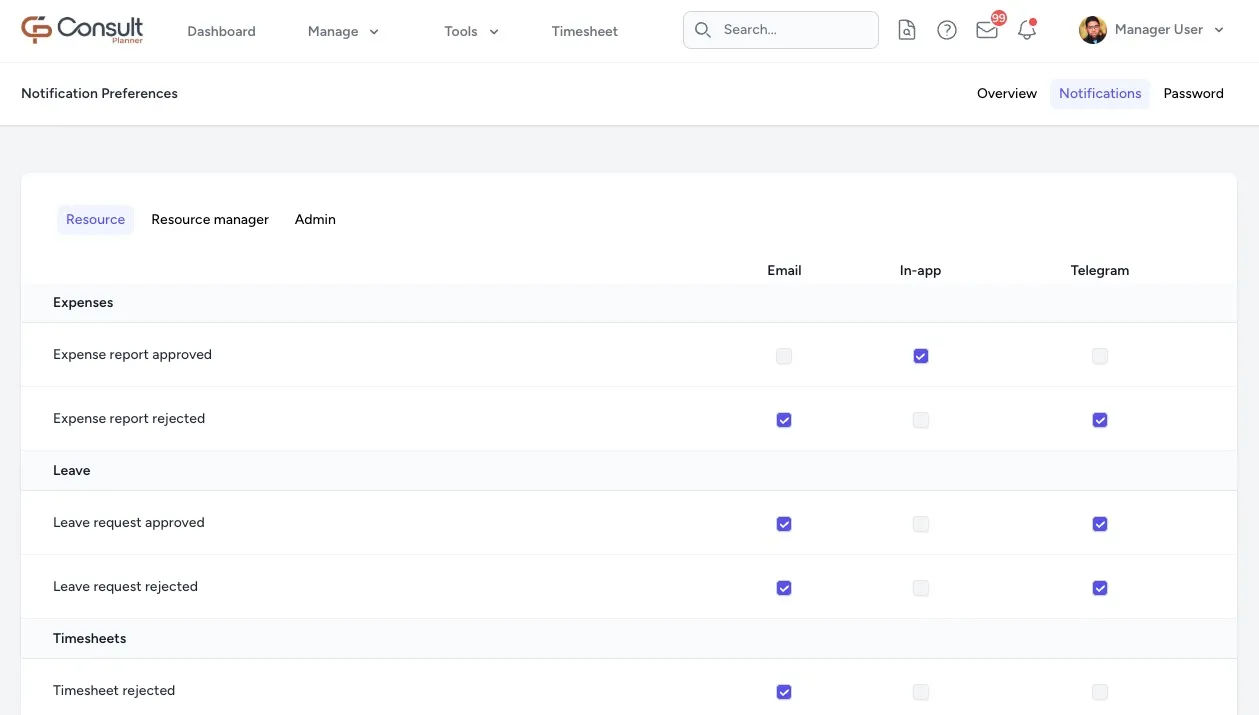
The page groups notifications into role-specific tabs, and each tab is split into categories.
Defaults:
- For new users, every preference defaults on for every supported channel.
- You can disable any individual channel for any notification listed below.
- The Resource tab is visible to every user. The Project manager, Resource manager, and Admin tabs are only visible to users with the matching role or permission.
Resource tab
Expenses
- Expense report approved
-
Default channels: In-app inbox.
-
Trigger: An expense report you submitted has been approved.
If you are on your company’s list of employees to be notified for all expense report approvals, the trigger becomes “any approved expense in your company”.
-
Information provided: A one-line confirmation in your inbox.
- If it is your own report: “Expense report 1042 approved!”.
- If you are on the company-wide recipient list: “Expense report 1042 for Josh Howland approved!”.
-
- Expense report rejected
- Default channels: Email, Telegram.
- Trigger: An expense report you submitted has been rejected.
- Information provided: That the report was rejected, and why.
- Reference number.
- Project: Only shown if the expense is linked to one.
- Amount: For example R1,250.00.
- Reason for rejection: The note the reviewer entered.
- Email subject: “[Rejected] Expense Report #1042”. Email button: “View Expense Report”.
- Telegram opens with ”❌ Sorry, your expense reports has been rejected!” and additionally shows the reason you originally captured on the report.
- Expense report created
-
Default channels: Email, Telegram.
-
Trigger: A new expense report needs your attention as the approver.
If the expense is linked to a project, it will be sent to the project director. If it is not linked to a project, it will be sent to the submitter’s resource manager.
-
Information provided: That a new report has been created for you to action.
- Email subject: “New Expense Report from Josh Howland #1042”. Email body: “A new expense report has been created for your attention.”. Button: “View Expense Report”.
- Telegram opens with ”📩 A new expense report has been created!” and adds the reference number, employee (Josh Howland), project (“No project” if none), reason, and amount.
-
- Expense report checked
- Default channels: Email, Telegram.
- Trigger: An expense report has been marked as checked and is ready for your review.
- Information provided: That the checked report is ready.
- Email subject: “[Checked] Expense Report #1042 from Josh Howland”. Email body: “Expense report #1042 has been checked and is ready for your review.”. Button: “View Expense Report”.
- Telegram opens with ”📩 Expense report #1042 has been checked and is ready for your review!” and adds the reference number, employee, project, reason, and amount.
Note: Expense report created and Expense report checked reach you as an approver, but their toggles sit on the Resource tab, which every user can see.
Leave
- Leave request approved
-
Default channels: Email, Telegram.
-
Trigger: A leave request you submitted was approved.
If you are on your company’s list of employees to be notified for all leave request approvals, the trigger becomes “any approved leave request in your company”. If you are a project manager on one of the requester’s active projects, and the requester had scheduled hours on your project overlapping that leave, you also get the notification unless your notifications are switched off for that project. Where the project has a primary project manager, only they get it.
-
Information provided: That the leave was approved, with the dates and type.
- Dates: For example Monday, 6 April 2026 to Friday, 10 April 2026.
- Type.
- Duration: For example 5 days.
- Requested by: Josh Howland.
- Approved by: Sarah Bennett.
- Affected projects: Listed when the leave overlaps scheduled work.
- The opening line depends on the recipient: the requester sees “Your leave request has been approved!”, while an affected project manager sees “A resource on one of your projects has been approved to take leave over a period of time when you’ve scheduled work for him/her.”.
- Email subject: “Leave Request Approved!”.
-
- Leave request rejected
-
Default channels: Email, Telegram.
-
Trigger: A leave request you submitted was rejected, or was automatically declined.
A leave request is automatically declined by a nightly system check if it’s still awaiting approval more than 10 days after it was submitted and its start date is already at least 3 days in the past. Sick leave and family responsibility leave are exempt and are never auto-declined.
-
Information provided: That the request was not approved, with the dates and type.
- Dates.
- Type.
- Email subject: “Sorry, Your Leave Request Was Not Approved” when auto-declined, or ”…Rejected” when a resource manager rejected it.
- Email opening: ”❌ Your leave request was not approved and has been automatically declined” or ”❌ Your leave request was rejected”.
- Telegram always reads ”❌ Your leave request was rejected.” and shows the same dates and type.
-
Timesheets
-
Timesheet rejected
- Default channels: Email.
- Trigger: A timesheet you submitted was rejected by your resource manager.
- Information provided: Which week was rejected, and the reviewer’s comment.
- Week: For example 6–10 April 2026.
- Reviewer: Sarah Bennett.
- Comment: The reviewer’s note.
- Subject: “[Rejected] Timesheet Submission for Week 6–10 April 2026”. Button: “Go to timesheet”.
-
Timesheet reminder
-
Default channels: Telegram.
-
Trigger: Every Friday at 13:30, if you are on a project that is in progress and have not yet submitted the week.
-
Information provided: A nudge to capture your time, followed by a list of your active projects.
- Message: “Please remember to capture your time for the week! 🕒”.
- One line per active project, for example “Atlas Migration” and “Northwind Portal”.
No reminder is sent to a deactivated user, to someone whose start date falls after the end of the week, or to someone whose timesheet for the week is already submitted or approved. A rejected submission still counts as outstanding, so a rejection enables you to edit your timesheet and resubmit it.
-
-
Timesheet PM rejected
- Default channels: Email.
- Trigger: A project manager rejected your timesheet for one of their projects, where project manager timesheet approval is switched on.
- Information provided: Which project and week were rejected, and the project manager’s comment.
- Subject: “[Rejected] Timesheet for Atlas Migration — Week Apr 6 - Apr 12, 2026”.
- Opening: “Your timesheet was rejected by Sarah Bennett”, followed by the Project, the Week, and “Sarah Bennett wrote:” with the comment.
- Button: “Go to timesheet”.
-
Weekly timesheet report
- Default channels: Email.
- Trigger: Every Monday at 08:00, summarising your own previous week.
- Information provided: The hours you tracked last week, grouped by task.
- Opening: “Time tracked last week (6–10 April 2026)”.
- For each task, a small table showing the task name and its total, then one row per entry with the entry’s comment (or “No comment”) and hours.
- Closing: “Have a great week!”.
Projects
- Assigned to project
- Default channels: Email.
- Trigger: You have been allocated to a project, or someone you manage has. It is not sent to the person who made the allocation.
- Information provided: Who was added, to which project, and in which designation.
- If you were the one allocated: “You have been added to Atlas Migration as a Senior Developer.”.
- If you manage the person allocated: “Josh Howland has been added to Atlas Migration as a Senior Developer.”.
- Project status: In progress.
- Email subject: “[Allocated] Josh Howland added to Atlas Migration”. Button: “View project”.
- Project manager assigned
- Default channels: In-app inbox.
- Trigger: You have been assigned as project manager on a project.
- Information provided: “You were assigned as Project Manager on Atlas Migration by Sarah Bennett.”.
Project manager tab
Primary project manager
A project can name a primary project manager. Where it does, the notifications on this tab that go to a project’s managers, other than Expense report submitted, Project status changed, and Project duration changed, go to the primary alone rather than to every project manager. Without a primary, or while the primary is deactivated, they go to every project manager on the project, as before.
The primary’s Email Notifications tick still applies, so if it is off, no project manager receives them. See set a primary project manager for the full list and the rules for who can be appointed.
Project expenses
- Expense report submitted
- Default channels: Email.
- Trigger: An employee has submitted an expense report against a project you manage. Message contents and routing are as described under the Resource manager tab; this is the same notification.
- The toggle appears on both tabs because a project manager who is not a resource manager cannot see the Resource manager tab, and would otherwise have no way to turn it off.
Project timesheets
- Timesheet awaiting PM approval
- Default channels: Email.
- Trigger: An employee has submitted a timesheet with time on a billable project you manage, where project manager timesheet approval is switched on for the organisation and the project. It goes to the project’s primary project manager, or to every active project manager when there is no primary.
- Information provided: That your approval is needed before the timesheet reaches the resource manager.
- Subject: “Timesheet Awaiting Your Approval: Josh Howland — Week Apr 6 - Apr 12, 2026”.
- Body: “Josh Howland has submitted their timesheet for week Apr 6 - Apr 12, 2026.” and “As Project Manager on Atlas Migration, your approval is required before it can be forwarded to the Resource Manager.”.
- Button: “Review & Approve”, which opens your inbox.
- It is sent whatever the Email Notifications tick on your project row says, and is controlled only by this toggle.
Project lifecycle
- Project approaching end date
- Default channels: Email.
- Trigger: Daily at 07:00, to the project director, one week before a project’s end date.
- Information provided: That the end date is approaching, with suggested actions.
- “Your project Atlas Migration is approaching its end date Thursday, 30 April 2026.”.
- Suggested actions: mark the project complete on the appropriate date, or extend it if it is likely to overrun.
- Subject: “[Action Required] Project Approaching End Date - Atlas Migration”. Button: “Go to project”.
- Project passed end date
- Default channels: Email.
- Trigger: Daily at 07:00, to the project director, the day after a project’s end date passes without completion.
- Information provided: That the project has overrun, and that timesheets are now blocked.
- “Your project Atlas Migration has passed its end date Wednesday, 15 April 2026 and is still not completed.”.
- Note: “Timesheets can no longer be captured unless the project is extended.”.
- Suggested actions: mark the project completed, or extend it if still in progress.
- Subject: “[Action Required] Project Passed End Date - Atlas Migration”. Button: “Go to project”.
- Project status changed
- Default channels: In-app inbox, Telegram.
- Trigger: A project you are on changes status.
- Information provided: “Project status for Atlas Migration has been changed to In progress.”.
- Telegram shows the same message with a leading warning icon: “⚠️ Project status for Atlas Migration has been changed to In progress.”.
- Project timesheet summary
- Default channels: Email.
- Trigger: Every Monday at 07:00, covering the previous week, to the project’s primary project manager, or to each project manager with notifications enabled where there is no primary.
- Information provided: A per-project summary of forecast versus actual hours for each resource.
- Table columns: Resource, Resource Manager, Hours Captured, Forecast Hours, Actual Hours, Difference (colour-coded — green when on forecast, red when off by more than 5 hours, amber otherwise), and Forecast coming week.
- A total row sums each column.
- Subject: “Timesheet Weekly Summary: Atlas Migration - Week 15 (6–10 April 2026)”. The intro line includes a “click here” link to the project’s schedule.
- Project duration changed
- Default channels: In-app inbox.
- Trigger: A project you are on has its start or end date changed.
- Information provided: The change, phrased by type.
- If the project was deferred: “Sarah Bennett deferred the project Atlas Migration to start on Monday, 1 June 2026.”.
- Otherwise: “Sarah Bennett changed the duration for project Atlas Migration.”.
Scheduling
- Rollover failed
- Default channels: Email.
- Trigger: An automatic weekly rollover of a resource’s hours failed on a project you manage.
- Information provided: That the rollover could not complete, with the likely cause.
- Project: Atlas Migration.
- Resource: Josh Howland.
- Explains the likely cause: not enough future schedules to roll into, or the resource being unavailable.
- Subject: ”❌ Auto Rollover Hours Failed”. Button: “Go to schedule”.
- Schedule update rejected
- Default channels: In-app inbox.
- Trigger: A proposed schedule update was rejected and the hours were reverted to the last approved plan.
- Information provided: “The schedule updates for Josh Howland on Atlas Migration has been rejected by Sarah Bennett.”.
- Schedule updated
-
Default channels: Email.
-
Trigger: A resource’s schedule on your project was changed. Related changes are grouped together before sending.
-
Information provided: Which weeks changed and by how much.
- Resource manager: Sarah Bennett.
- Modified time for resource: Josh Howland.
- One line per change, for example “Added 4 hours in the week of 13 April 2026” or “Removed 2 hours in the week of 20 April 2026”.
- Subject: “[Info] Schedule updated for Josh Howland”. Button: “Go to schedule”.
Only changes to the current week and to future weeks are emailed. A change to a week that has already passed is recorded on the project’s activity log but never emailed, since neither a project nor a resource manager can act on it, so one save can log ten hours of movement and email four. Aligning forecast hours to actual hours therefore sends nothing at all, since it only ever rewrites past weeks. See align forecast to actuals.
-
Resources on projects
- Resource allocation request
- Default channels: Email, In-app inbox.
- Trigger: A project manager has requested one of your users to work on their project and needs approval to continue.
- Information provided:
- Email subject: ”[🟡 Pending] Allocation Request for Josh Howland”. The label tracks the status: ”🟡 Pending”, ”🟢 Approved”, ”🔴 Rejected”, or ”⚫ Cancelled”.
- Fields: status, approved by (only once approved), project (Atlas Migration), project starts, project ends, project status, and resource manager(s).
- If the resource is not available for the request, a potentially affected projects list shows the clashing allocations, each with its designation.
- In-app inbox: a single line — “Allocation request for Josh Howland: 🟡 Pending”. The full detail and the Review button are email-only.
- Where the user has no active resource manager, the request is routed to the organisation’s administrators to approve instead. They are not sent this notification, and find the request in the Resource Allocations tab of their inbox.
- Resource deallocated
- Default channels: Email, In-app inbox.
- Trigger: A resource has been removed from a project you manage.
- Information provided:
- “Josh Howland has been removed from Atlas Migration by Sarah Bennett” — the “by …” part appears only when the person who made the change is known.
- Fields (email only): designation (Senior Developer) and project status.
- Email subject: “[Deallocated] Josh Howland removed from Atlas Migration”. Button: “Go to project”.
- In-app inbox: the same removal line, without the designation, status, or button.
- Resource over utilized
- Default channels: In-app inbox.
- Trigger: Daily at 07:00, when a resource on an in-progress project reaches or exceeds their forecast hours.
- Information provided: “Josh Howland’s utilization for Atlas Migration is at 112%.”.
Utilization
- Utilization summary report
- Default channels: Email.
- Trigger: Every Friday at 13:30, to the project’s primary project manager, or to each project manager with project notifications enabled where there is no primary.
- Information provided: A per-project table of each resource’s forecast versus actual utilisation to date.
- Table columns: User, Designation, Total forecast, Forecast TD, Actual TD, and % TD (shown in red above 100%, green below).
- One row per allocated resource.
- Subject: “[Info] Utilization Weekly Summary - Atlas Migration”.
Resource manager tab
Expense reviews
- Expense report submitted
- Default channels: Email.
- Trigger: An employee has submitted an expense report that you must review. It is sent on submission, alongside the Expense report created notification (see Resource tab).
- Information provided: That a claim is waiting for you.
- Subject: “New Expense Report: #1042 from Josh Howland”. Body: “A new expense report has been submitted for your review.”. Button: “View Expense Report”.
- Routing depends on whether the claim is linked to a project:
- A claim on a project goes to the project’s managers. A manager receives it where they were given Project Manager, View Financials, and Email Notifications together on the same role, so a role that was set up without notifications does not bring them back in. This is not narrowed to the primary project manager. The project’s status is not considered, since most claims are submitted at or after the end of the work.
- A claim with no project goes to the claimant’s primary resource manager. Their remaining resource managers are used instead when there is no primary manager, or when the primary manager is on approved leave on the day the report was submitted.
- A deactivated user is left out, as is a project manager who is on approved leave on the day the report was submitted.
Leave management
- Leave request created
- Default channels: Email, Telegram.
- Trigger: A leave request has been submitted for you to approve. The same notification is reused as a reminder for requests still awaiting your decision.
- Information provided: That a new leave request needs review.
- Employee: Josh Howland.
- Type.
- From: Monday, 6 April 2026.
- To: Friday, 10 April 2026.
- If the leave starts in the past: “Important: Josh Howland is applying for leave that has already been taken.”.
- For annual leave only: also shows the employee’s current leave balance and the leave days that will be consumed.
- If the request has a supporting document, it is attached to the email.
- Email subject: “New Leave Request From Josh Howland”. Email opening: ”📩 A new leave request was created!”. Button: “View leave request”.
- Telegram shows the employee, type, start date, end date, and number of days.
- Leave request cancelled
- Default channels: Email, Telegram.
- Trigger: A leave request you approved has been cancelled.
- Information provided: That the request was cancelled.
- Name: Josh Howland.
- Type.
- Dates.
- Email subject: “[Cancelled] Leave Request for Josh Howland”.
- Telegram shows the dates and type only.
Resource allocations
- Resource allocated
- Default channels: In-app inbox.
- Trigger: A resource you manage has been allocated to a project.
- Resource allocation request
- Default channels: Email, In-app inbox.
- Trigger: A resource allocation request has been submitted that you can approve.
- Information provided: As described under Resource allocation request in the Project manager tab; this is the same notification.
Workforce management
- Timesheet submitted
-
Default channels: Email.
-
Trigger: A direct report has submitted (or resubmitted) their weekly timesheet, or Consult has submitted it for them because leave and public holidays covered their whole week. It goes to all of the employee’s resource managers.
-
Information provided: That a timesheet is ready to review.
- Subject: “New Timesheet Submission: Week Apr 6 - Apr 12, 2026 from Josh Howland”, or “Timesheet Resubmission: …” on a resubmission.
- Body: “Josh Howland has submitted their timesheet for this week.”, reading “resubmitted” on a resubmission.
- On Fridays it adds “Enjoy your weekend!”.
- Button: “Review Here”.
-
An automatic submission is worded differently, so it is clear the employee did not send it:
- Subject: “Timesheet automatically submitted for Josh Howland (week of Apr 6, 2026)”.
- Body, when leave covered the whole week: “Josh Howland was on approved leave for the full week of Apr 6, 2026, so Consult submitted their timesheet on their behalf.”.
- Body, when a weekday public holiday covered the rest: “Josh Howland was on approved leave for every working day of the week of Apr 6, 2026. The remaining day was a public holiday, so Consult submitted their timesheet on their behalf.”, reading “The remaining days were public holidays” when there is more than one.
- If the employee later resubmits the week themselves, the ordinary resubmission wording is used.
Automatic submissions are made every Thursday at 12:30. The Timesheet Submitted toggle covers both kinds, so switching it off stops the automatic ones too.
-
Admin tab
The Admin tab lets users with the Manage Users permission toggle their personal copy of notifications. The triggers are the same as in the other tabs.
Expense governance
- Expense report approved
- Default channels: In-app inbox.
- Routes to the tenant’s expense or training-expense recipient list. Message contents are as described under the Resource tab.
Leave governance
- Leave request approved
- Default channels: Email.
- Routes to the tenant’s leave recipient list. Message contents are as described under the Resource tab.
Project lifecycle governance
- Project status changed
- Default channels: In-app inbox.
- Sent for projects the recipient is a member of. Message contents are as described under the Project manager tab.
- Project sold
- Default channels: Telegram.
- Trigger: A project moves to the “Sold” status. Sent to every Consult application administrator.
- Information provided: A short celebratory broadcast, ”🔔”, “A project just sold!”, the project name (“Project: Atlas Migration”), and “Congrats team! 👏”.
User, project, and client setup
- Client created
- Default channels: In-app inbox.
- Trigger: Another user creates a client. Sent to everyone who is an application administrator.
- Information provided: “Sarah Bennett created a new client - Northwind Retail.”.
- User created
- Default channels: In-app inbox.
- Trigger: Another user creates a user account. Sent to everyone who is an application administrator.
- Information provided: “Sarah Bennett created a new user profile for Josh Howland.”.
- Project created
- Default channels: In-app inbox.
- Trigger: Another user creates a project. Sent to everyone who is an application administrator.
- Information provided: “Sarah Bennett created a new project Atlas Migration.”.
Always-on notifications
These notifications are sent whenever their trigger fires and cannot be turned off from preferences.
- Welcome
- Channels: Email.
- Trigger: Your account has been created, or an invitation is re-sent.
- Information provided: A welcome and a prompt to set your password.
- Subject: “[Northwind Retail] Welcome to the Consult family!”. Opening: “Welcome Josh Howland 👋”.
- Confirms an account was created (naming the person who created it, if known), reminds you that your login is your email address, and signs off with encouragement (“Ready to get started? Let’s do this! 🙌”).
- Button: “Go to Consult”, which opens the page where you set your password.
- Password changed
- Channels: Email.
- Trigger: Your password has been changed.
- Information provided: “You have a new password!”, confirming the change.
- If you did not make the change, it gives you a link to reset your password and secure your account.
- Happy birthday
- Channels: Email.
- Trigger: Daily at 08:00, on your birthday.
- Information provided: A birthday greeting — “Happy Birthday Josh Howland! 🎉” — with a birthday image and a randomly chosen message.
- Contractor unavailability created
- Channels: Email, Telegram.
- Trigger: A contractor you manage has marked themselves unavailable for a period.
- Information provided: The contractor and the dates.
- Employee: Josh Howland.
- From: Monday, 6 April 2026.
- To: Friday, 10 April 2026.
- Email subject: “Contractor Unavailability: Josh Howland”. Email opening: ”📩 A contractor has marked themselves as unavailable”. Button: “View leave calendar”.
- Telegram opens with ”📩 Contractor Unavailability” and shows the same three fields, without the button.
- Pre-leave timesheet reminder
- Channels: Email.
- Trigger: Weekdays at 13:30. Reminds you to submit pending timesheets before scheduled leave starts.
- Timesheet overdue
- Channels: Email.
- Trigger: The configured number of days after a week’s last weekday, when timesheet submission is enabled and you have not submitted your timesheet for that week. Sent once per outstanding week. See overdue timesheet follow-up.
- Information provided: Which week is overdue, and a prompt to submit as soon as possible.
- Subject: “Overdue timesheet: Jun 29 - Jul 5, 2026”. Button: “Go to timesheet”.
- Timesheet overdue escalation
- Channels: Email.
- Trigger: The configured number of days after an employee’s overdue reminder, when their timesheet is still not submitted. Sent once per outstanding week to all of the employee’s resource managers.
- Information provided: Whose timesheet is overdue, for which week, and a prompt to follow up.
- Subject: “Overdue timesheet: Josh Howland - Jun 29 - Jul 5, 2026”. Button: “View timesheet”.
- Schedule export ready
- Channels: Email.
- Trigger: A schedule export you requested has finished.
- Information provided: “Your schedule export is ready!”, with the file attached.
- Subject: “Your Schedule Export is Ready! 🚀”. No button, the file is attached.
- Schedule import completed
- Channels: Email.
- Trigger: A schedule import you uploaded has finished successfully.
- Information provided: “Your schedule import was successful on Atlas Migration.”.
- Subject: “Your Schedule Import Completed Successfully 🚀”. Button: “Go to schedule”.
- Schedule import failed
- Channels: Email.
- Trigger: A schedule import you uploaded has failed.
- Information provided: “Your schedule import failed on Atlas Migration.”.
- If there were specific errors, they are listed for you to fix; otherwise it invites you to try again or contact support.
- Subject: “Sorry! Your Schedule Import Failed 😢”. Button: “Go to schedule”.
- Timesheet export ready
- Channels: Email.
- Trigger: A timesheet export you requested has finished.
- Information provided: “Your timesheet export is ready!”, with the file attached.
- Subject: “Your Timesheet Export is Ready! 🚀”. No button — the file is attached.
- Invoice expenses export ready
- Channels: Email.
- Trigger: An invoice expenses export you requested has finished.
- Information provided: A download link for the exported expenses.
- “Here’s the link to download the exported expenses for invoice INV-2043.”.
- Subject: “Your Invoice Expense Report Export is Ready! 🚀”. Button: “Download” (unlike the other exports, this is a link rather than an attachment).
Custom recipients
Administrators can add extra recipients for certain approval notifications under Approval Notifications in admin settings:
- Approved expenses, excluding training.
- Approved training.
- Approved leave.
This is useful for routing approvals to a finance or HR distribution list. The lists are tenant-wide and are merged into the recipients of the corresponding Expense report approved or Leave request approved notification.
Routing and escalation
Consult uses the following general logic to determine routing and escalations:
- Primary resource managers: Most user-facing notifications are routed to the recipient’s primary resource manager.
- Project managers: Resource allocation and leave notifications also route to project managers whose Email Notifications flag is on for the project. Where the project has an active primary project manager, they route to the primary alone, and only if the primary’s own flag is on.
- Allocation requests: A request is approved by the allocated user’s active resource managers, or by the organisation’s administrators where the user has none. An administrator is not made the approver of their own allocation, unless they are the only administrator.
- Tenant-wide recipient lists: Approved expenses, approved training expenses, and approved leave route to the lists configured by an admin under Approval Notifications.
- Overdue timesheets: The escalation routes to the employee’s resource managers. If a manager is on approved leave on the day the escalation is due, it routes to that manager’s own resource managers instead.
- Deduplication: Project notification audiences are deduplicated per person, so someone who holds several allocations or several project manager roles on one project is emailed once rather than once per role.
- Deactivated users: A deactivated user is left out of every project notification audience, as is a manager whose allocation on the project has been removed.
Two escalation paths operate without sending a fresh notification:
- Resource allocation requests: A request that has been pending for seven calendar days has the primary resource manager of the user’s primary resource manager added as an additional approver. A request with no approver goes to the user’s resource managers instead, or to the administrators where there are none, and a chain that leads back to the user themselves goes to the administrators. The request appears in the new approver’s inbox; no email is sent on escalation.
- Leave requests: At creation time, if every resource manager is themselves on approved leave, the request routes to those managers’ own resource managers instead.