
Appearance
Expense report life cycle
Expense reports move through a set of stages from drafting to payment. The stage shows where the report is in the review, approval, and reimbursement process.
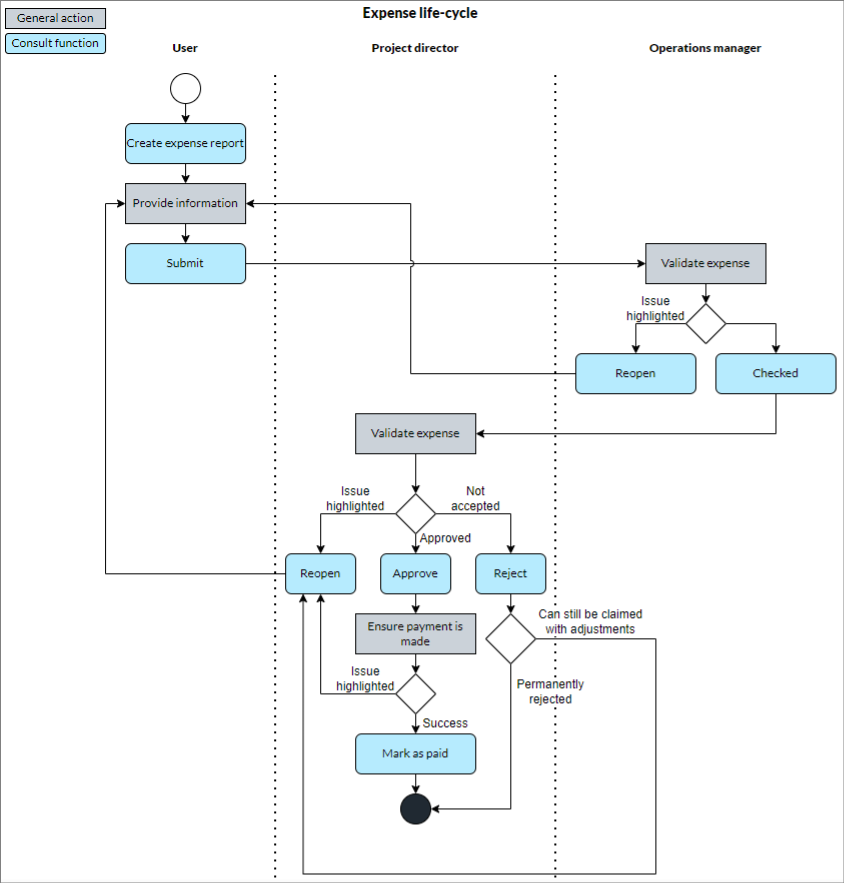
Expense report statuses
Expense reports can have the following statuses:
| Status | Meaning |
|---|---|
| Draft | The expense report is being prepared by the user and can still be edited. |
| Submitted | The expense report has been sent for review to the approver for review. |
| Checked | The expense report has been reviewed before final approval. |
| Approved | The expense report has been approved for payment or reimbursement. |
| Rejected | The expense report was not approved. |
| Paid | Payment or reimbursement has been recorded for the approved expense report. |
| Cancelled | The expense report has been cancelled and will not be processed. |
Review and approval actions
The available actions depend on the stage of the expense report and the user's permissions.
| Action | When it is used |
|---|---|
| Submit | Sends a draft expense report for review. |
| Checked | Marks a submitted expense report as reviewed before final approval. |
| Approve | Approves a checked expense report. |
| Reject | Rejects a checked expense report. |
| Paid | Records that an approved expense report has been paid or reimbursed. |
The person responsible for the next action depends on whether the expense report is linked to a project.
| Current stage | Next action | Project expense | Non-project expense |
|---|---|---|---|
| Submitted | Check | Project director or manage-projects user | Resource manager |
| Checked | Approve or reject | Project director or manage-projects user | Resource manager |
| Approved | Mark as paid | Project director or manage-projects user | Resource manager |
Submitted expense reports appear in the approver's expense report queues. Checked reports can be approved or rejected, and approved reports can be marked as paid.
Re-opening an expense report
If changes need to be made to a submitted expense report, the user can re-open it by going to Profile > Manage Expenses.
Re-opening an expense report returns it to draft so that it can be edited and submitted again.
Project expense labels
The Project > Expense Reports section may show project or invoice labels. These labels are not expense report statuses.
| Label | Meaning |
|---|---|
| Awaiting approval | The project expense report has been submitted but has not been approved. |
| To invoice | The project expense report has been approved and can be added to an invoice. |
| Invoiced | The project expense report has been added to an invoice. |