
Appearance
Approve expense reports
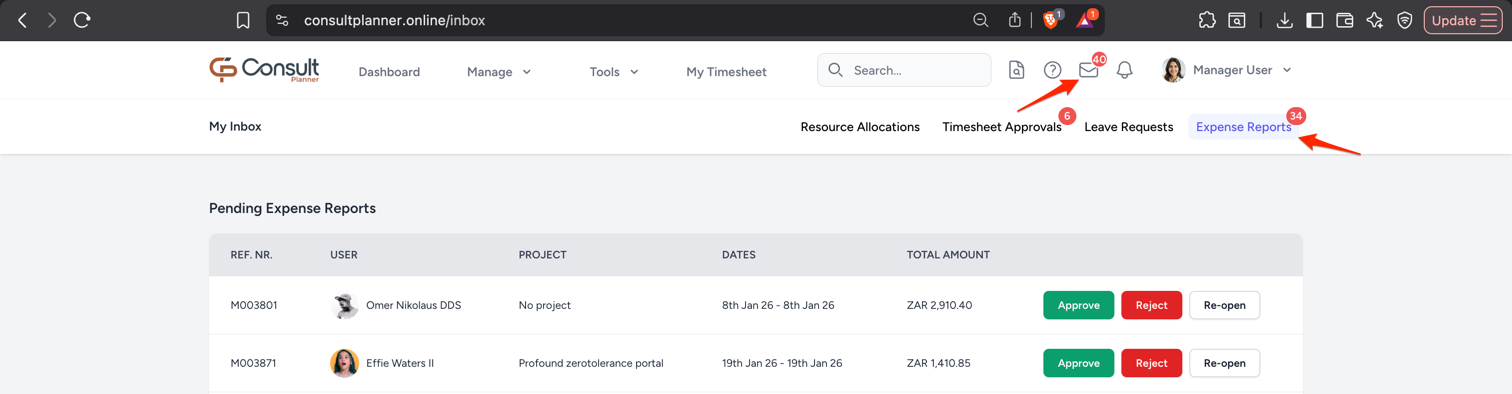
Managers can approve or decline employee expense reports directly from the Inbox page.
To access the Inbox page:
- Click the inbox icon in the top navigation.
- Open the Expense Reports tab.
Expense report statuses
An expense report can have one of the following statuses:
- Draft: The expense report has been created but is only visible to the employee.
- Submitted: The expense report has been submitted by the employee and is visible to their resource managers and users with the manage-projects permission.
- Checked: A designated user has reviewed the report to ensure that required details and supporting documents are complete and correctly formatted.
- Approved: The expense report has been approved by a manager and is ready for payment processing.
- Rejected: The expense report has been declined by a manager and requires changes before it can be resubmitted.
- Paid: The approved expense report has been processed.
After approval
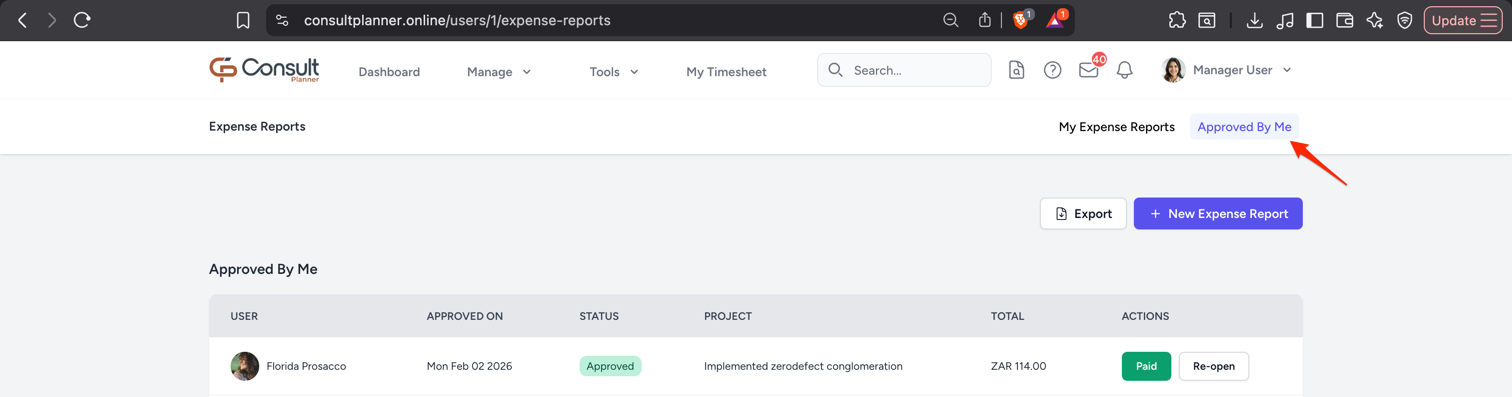
You can view the expense reports you approved by selecting the Expense Reports tab
Rejected expense reports
When an expense report is rejected, the employee can re-open it, make the necessary changes, and submit it again.