
Appearance
Create a new project
This guide explains how to create a new project in Consult.
Who can create projects
Only users that have Manage Projects as part of their role can access this.
If you can access Manage > Projects in the main navigation and see the New Project button, you have sufficient permissions.
Steps to create a new project
- From the navbar, go to Manage > Projects.
- Click New Project.
- Fill in the project details (see Project field reference).
- Click Next to create the project.
You'll be taken to the project types selection page: Choosing the project format.
INFO
When the tenant has multiple business entities, the project must be tagged with the business entity that will invoice for it.
Organogram setup
After selecting the project type, you will be taken to the Organogram view. The Organogram defines who works on the project, their effective rate on the project, and their reporting lines.
Understanding the Organogram view layout
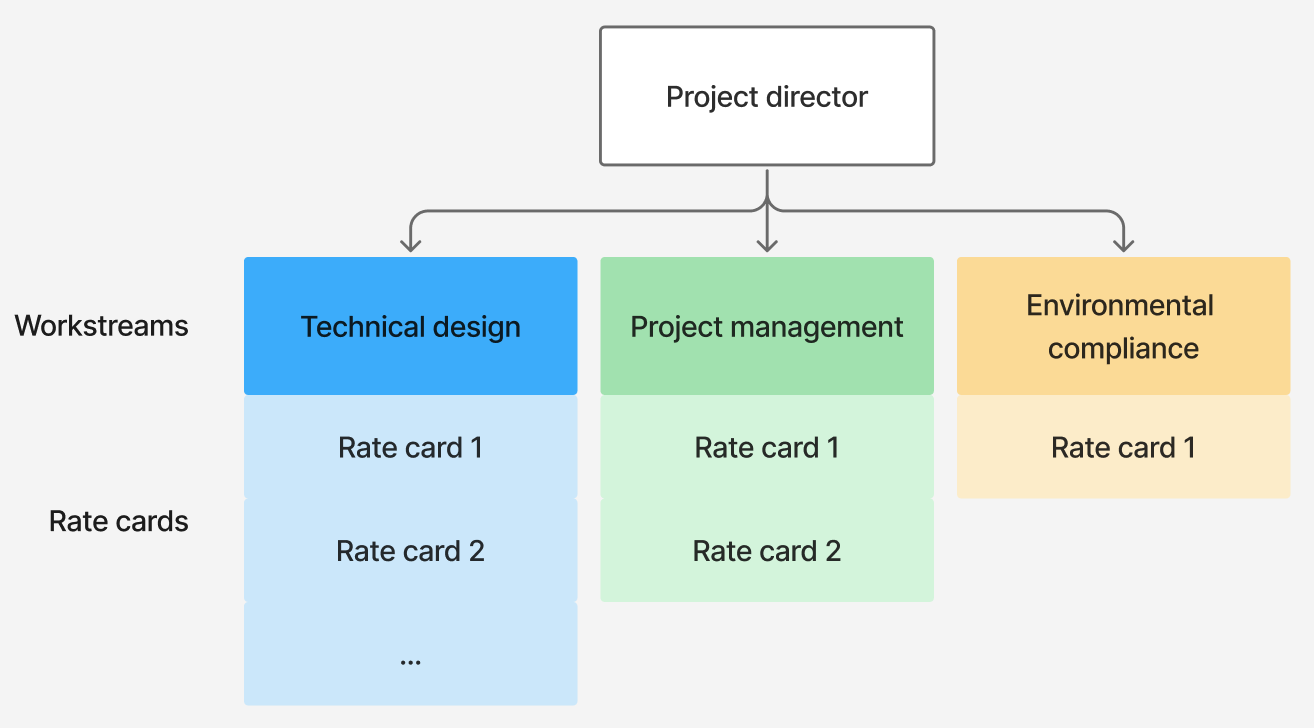
- To change the project director’s rate, click on the value below Project Director.
- To add a workstream, follow these steps:
- Click + Workstream.
- Enter a name for the workstream.
- Click Create.
- The new workstream will appear beneath the project director box in the organogram.
- To manage a workstream, use the icons:
- Pencil icon – Click to edit the workstream name.
- User+ icon – Click to add a resource to the workstream.
- Trash icon – Click to delete the workstream.
INFO
- Only users that have the
View Financialspermission on the project can view the financial fields. - On non-billable projects, rates are disabled and default to
0.
Add a resource
When you add a resource, you'll see the following fields:
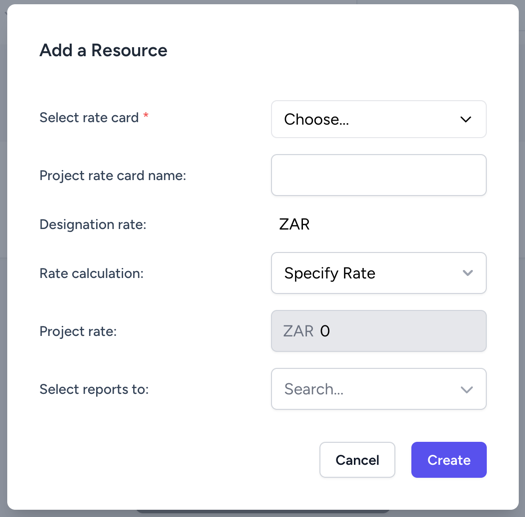
- Select rate card: The Designation (rate card) assigned to the resource. Options are filtered based on the project’s offerings.
- Project rate card name: Displays the name of the selected rate card for this project.
- Designation rate: Shows the recommended rate for the chosen designation in the project’s currency.
- Rate calculation: Indicates how the project rate is determined (only applicable on billable projects).
- Percentage discount: The discount percentage applied to the designation rate when Specify Discount is used.
- Project rate: The effective hourly rate for this resource on the project when Specify Rate is selected.
- Select reports To: The person or role that this resource reports to within the project.