Appearance
WBS 2 example: Project setup
Although the WBS project format is designed with deliverables in mind, the format can be used in various ways. This guide explains how to use the WBS 2 project setup.
Overview
For this guide, a simple project setup will be created:
Project name: Kalahari Copper Expansion Study
- Phase 1: Setup
- WBS item 1.1: Project structure
- WBS item 1.2: Deliverables setup
- Phase 2: Planning
- WBS item 2.1: Effort estimates
- WBS item 2.2: Schedule baseline
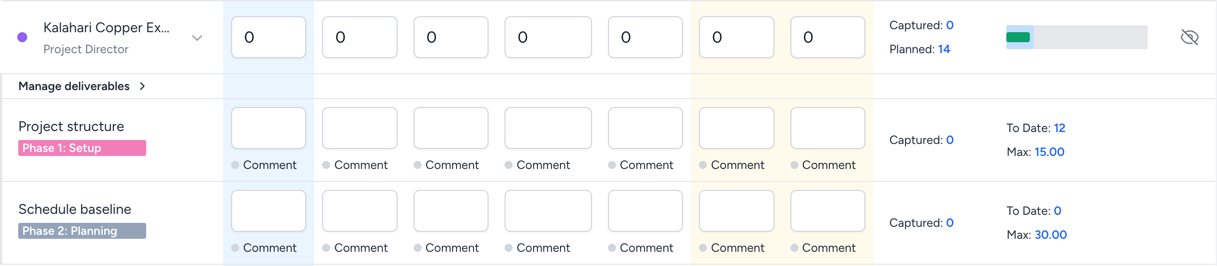
After completing the steps, an employee assigned to these deliverables will see a project similar to this in their timesheets:
Create deliverables
Having created a WBS 2 project (see Create a new project), complete these steps to add deliverables:
- Go to the schedule view.
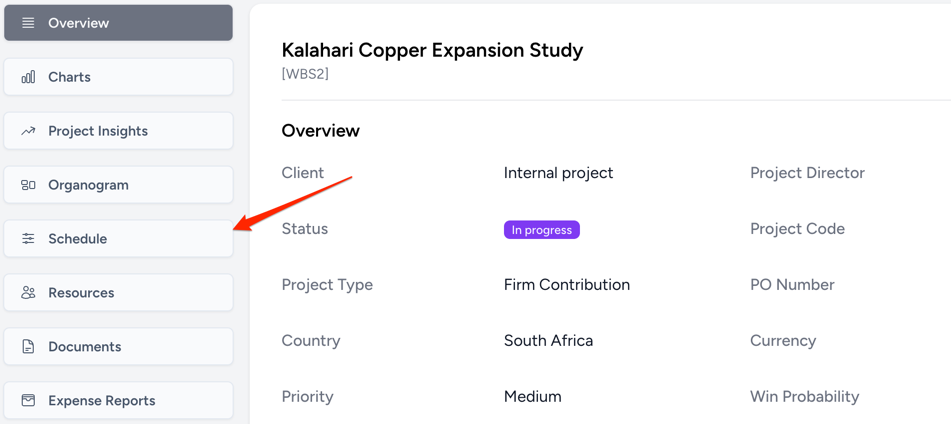
- Click the Deliverables button (top-right). This opens the following view:
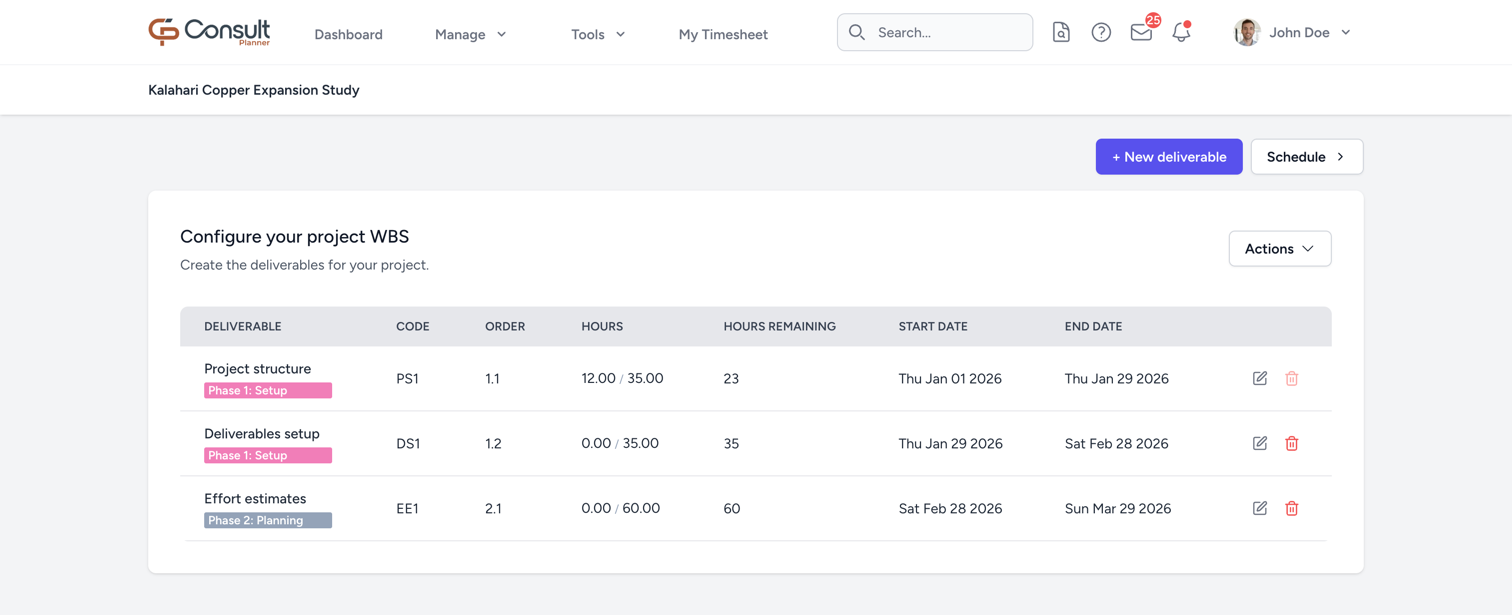
- Select + New deliverable.
- Complete the fields in the form:
- Name: The deliverable name, e.g.
Schedule baseline. - Phase: The phase to which this deliverable applies, e.g.
Phase 2: Planning. - Start Date: Expected deliverable start date.
- End Date: Expected deliverable end date.
- Code: An identifiable code for the deliverable.
- Order: A value that decides the order of the deliverable on the deliverable view. It is recommended to provide a code according to the following standard:
[phase_number].[deliverable_order], for example, 2.2for the second deliverable in phase 2.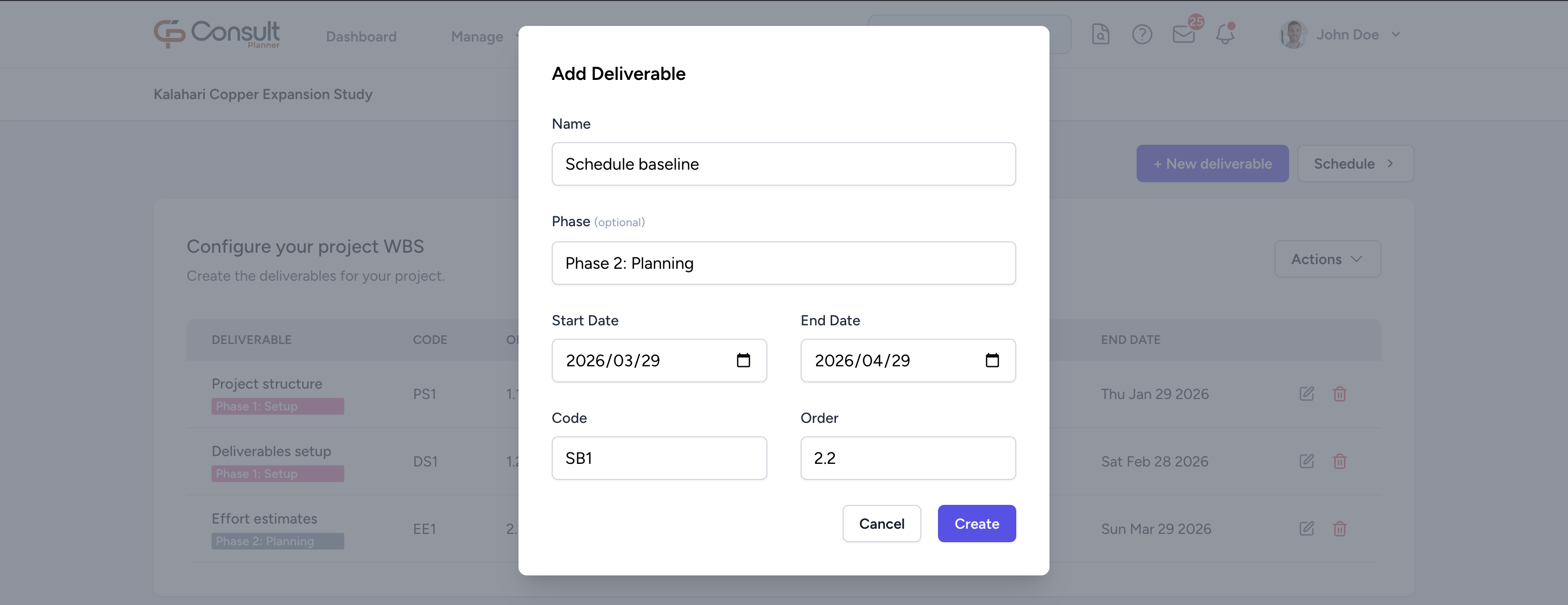
- Name: The deliverable name, e.g.
- Click Create. These values map to the timesheet in this manner:
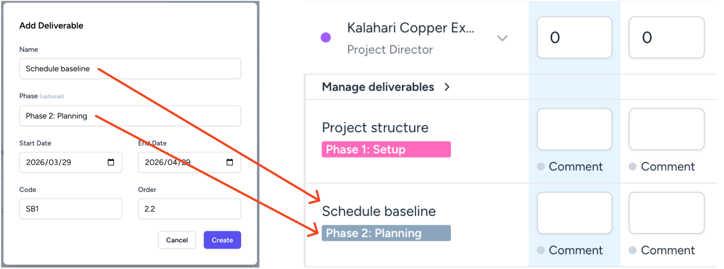
Now that the deliverable has been created, you can assign it to a resource on your project.
Assign deliverables to project resources
- From the deliverables view (or project overview), click Schedule.
- Under the resource, click Manage Deliverable.
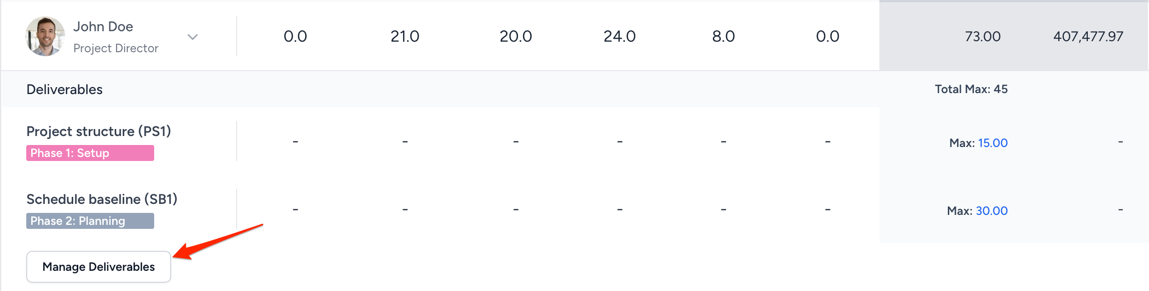
- Select the desired deliverables from the dropdown.
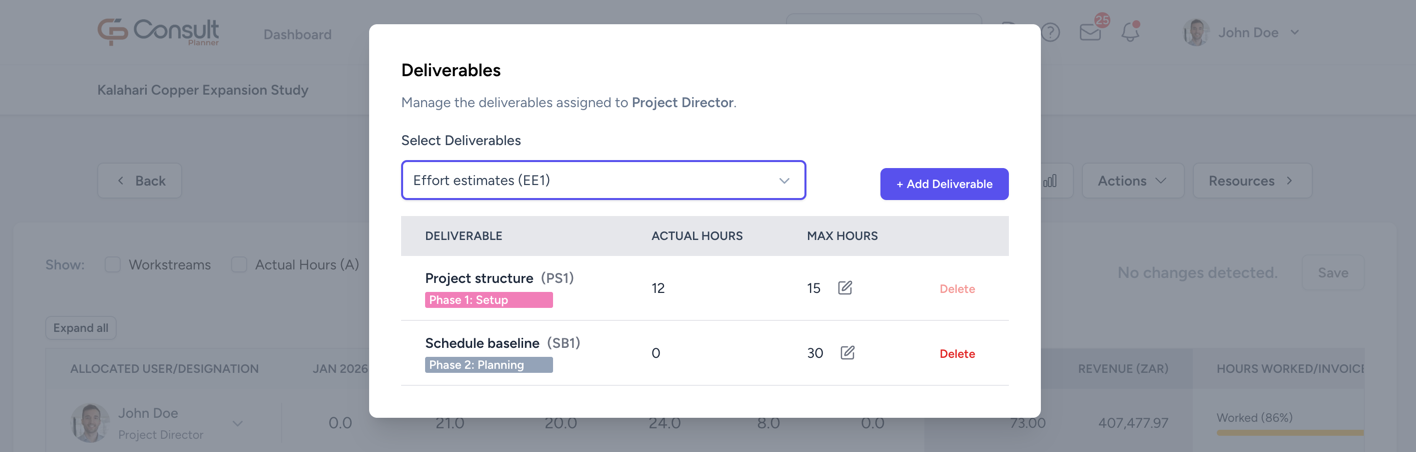
- Click Add Deliverable.
Now that the deliverables are added, you can assign the maximum hours for those deliverables for that specific resource. This will limit the number of hours that the resource can log for those deliverables.
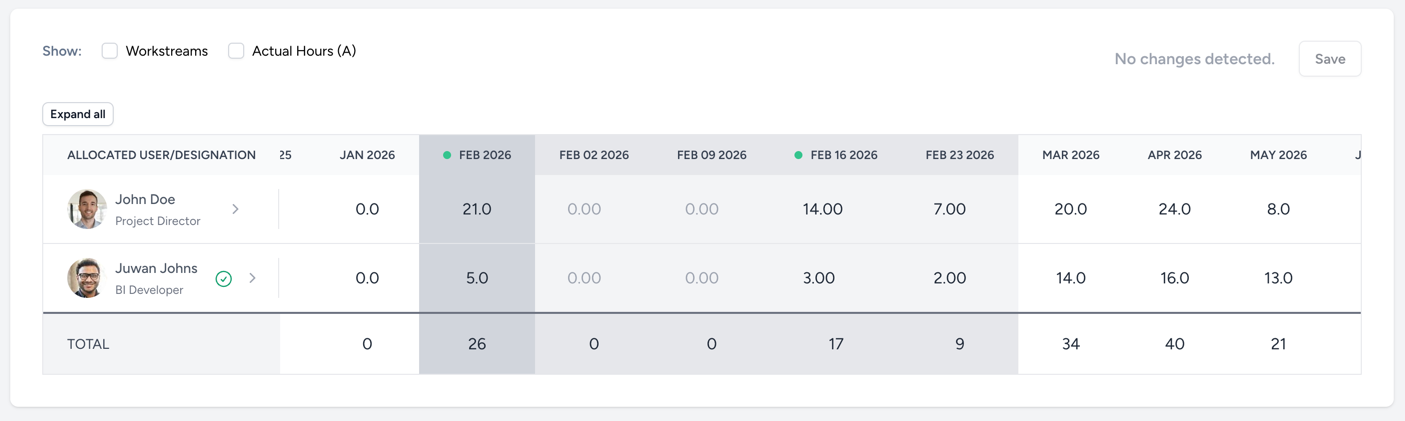
You can also schedule hours for the user using the schedule view: