
Appearance
Manage user-specific leave
This guide explains how to access an employee's leave management screen and make manual adjustments to their leave balances.
INFO
Employee leave balances are determined primarily by the global leave settings. Although manual adjustments can be made, the global settings will still determine when/if leave balances are updated as time goes on.
Access the employee leave interface
To configure leave for an employee:
In the navigation bar, select Manage > Users.
Click the employee's name in the table.
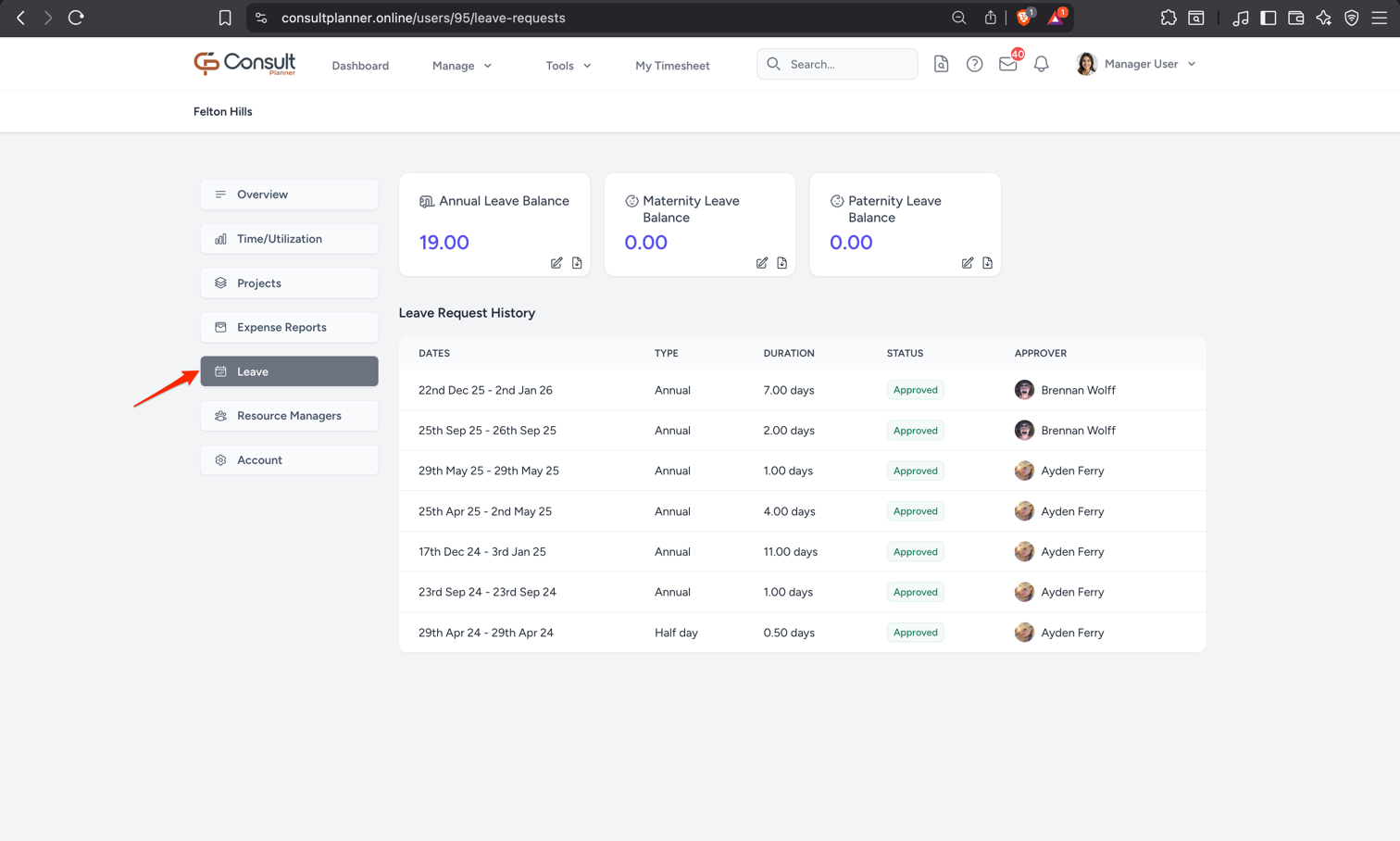
CLick on Leave in the left-side menu.
Manage employee leave balances
Leave cards are displayed at the top of the page for every leave type that has a leave balance enabled. By default, Consult will only track leave balances for annual leave. To enable leave balances for the other leave types, refer to the Configure Admin Settings page.
To adjust an employee's leave balance:
- Click the pencil icon on the relevant leave card.
- Enter the amount to increase or decrease the balance.
- Provide a reason for the adjustment.
- Click Apply adjustment to save the change.
