
Appearance
Update your profile
The Profile page allows you to view and manage your profile picture, personal information, password, and active projects.
Access your profile settings
- Click on your user profile icon (top right corner).
- Select Profile:
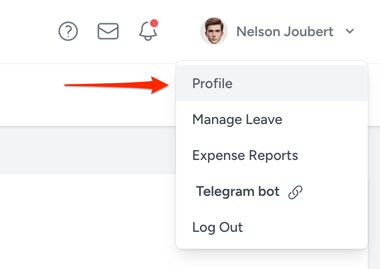
The profile page has three main tabs:
- Overview: Contains your profile photo, personal information, and active projects.
- Notifications: Manage your notification preferences.
- Password: Update your password.
You can switch between these tabs using the navigation at the top of the page: 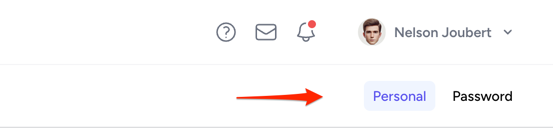
1. Profile Information
In this section, you can update your profile photo by clicking on it and selecting a new image from your computer.
2. Personal Information
Update your personal details:
Email: Used for login and notifications.
Phone Number: Required. This will only be visible to you and your Consult admins.
Birthday: Used in the events calendar on the resource dashboard.
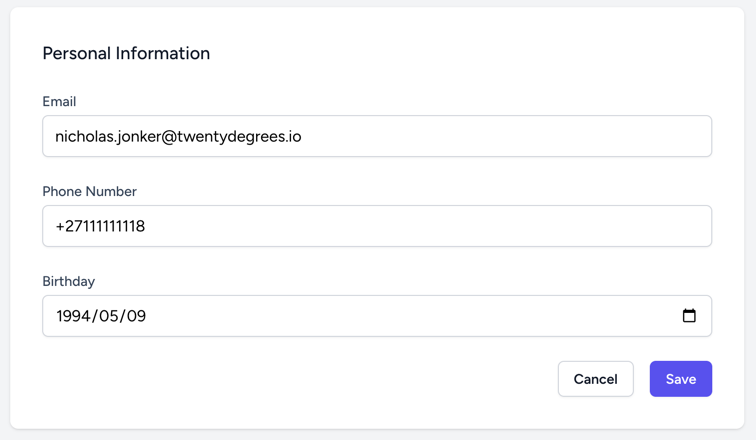
If your email is unverified, a notice will appear with a button to resend the verification link.
3. Active Projects
This section displays the projects you are currently involved in:
Project name
Project status
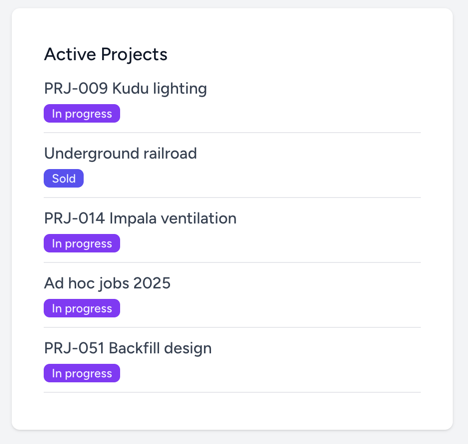
If you have no active projects, a placeholder message will be shown.
4. Password update
Update your account password:
Current Password: Required for confirmation.
New Password: Enter a strong, unique password.
Confirm Password: Re-enter the new password.
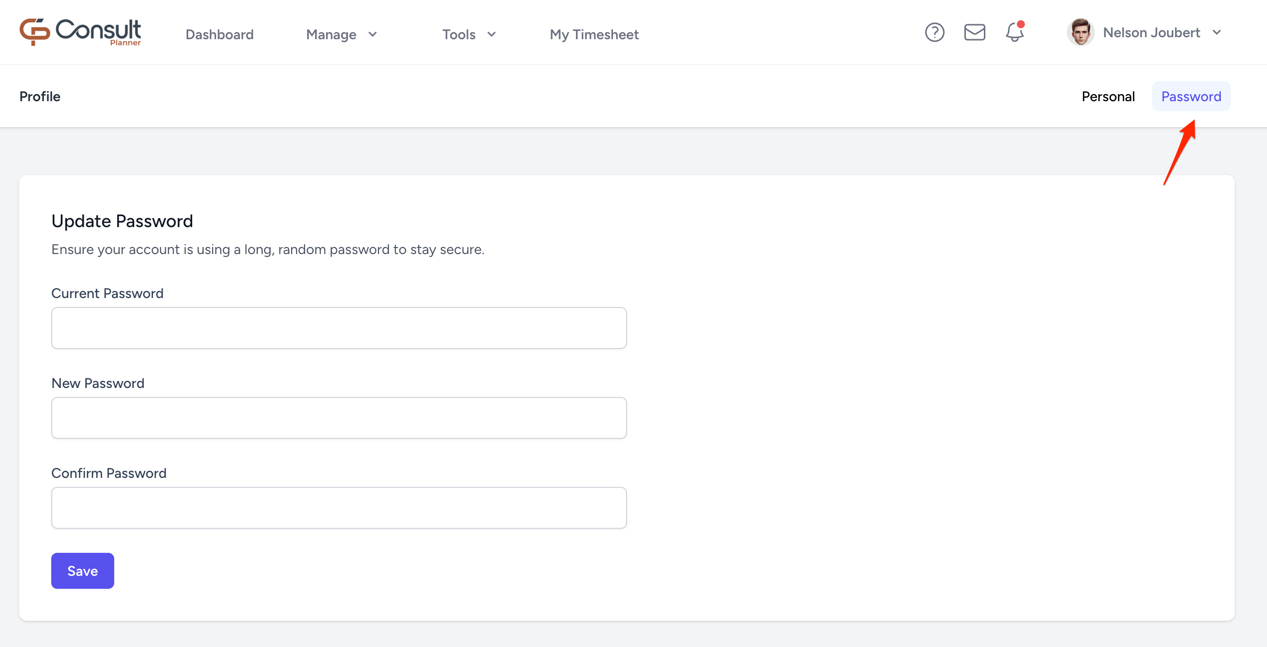
Use a combination of letters, numbers, and symbols for a strong password.
Summary
| Section | What you can do |
|---|---|
| Profile Information | Update profile photo |
| Personal Information | Update email, phone number, birthday, resend verification email |
| Password | Update your password |
| Active Projects | View your current projects and their status |
Make sure to save changes in each section to ensure your information is up to date.