
Appearance
Log and submit timesheets
This guide explains how to log time and submit weekly timesheets in Consult, and highlights additional functionality available on the timesheet page.
Timesheets are used to record hours worked on projects or deliverables throughout the week. Once the required hours have been captured, and assuming approvals have been enabled, the timesheet can be submitted for approval by a resource manager.
Standard projects
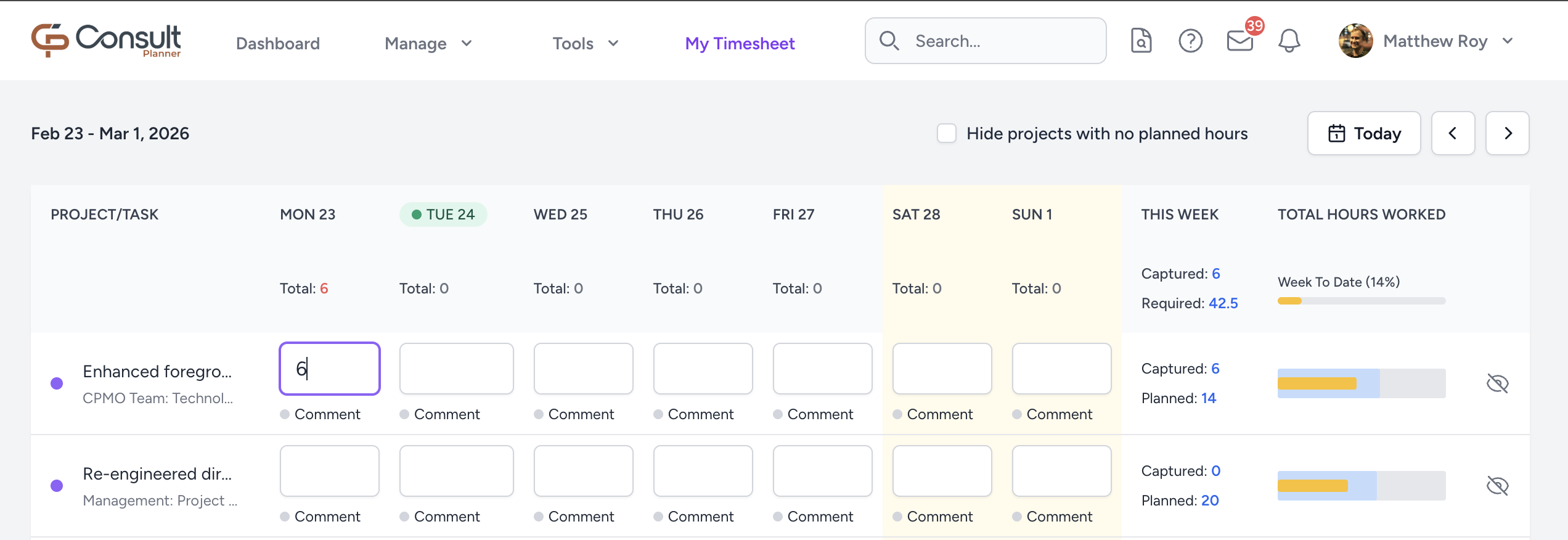
For a standard project, hours are entered directly on the project row.
WBS 1
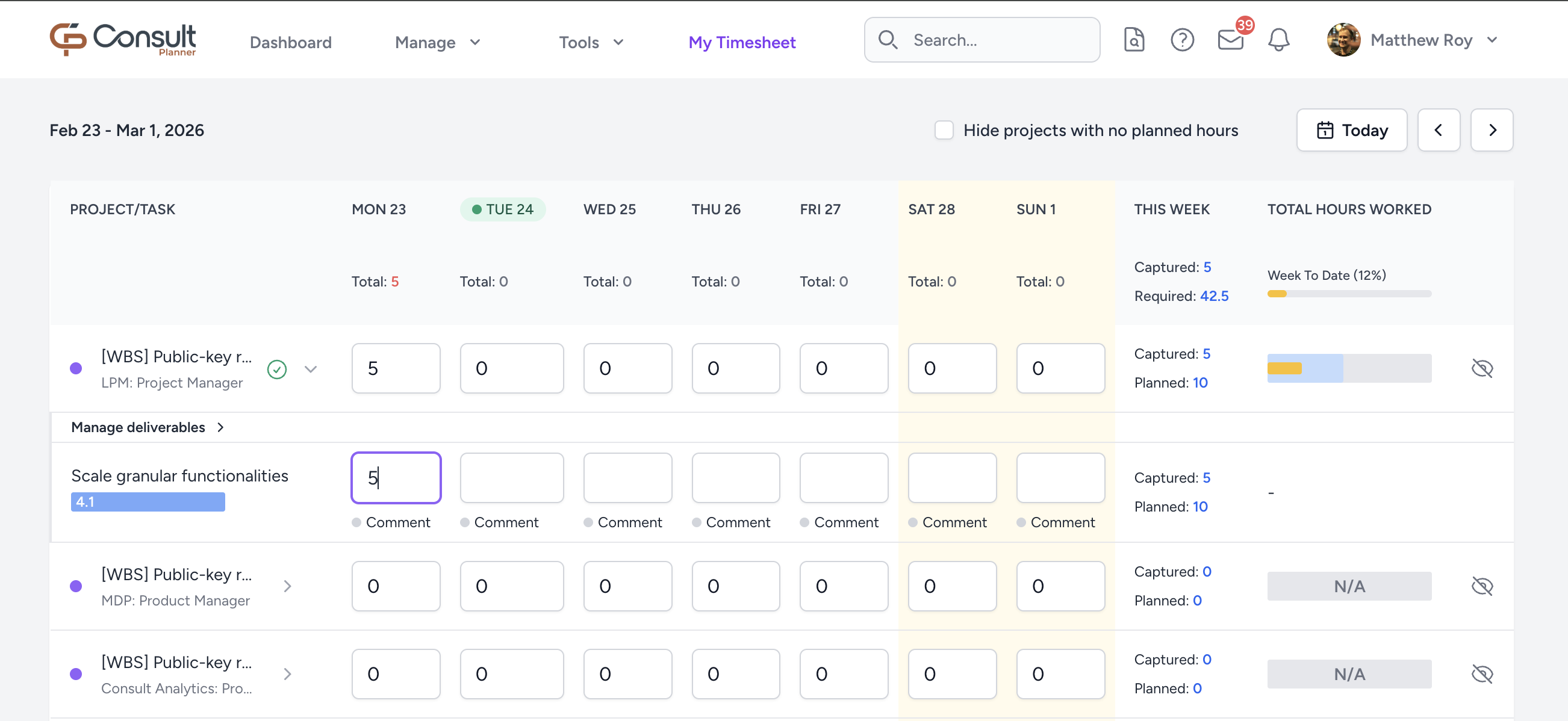
A WBS 1 project groups work into deliverables, which are shown under the project in the timesheet view.
WBS 2
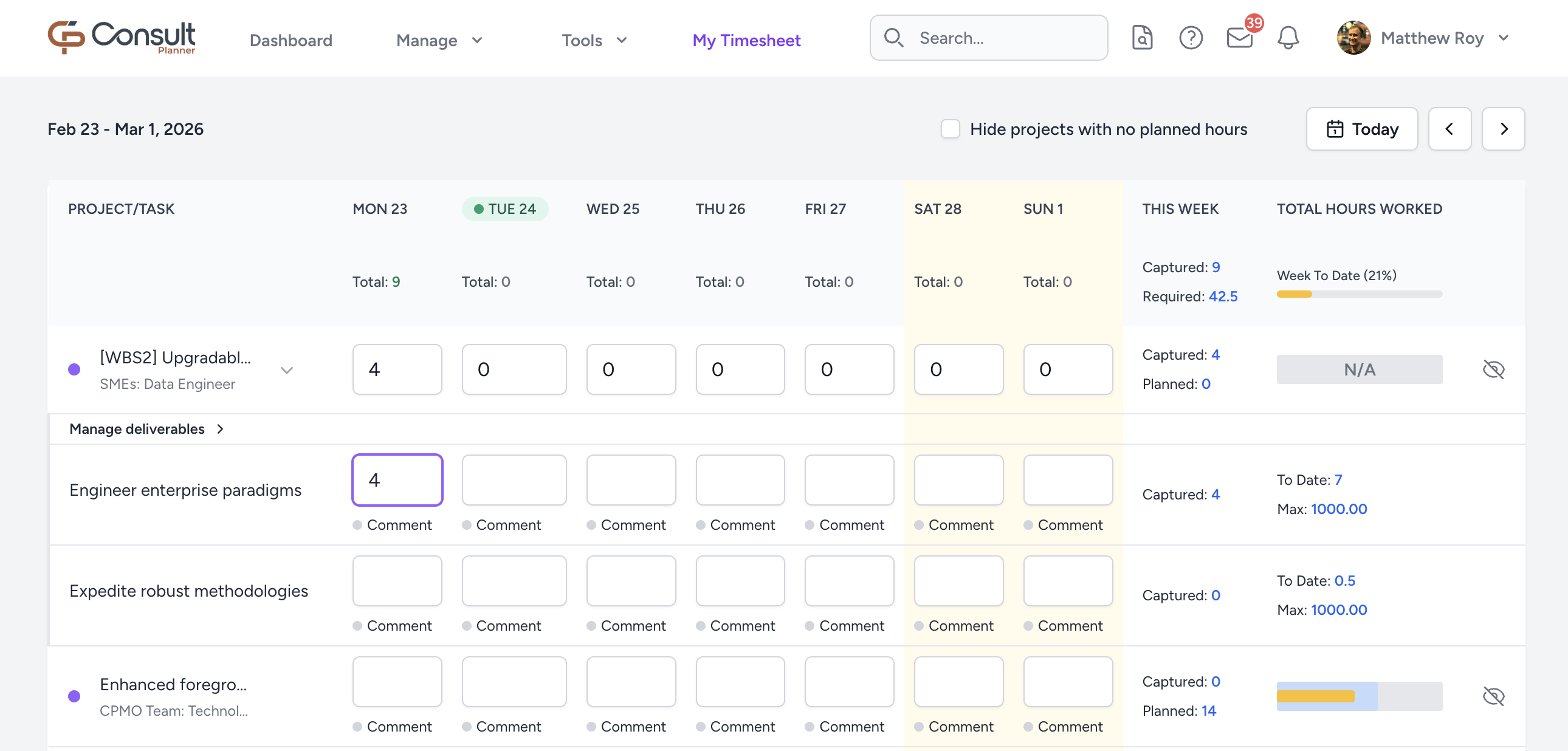
A WBS 2 project also breaks work into deliverables under the project in the timesheet view. Each deliverable has the following properties:
- Max: The designated number of hours to be worked on the deliverable.
- To date: The number of hours that have been captured already.
Timesheet features
Copy and paste
Consult supports copying a timesheet entry from one cell and pasting it into another cell. When hours are filled in, the copy icon becomes available to the bottom-right of the cell:
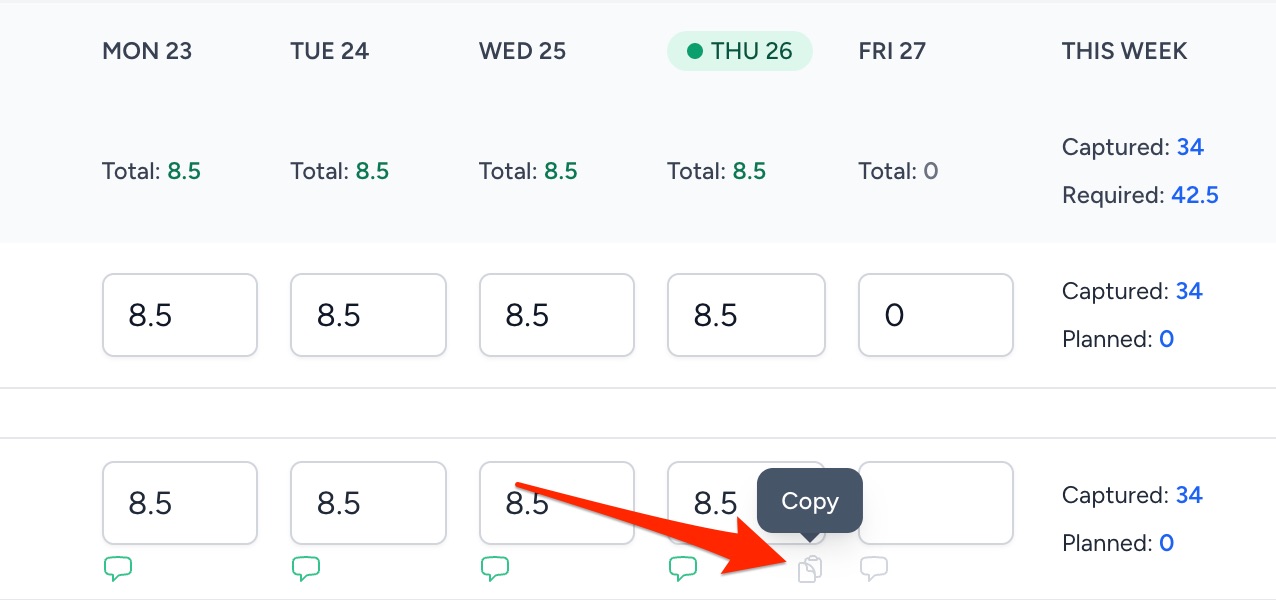
Click the copy icon to copy the cell's hours and comments. To paste it into another cell, select the target cell:
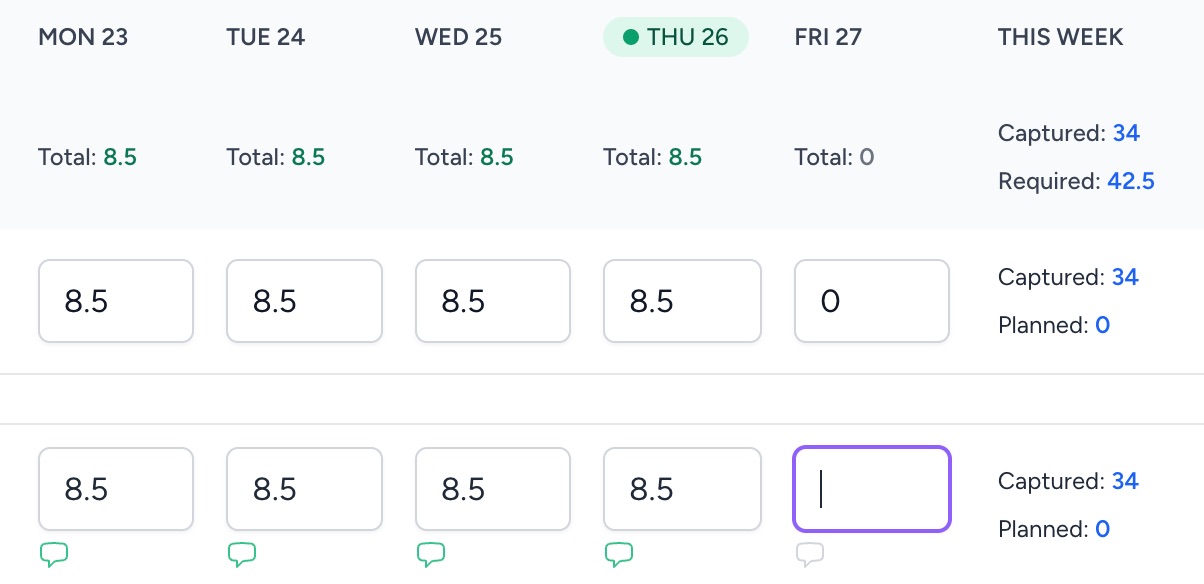
Then paste the hours and comments using the standard CTRL+V combination:
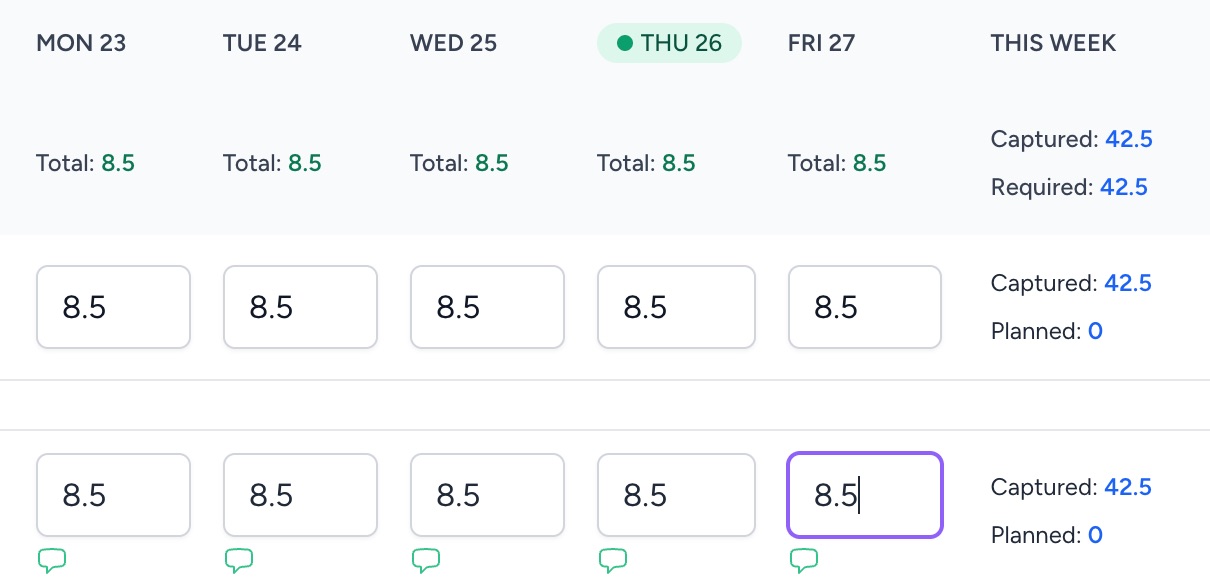
Hours progress visualizer
The progress visualizer helps to quickly show progress on the hours being logged on the timesheet:
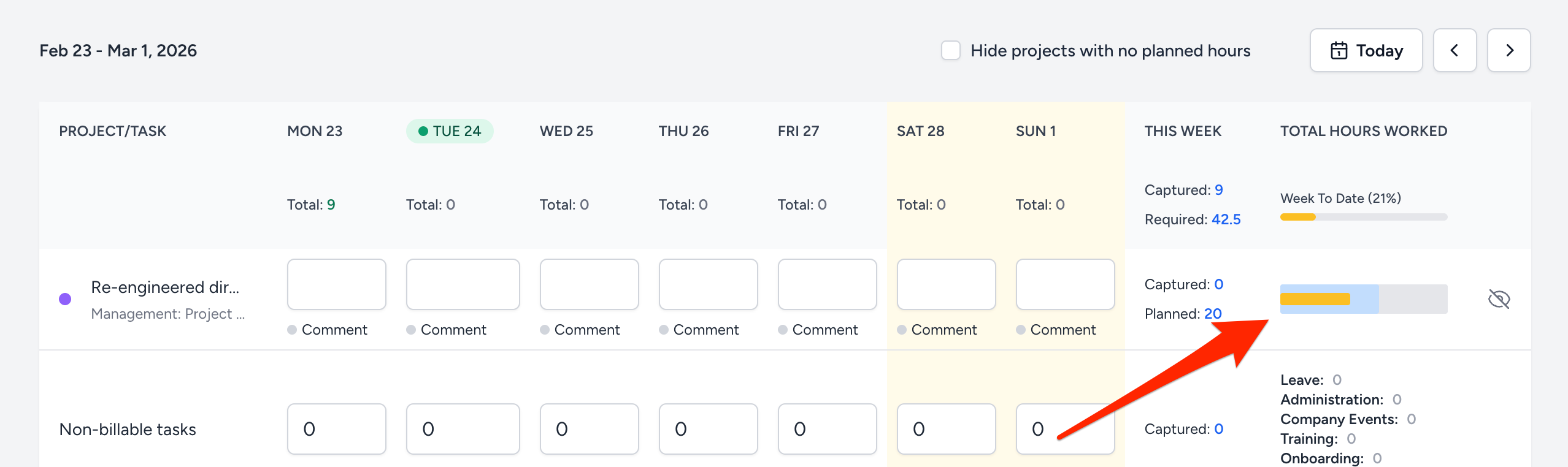
The progress visualizer shows:
- Planned hours (baseline) total (Grey): The total number of planned hours allocated to this project.
- Planned hours (baseline) to date (Blue): The number of hours allocated to this project to date.
- Actual hours (yellow, green, or red): The number of actual hours captured for this project.
- Yellow: Less hours than scheduled.
- Green: On schedule.
- Red: More hours than scheduled.
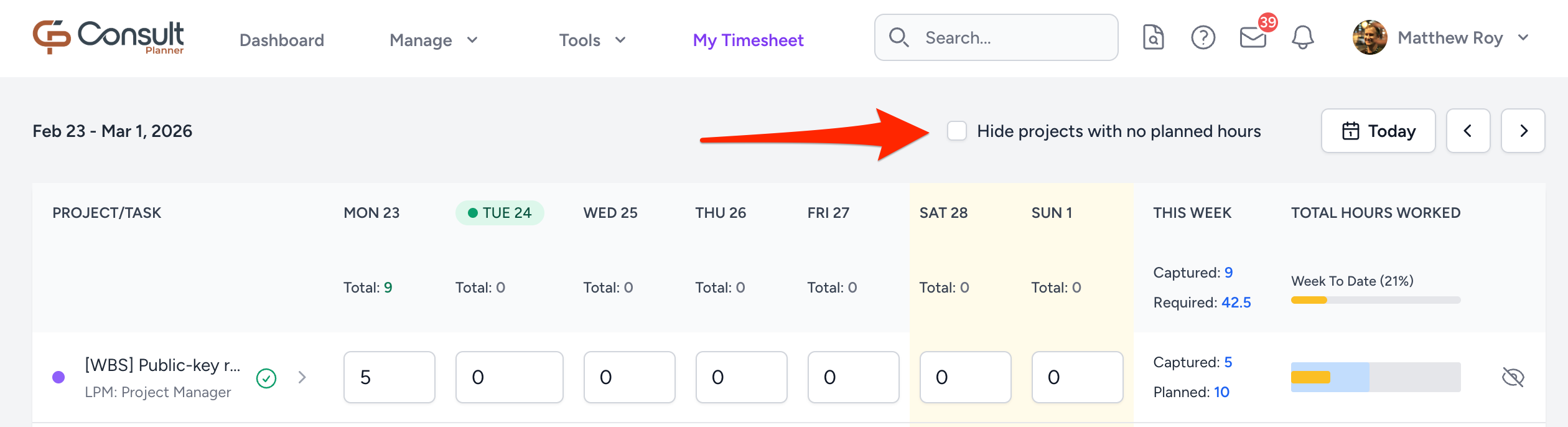
Hide projects with no planned hours
This option removes projects that do not have planned hours for the selected week:
Hidden projects
Projects can be hidden to reduce clutter in your timesheet.
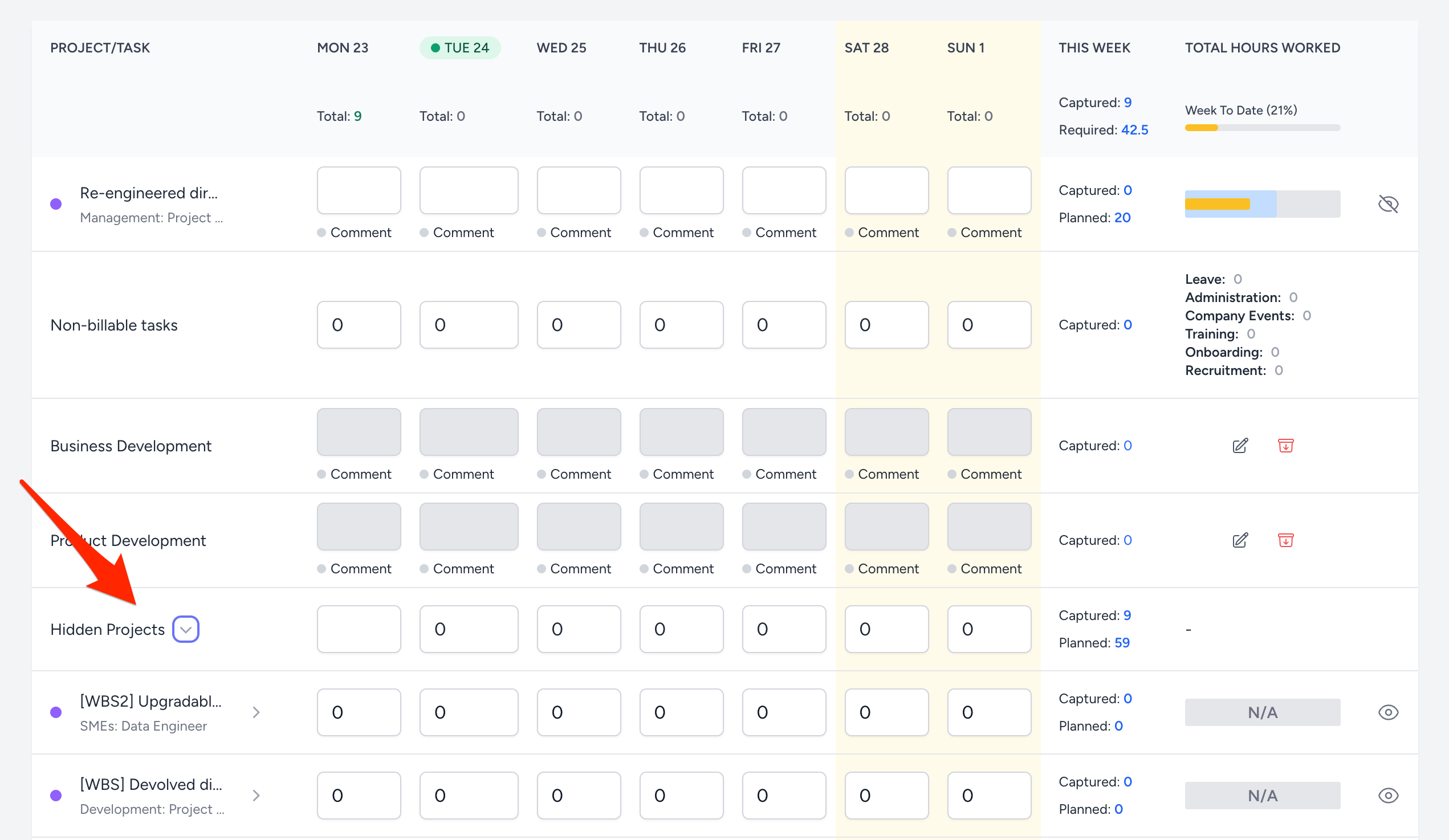
When a project is hidden:
- It moves to the Hidden Projects section.
- It can be shown again whenever needed.
- Time can still be logged on it.
This is useful for projects that you do not use regularly.
Submit button
The Submit button is used to send the completed timesheet for approval.
You will only be able to submit when:
- The required number of hours for the week has been captured.
- There are no incomplete or invalid entries.
- The submission window is still open.
If the required hours have not yet been reached, the submit option will remain unavailable.
This functionality is only available when the Timesheet Submission option is enabled in the general Admin Settings.
Export timesheets
Exporting allows you to download the current timesheet data for offline review and editing.
To export timesheets:
- Click on the Export button in the timesheet view.
- Select the projects you would like to export.
- Select the Period.
- Click Export.
Import timesheets
Importing allows you to upload updated timesheet data back into Consult.
To import timesheets:
- Click on the Import button in the timesheet view.
- Upload the updated file.
- Click Import to save the changes.
The timesheet will then update with the imported values.