Appearance
WBS 1 example: Employee training
Although the WBS project format is designed with deliverables in mind, the format can be used in various ways. This guide explains how the WBS 1 project can be used to schedule training time for your employees.
Overview
After completing the steps, the applicable employees will see a project similar to this in their timesheets:
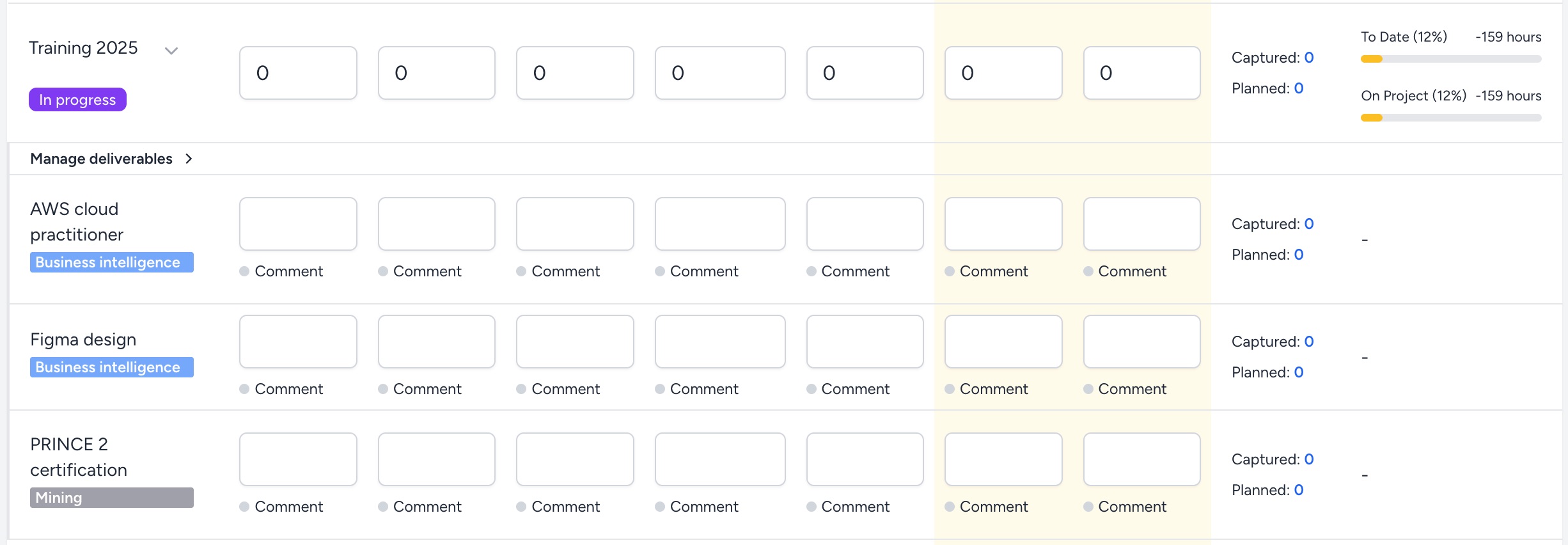
This shows them how much time is scheduled for training for each of those programs for that week.
Create a training program
Having created a WBS 1 project (see Create a new project), complete these steps to add a training program:
- Go to the schedule view.
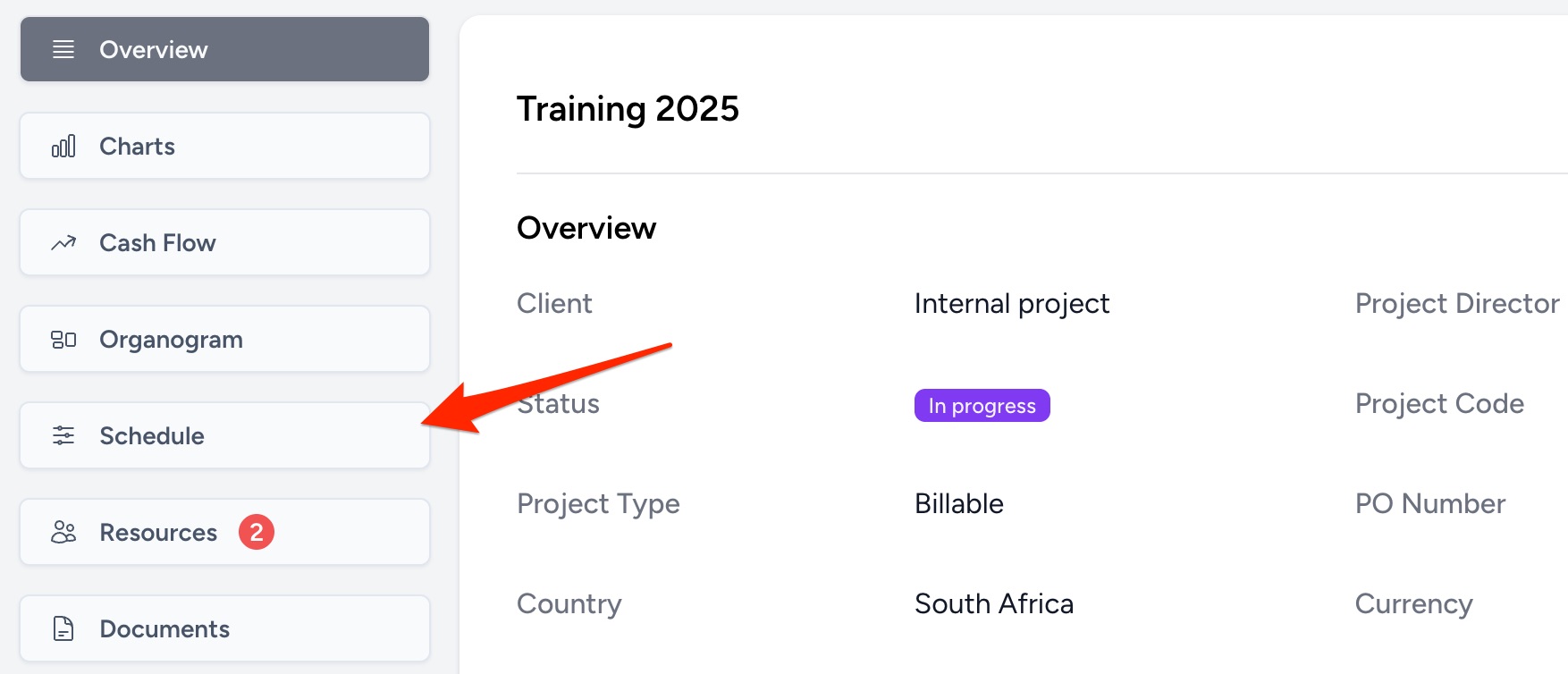
- Click the Deliverables button (top-right). This takes you to the following view:
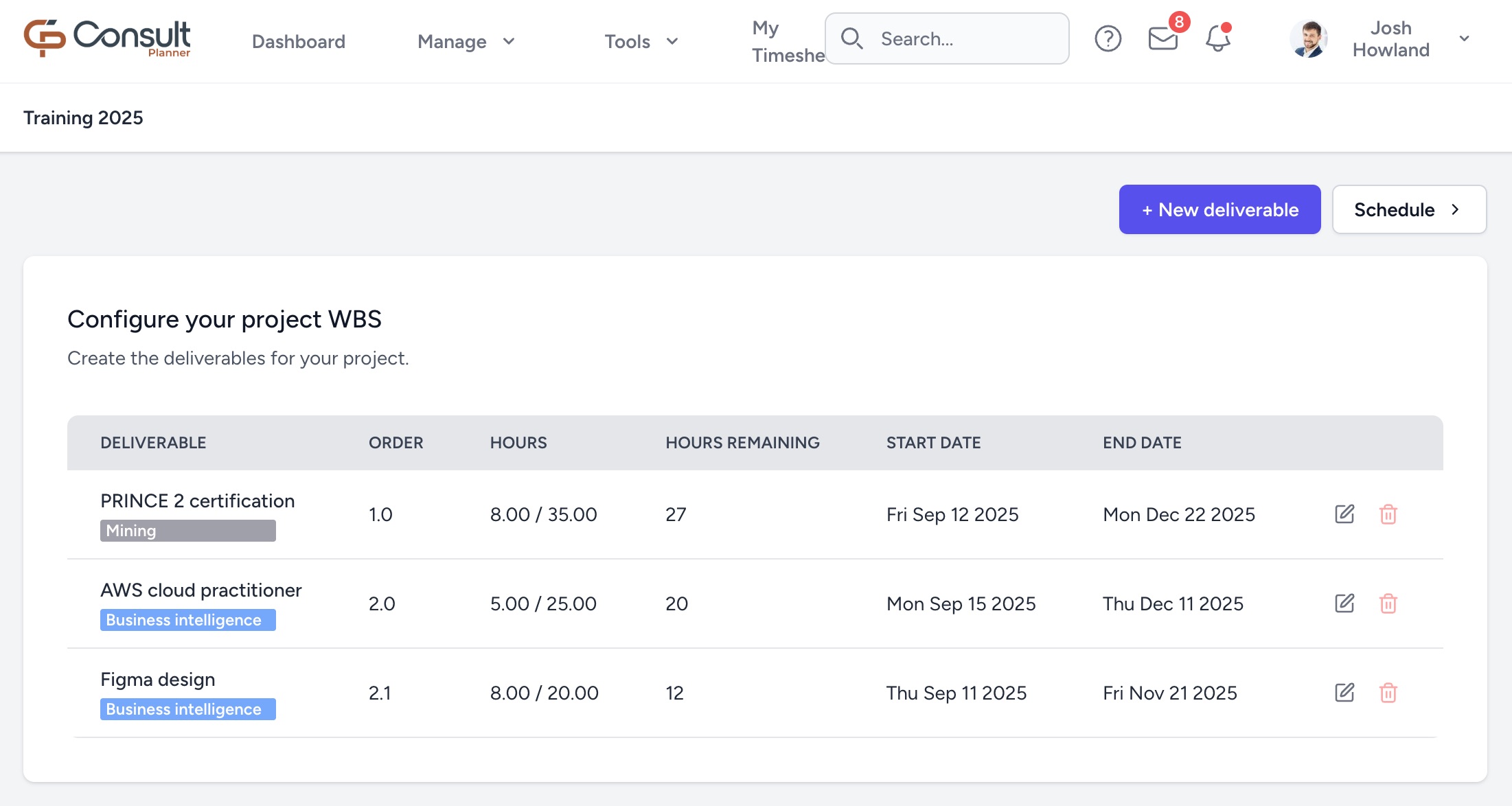
- Select + New deliverable.
- Complete the fields in the form:
- Name: The program name, e.g.
Agile Foundations. - Phase: The department to which this program applies, e.g.
Business Intelligence. - Start Date: Expected start date of the program.
- End Date: Expected end date of the program.
- Order: Provide a value, e.g.
2.2.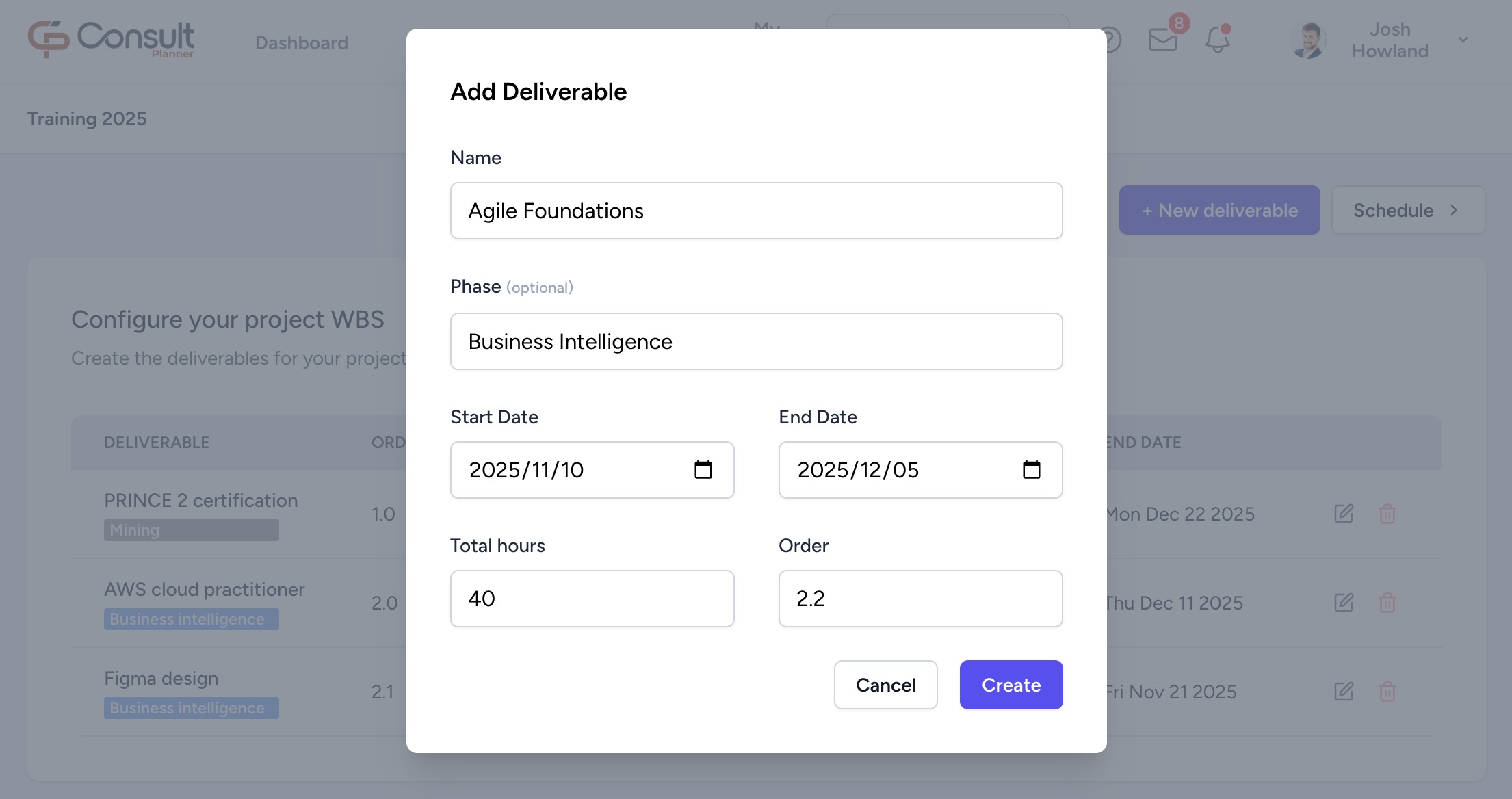
- Name: The program name, e.g.
- Click Create. These values map to the timesheet in this manner:
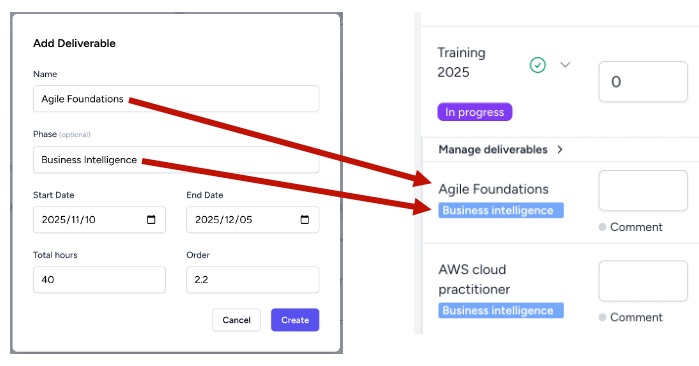
Now that the program has been created, you can assign it to a resource on your project and create the schedule.
Assign the program to an employee
- From the deliverables view (or project overview), click Schedule.
- Under the deliverable, click + Add resource.
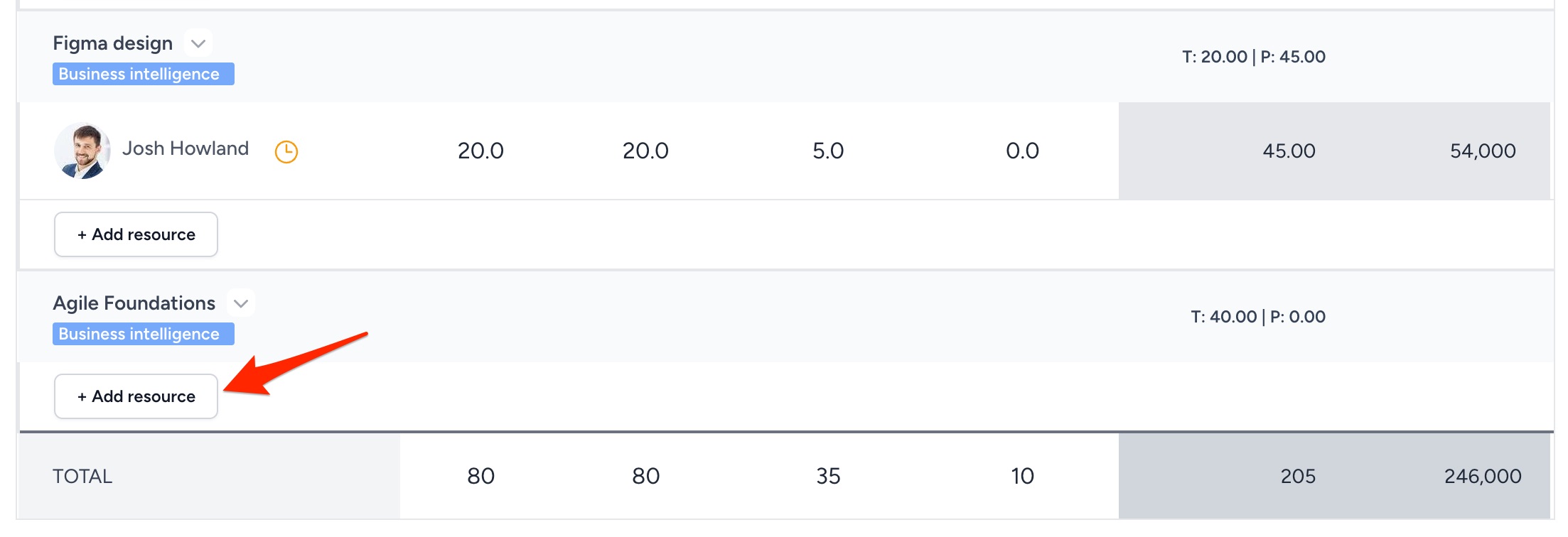
- Click Add resource in the top-right corner.
- Select the desired user from the dropdown.
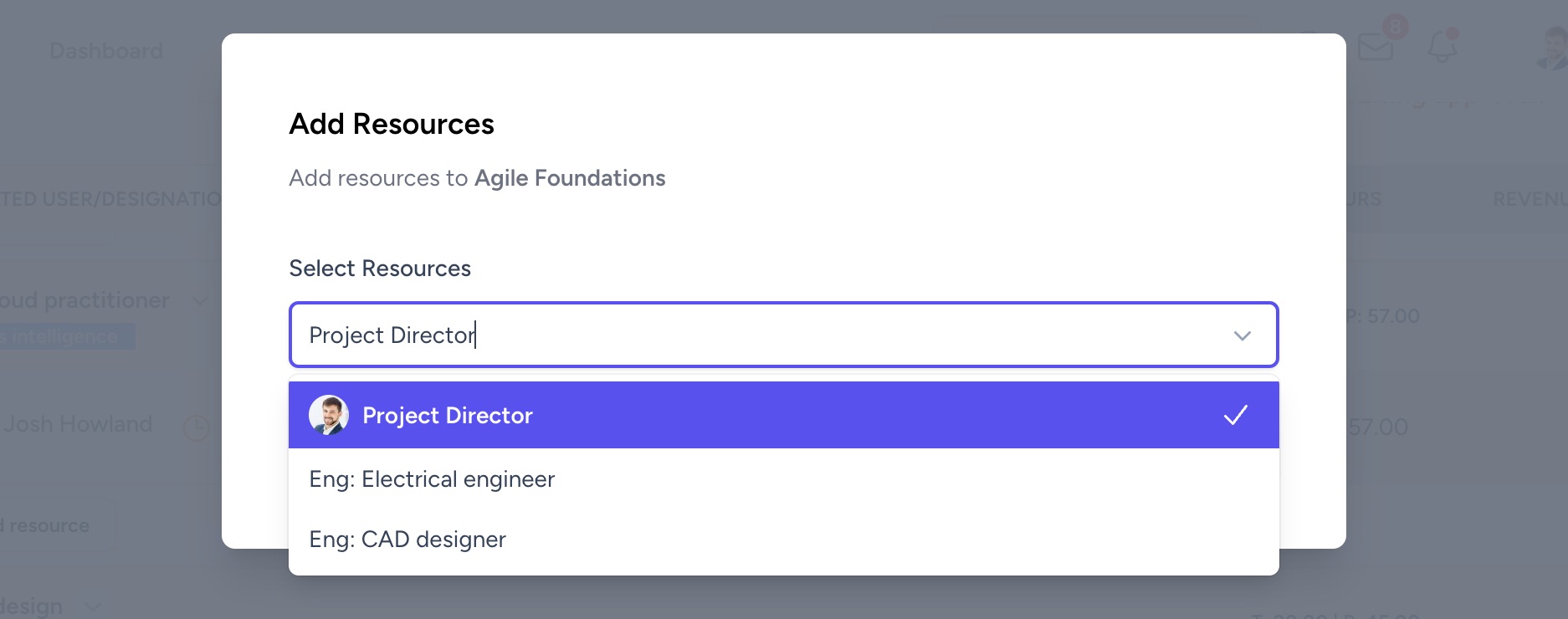
- Click Add resources.
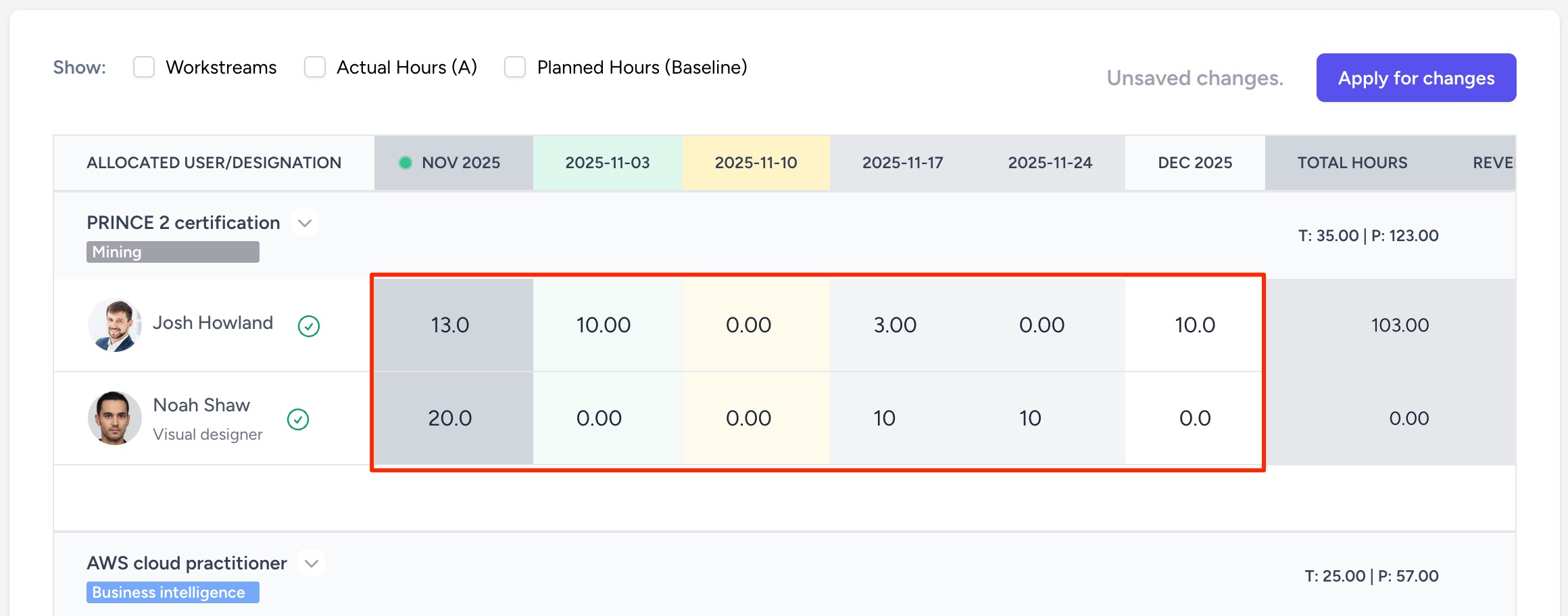
Now that the user has been allocated, you can schedule hours for the user using the schedule view: