
Appearance
Auto rollover hours
This guide explains how to enable and use auto rollover hours on a project.
Where to enable
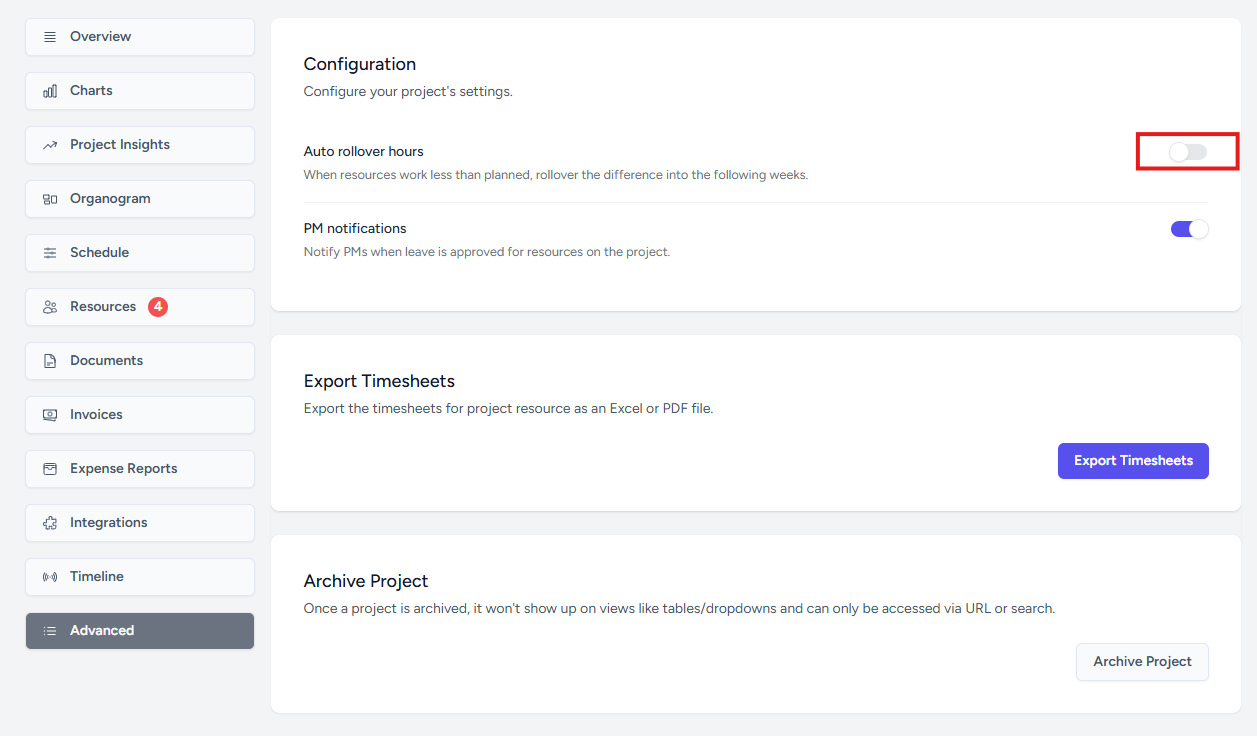
Go to the relevant project, open the Advanced section, and switch on Auto rollover hours.
How it works
- Runs automatically each week on Monday.
- Checks each assigned resource's forecast(planned) hours against their actual hours worked for the previous week.
- If there is not enough room in the upcoming weeks to absorb the extra hours, the rollover may not be completed automatically and the schedule may need to be reviewed manually.
- If a resource worked fewer hours than planned, the unworked hours are added to that resource's upcoming planned hours.
- Consult will spread the rolled-over hours across the next few scheduled weeks rather than adding everything into one week.
- Past planned hours are not changed to match actual hours, only future planned hours are adjusted.
INFO
- This is enabled per project, not globally.
- If the resource's remaining scheduled weeks do not have enough capacity to absorb all rolled-over hours, Consult will not apply a partial rollover.
- Instead, it leaves the future planned hours unchanged and notifies the project managers.