
Project cash flow and milestone billing
The project Cash Flow tab, how a project is billed by time and materials or by milestones, and how the monthly cash flow forecast is worked out.
Every project has a Cash Flow tab, between Invoices and Expense Reports, that sets how the project is billed and forecasts what it will bill each month.
The tab is shown to anyone who can view the project’s financials: the Project Director, the account lead, the financial administrator, and project managers with the View Financials ability. Changing the billing method, the milestones, or a month’s forecast also needs permission to edit the project. Without it, the tab is read-only.
Note: The Cash Flow tab is separate from Project Insights, which shows the project’s metrics and S-curve chart.
Billing method
The Billing Method card sets how the project’s invoices are built:
| Billing method | How invoices bill the project | How the cash flow forecast is built |
|---|---|---|
| Time and Materials | Invoices bill the hours worked. | Each month follows the forecast value of its hours, unless you change it. |
| Milestones | Invoices bill milestones as they are completed. Hours are not billed. | Each month is the total of the milestones due in it. |
New projects are billed by Time and Materials by default. To change the method, choose it from the dropdown and click Save:
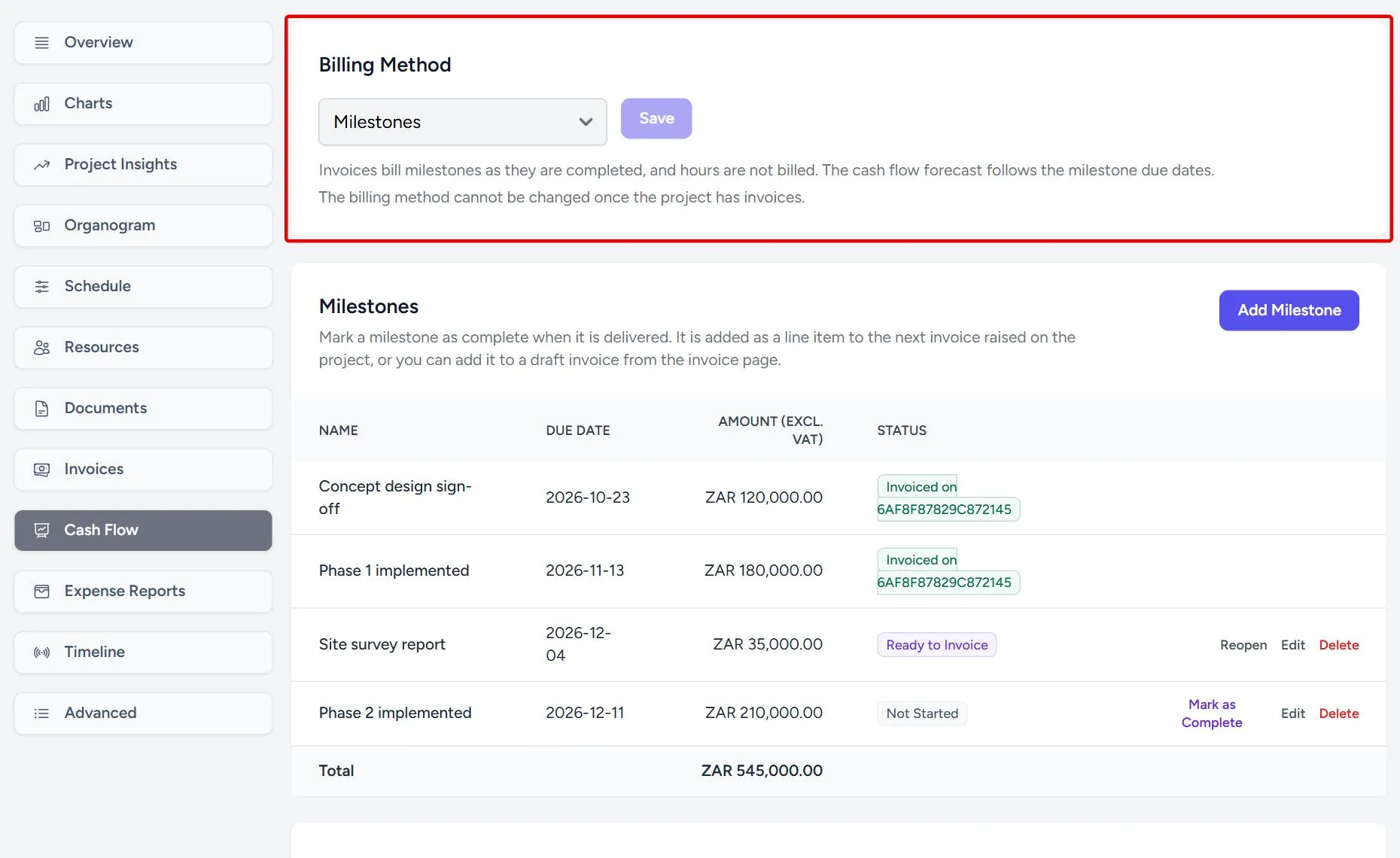
Note: The billing method cannot be changed once the project has invoices, because each invoice is prepared with the method in place when it was raised.
On a project billed by milestones, the Invoice view still lists the resources, but with no hours, and the Fill Hours button is not shown.
Milestones
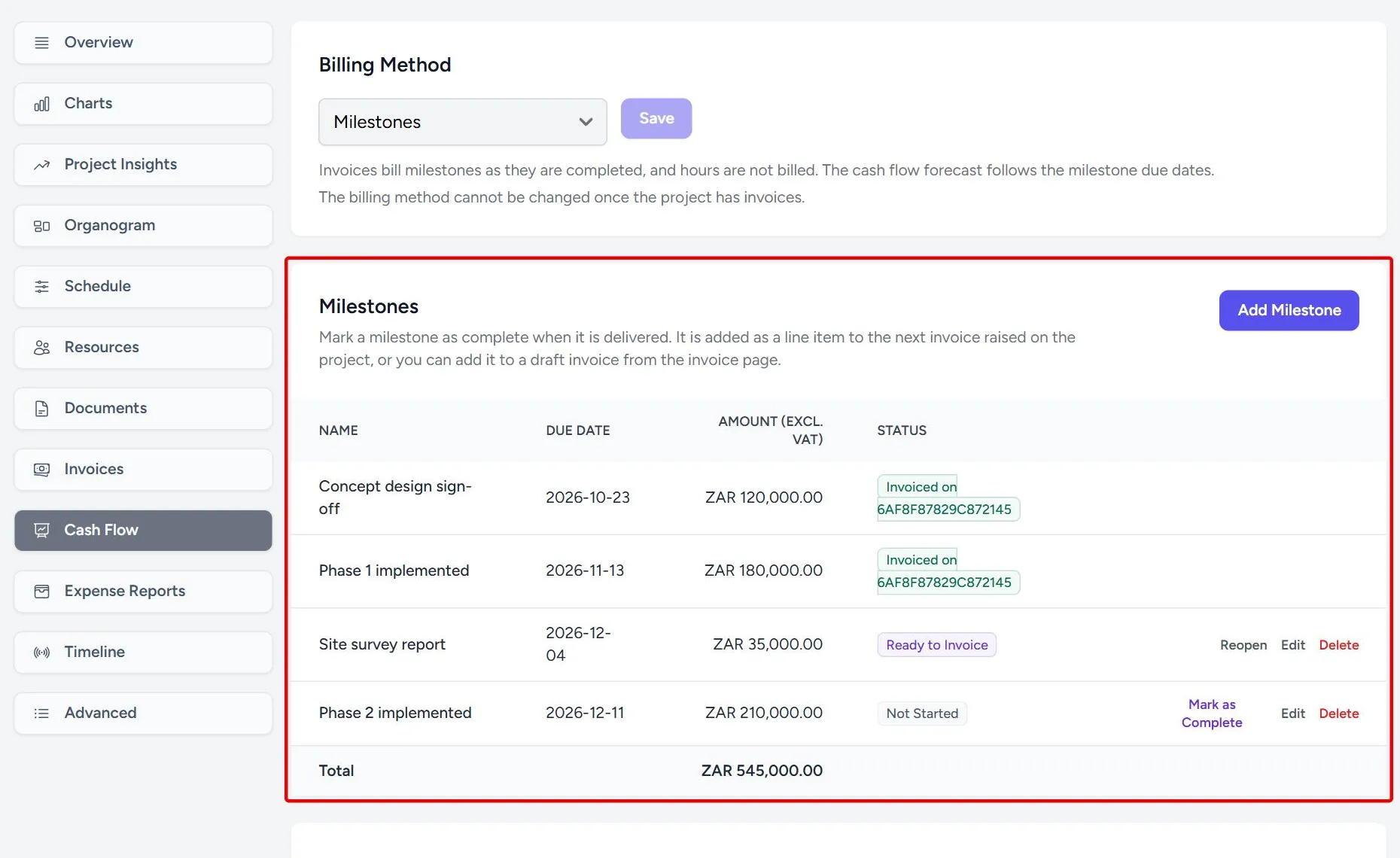
The Milestones card is shown on projects billed by milestones. It lists the project’s milestones by due date, with their Name, Due Date, Amount (Excl. VAT), and Status, and a Total at the bottom:
Add a milestone
To add a milestone:
-
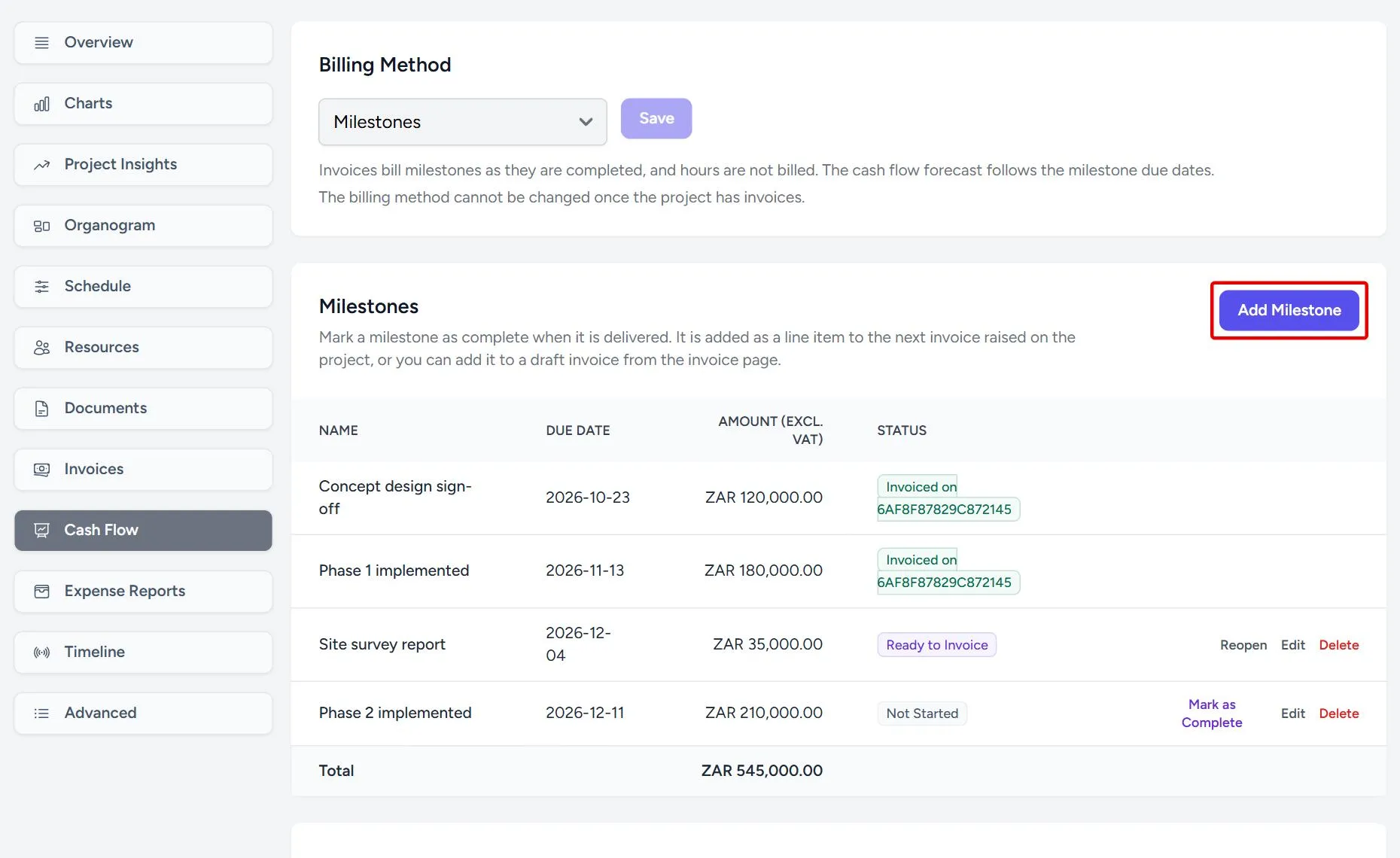
Click Add Milestone:
-
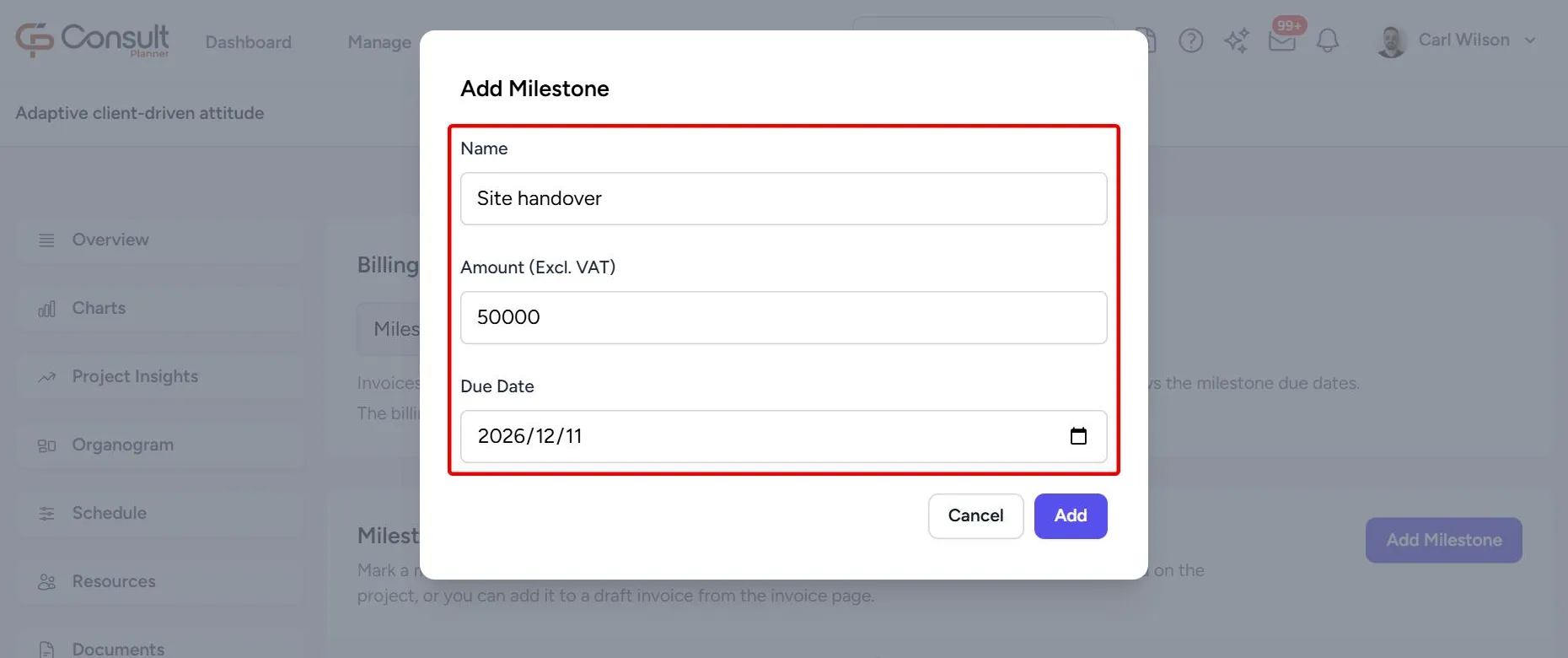
Enter the milestone’s Name, its Amount (Excl. VAT), and its Due Date:
-
Click Add.
Use Edit to change a milestone and Delete to remove it. Neither is available once the milestone has been invoiced.
Milestone statuses
| Status | Meaning |
|---|---|
| Not Started | The milestone has not been marked as complete. |
| Ready to Invoice | The milestone is complete and waiting to be billed. |
| Invoiced on (invoice) | The milestone is on the named invoice. Click the status to open the invoice. |
Click Mark as Complete once the milestone has been delivered. To undo this before it is invoiced, click Reopen.
Milestones on invoices
Completed milestones are billed in two ways:
-
Automatically: When an invoice is created on the project, every completed milestone that has not been invoiced yet, and was completed on or before the invoice’s end date, is added to it. This only happens when the invoice is created, so a milestone completed later is not added to that invoice by itself.
-
From the invoice page: The Un-Invoiced Milestones panel lists every completed milestone not yet on an invoice. Click Add next to a milestone, or Add All, to add them to the invoice. The panel is shown on invoices that have not been sent or exported to an accounting system:
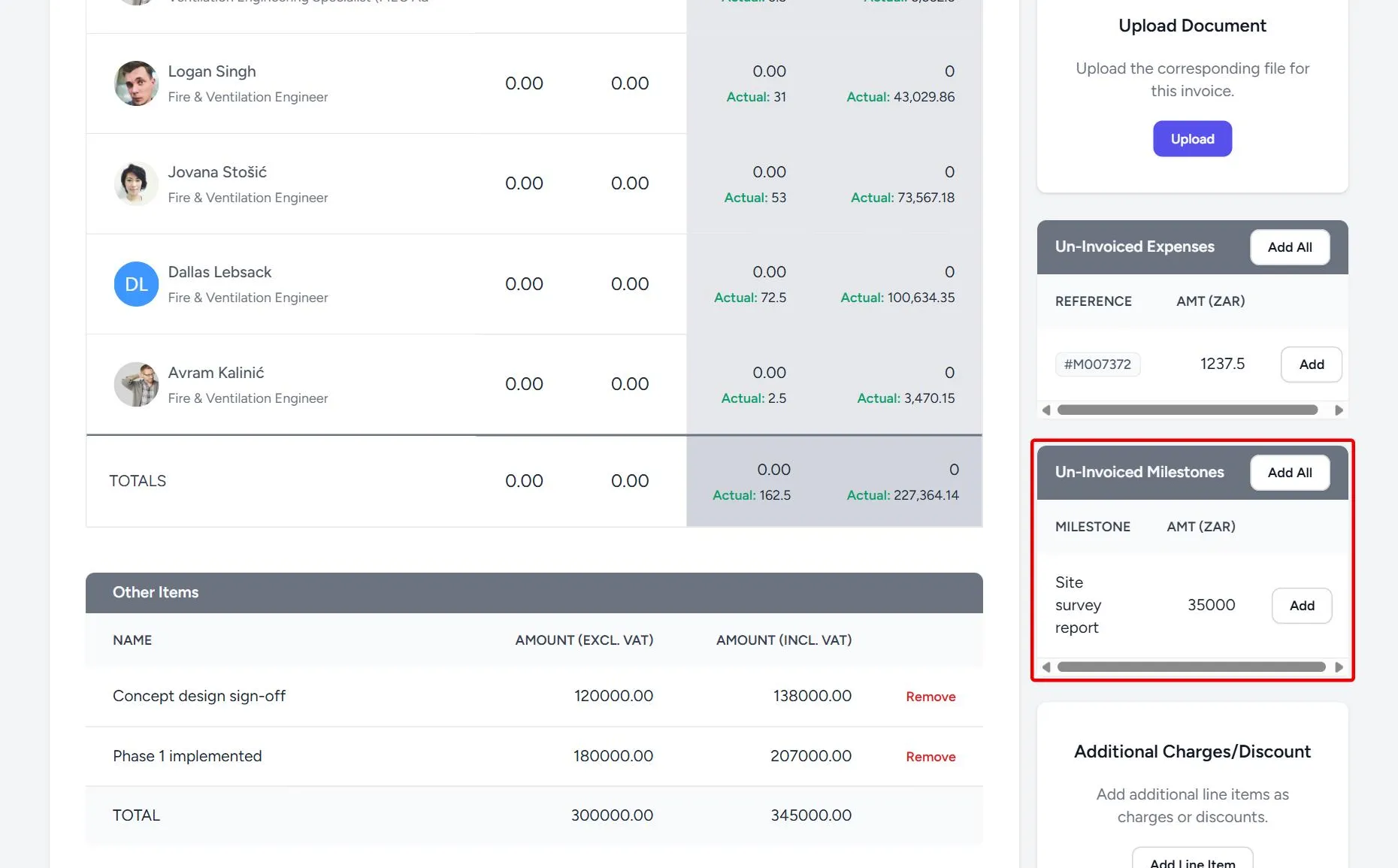
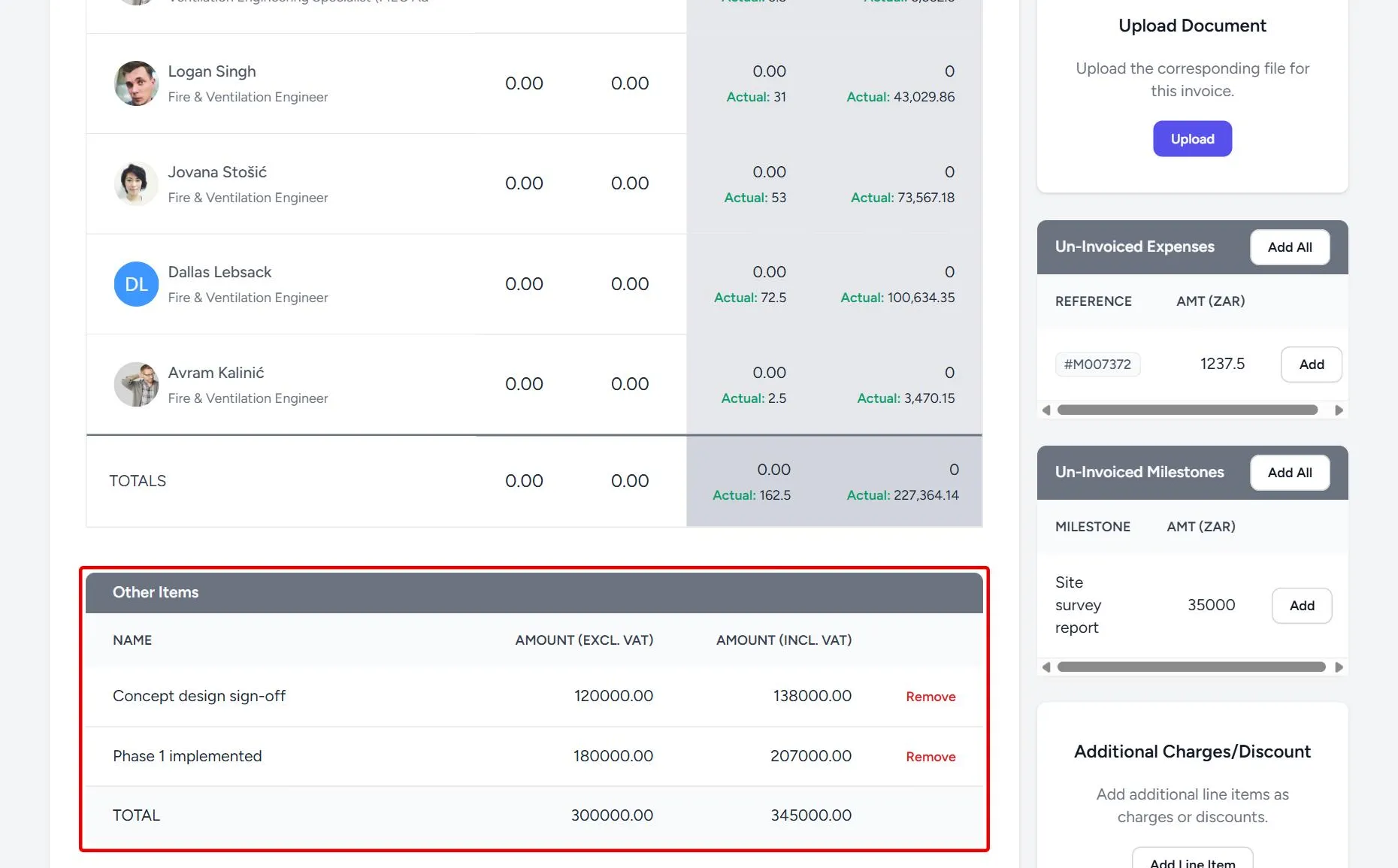
Each milestone is added to the invoice as a line item named after the milestone, under Other Items, and the invoice’s VAT rate is applied to it:
Exported to Xero, each milestone is a line with a quantity of 1 and the milestone’s amount.
Removing the line item from the invoice, or deleting the invoice, returns the milestone to Ready to Invoice, so it can be billed again.
Cash flow forecast
The Cash Flow Forecast card compares what the project is expected to earn with what it is expected to bill, month by month.
Above the table, it totals the whole project:
- Forecast Value: The value of the project’s forecast hours.
- Cash Flow Forecast: The amount the project is expected to bill.
- Invoiced: The amount invoiced so far, excluding VAT.
- Difference to Forecast: The cash flow forecast less the forecast value, shown only when they differ.
The table has a column for each month of the project, from its start month to its end month, plus a Total. It also takes in any earlier or later month with forecast hours, an invoice, a milestone, or an amount of your own. Past months are greyed out.
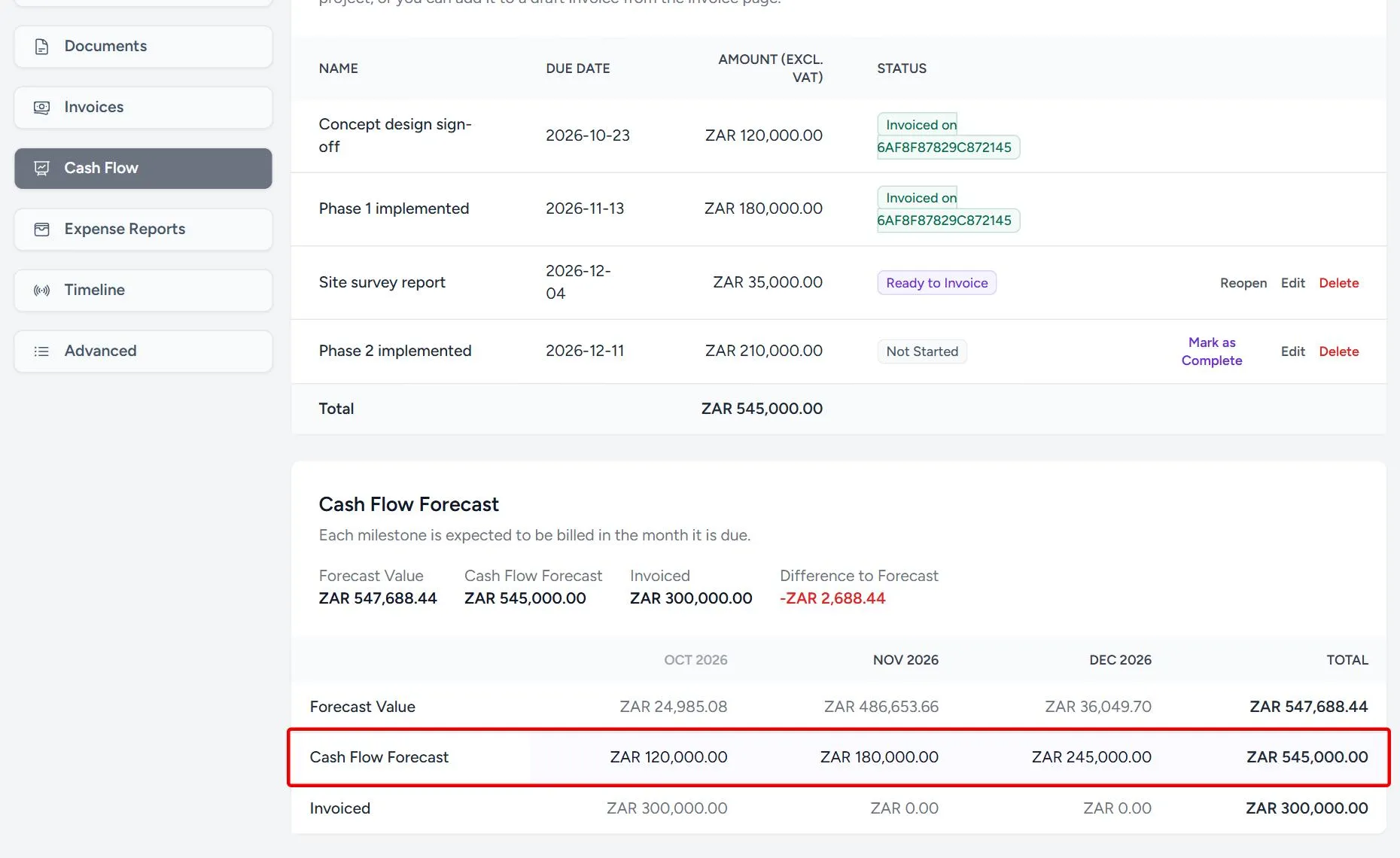
| Row | What each month shows |
|---|---|
| Forecast Value | The month’s forecast hours multiplied by the resources’ rates. |
| Cash Flow Forecast | On a time and materials project, the forecast value or your own amount. On a milestone project, the milestones due that month, whatever their status. |
| Invoiced | The invoices starting that month, excluding VAT. |
See baseline and forecast hours for how forecast hours are planned.
Set a month’s amount by hand
On a time and materials project, the cash flow forecast for a current or future month can be set by hand, for example when the client is billed on a different schedule from when the work is done.
To set a month’s amount:
- Click the month’s amount in the Cash Flow Forecast row.
- Type the amount, then press Enter or click away to save it. Press Esc to cancel.
The month is shown in bold with a pin icon. The months you have not changed are adjusted so that the project’s total cash flow forecast still matches its total forecast value, in proportion to each month’s forecast:
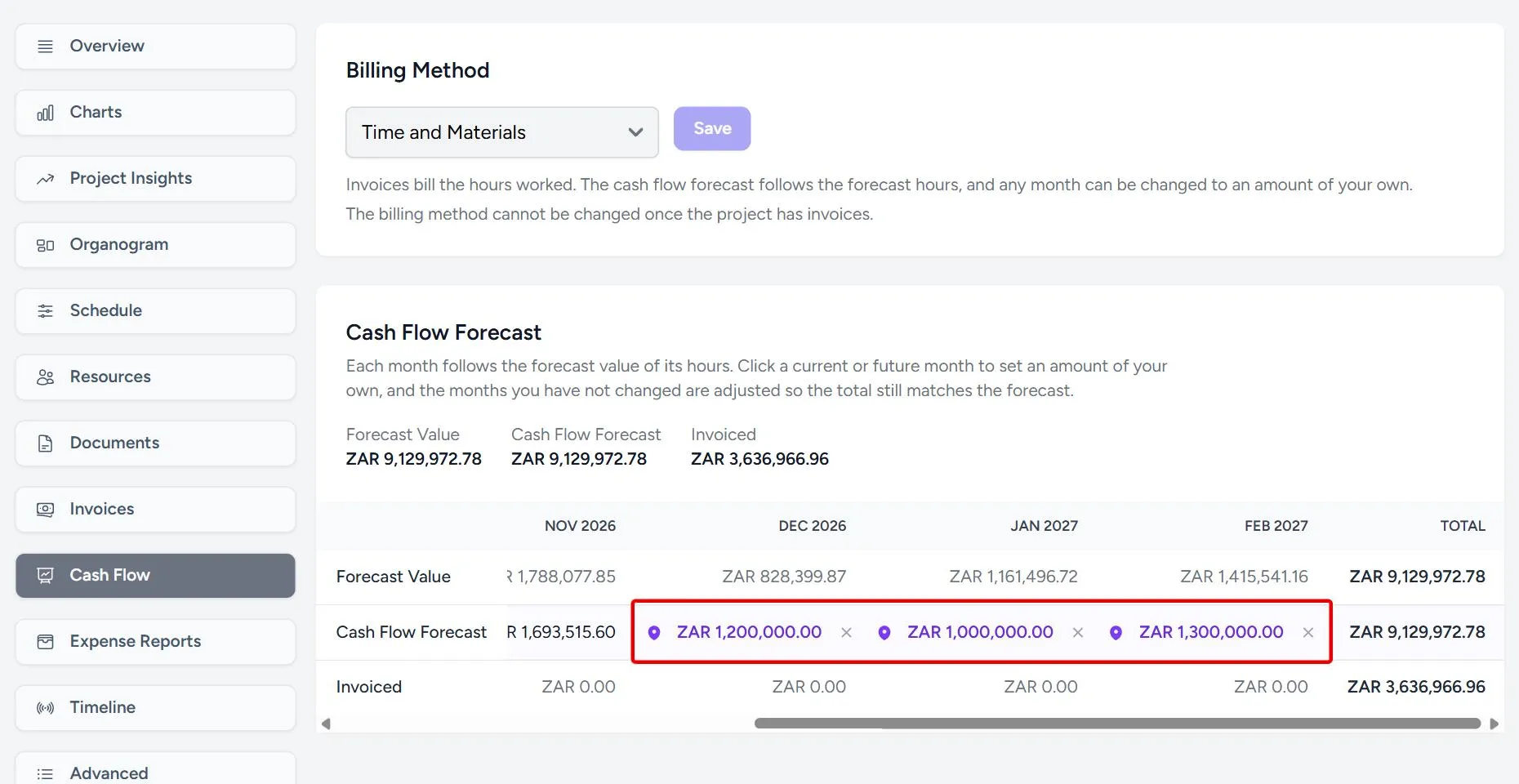
To go back to the forecast, click the x next to the amount.
Past months cannot be changed, and the amounts of milestone projects always come from their milestones.
On the invoice page
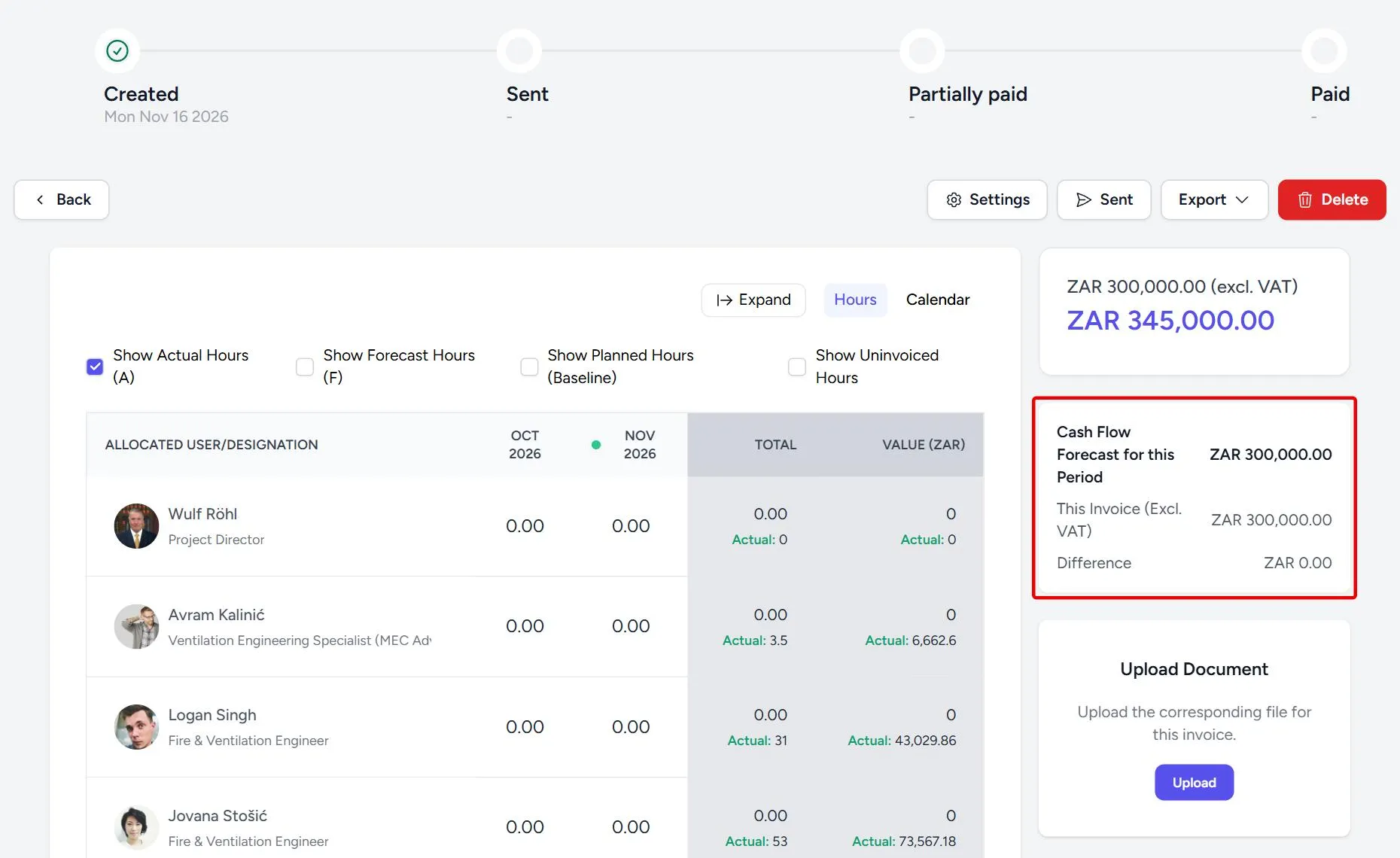
Each invoice also shows a Cash Flow Forecast for this Period box with the amount forecast for the invoice’s dates, This Invoice (Excl. VAT), and the Difference between them. On a milestone project, the amount forecast is the total of the milestones due within the invoice’s dates. Click the box’s heading to open the project’s Cash Flow tab:
See invoice life cycle for how an invoice moves from created to paid.