
No VAT on expenses and invoices
The two places VAT can be left off in Consult, on a single expense and on every invoice for a client, and how each changes the totals.
VAT can be left off in two places in Consult:
- On a single expense, by setting its VAT treatment to No VAT.
- On every invoice for a client, by ticking Not VAT-liable on the client.
The two are independent of each other. An expense with no VAT is never charged VAT on an invoice, whatever the client, and a client that is not VAT-liable is charged no VAT on anything.
The VAT rate itself is the tax percentage of the project’s currency, set under currencies.
Note: The expense labels use the currency’s tax acronym, so a currency set up with
GSTshows No GST rather than No VAT. The client tick box is always labelled Not VAT-liable.
No VAT on an expense
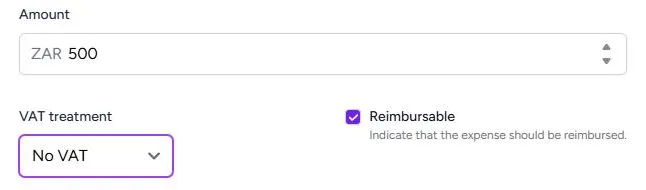
Every expense on an expense report has a VAT treatment, chosen when the expense is added and changeable whenever the expense can be edited. New expenses default to VAT Included.
| Treatment | Use it when | What Consult does with the amount |
|---|---|---|
| VAT Included | The amount entered includes VAT, as on most receipts. | Works the VAT back out of the amount using the currency’s tax percentage. |
| VAT Excluded | The amount entered excludes VAT. | Treats the amount as excluding VAT, and adds VAT on top for the amount including VAT. |
| No VAT | No VAT was charged on the purchase, for example a supplier that is not registered for VAT. | Treats the amount as both excluding and including VAT, so VAT is never added. |
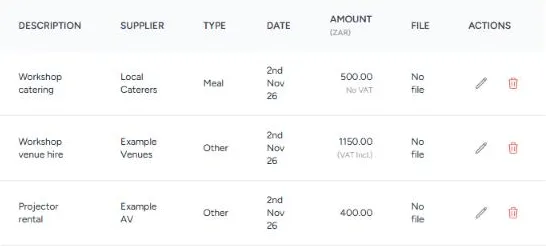
In the expense list, an expense marked No VAT shows No VAT beneath its amount, and one marked VAT Included shows (VAT Incl.). An expense marked VAT Excluded shows no label:
For example, with a tax percentage of 15%:
| Amount entered | Treatment | Excluding VAT | Including VAT |
|---|---|---|---|
| 115.00 | VAT Included | 100.00 | 115.00 |
| 100.00 | VAT Excluded | 100.00 | 115.00 |
| 100.00 | No VAT | 100.00 | 100.00 |
The treatment only changes how VAT is worked out. The amount reimbursed to the employee is always the amount entered.
Mileage claims have no VAT treatment. Their amount is always treated as excluding VAT.
No VAT expenses on an invoice
An expense report attached to an invoice is billed at its amount excluding VAT. The invoice then adds VAT at its own VAT rate to the mileage claims and to every expense except those marked No VAT.
So at 15%, a report holding a 115.00 VAT Included expense and a 50.00 No VAT expense adds 150.00 to the invoice excluding VAT, and 165.00 including VAT.
When the invoice is exported to Xero or QuickBooks with its standard lines, a report that holds No VAT expenses is split into two lines:
- One for the expenses and mileage claims subject to VAT, at the invoice’s VAT rate.
- One for the No VAT expenses, with no tax.
The same split applies to the expense summary attached to the invoice.
Clients that are not VAT-liable
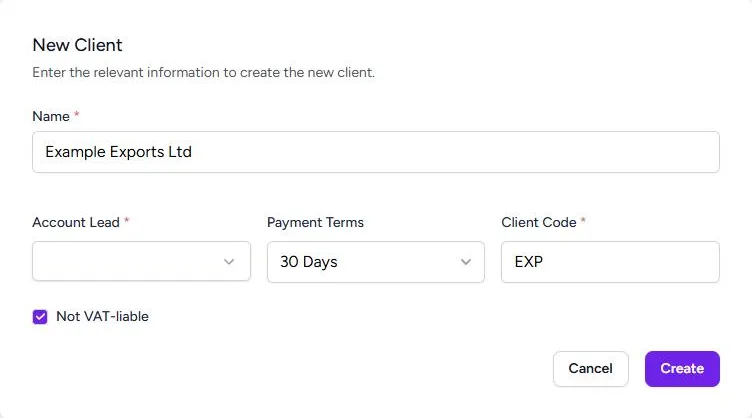
Tick Not VAT-liable on a client whose invoices should carry no VAT. The tick box is on the form when a client is created, under Manage > Clients or from the client dropdown on a project:
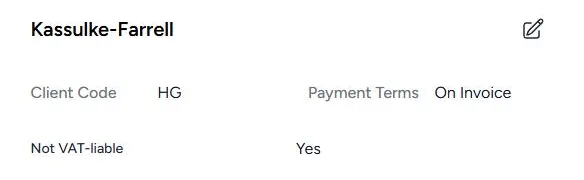
The client’s overview shows Yes or No against Not VAT-liable, and the pencil icon changes it:
An invoice raised on a project for that client is given a VAT rate of 0% instead of the currency’s tax percentage. Nothing on the invoice is then charged VAT, neither the hours, the line items, nor the expense reports, so its total including VAT equals its total excluding VAT.
The 0% rate carries through to the exports:
- Xero receives every line with no tax.
- QuickBooks receives every line with the project’s non-taxable tax code.
- The payment certificate shows the VAT as 0%.
Expense reports are not affected. A report on the client’s project still shows the VAT the employee paid, and only the invoice to the client leaves it off.
VAT is never charged on top of VAT, whether or not the client is VAT-liable. An expense goes onto the invoice at its amount excluding VAT, and the invoice adds VAT once at its own rate. For example, a 115.00 receipt marked VAT Included, at 15%:
| Step | VAT-liable client | Not VAT-liable client |
|---|---|---|
| Amount on the invoice before VAT | 100.00 | 100.00 |
| VAT the invoice adds | 15.00 (15%) | 0.00 (0%) |
| Amount billed to the client | 115.00 | 100.00 |
The VAT rate is fixed when an invoice is created
Consult records the VAT rate on each invoice at the moment it is created. Ticking or clearing Not VAT-liable only changes invoices created afterwards, and existing invoices keep the rate they were created with. The same holds for a change to the currency’s tax percentage.
To bill an existing invoice at the new rate, delete it and raise it again once the client is updated.
How the two compare
| No VAT expense | Not VAT-liable client | |
|---|---|---|
| Set on | A single expense | The client |
| Applies to | That expense, wherever it is totalled | Invoices created for the client’s projects once ticked |
| Effect on expense reports | No VAT on that expense | None |
| Effect on invoices | No VAT on that expense | No VAT on anything on the invoice |
See invoice calculation for how the invoice totals are worked out.