
Designated leave approvers
How a leave type can require sign-off from designated approvers before the employee's managers approve or decline the request.
A leave type can require a request to be signed off by a designated approver before the employee’s managers can approve or decline it. This adds a sign-off stage in front of the usual manager approval, for example so that HR checks a study leave request before it reaches the manager.
The setting is off by default for every leave type.
Switch on designated approval
Only users with Set Admin Settings as part of their role can change leave settings.
To switch on designated approval for a leave type:
-
Go to Settings > Leave.
-
Choose the country from the dropdown, then click the pencil icon next to the leave type.
-
In the Configure Leave window, turn on the Designated Approval switch.
-
Choose one or more people under Designated Approvers:
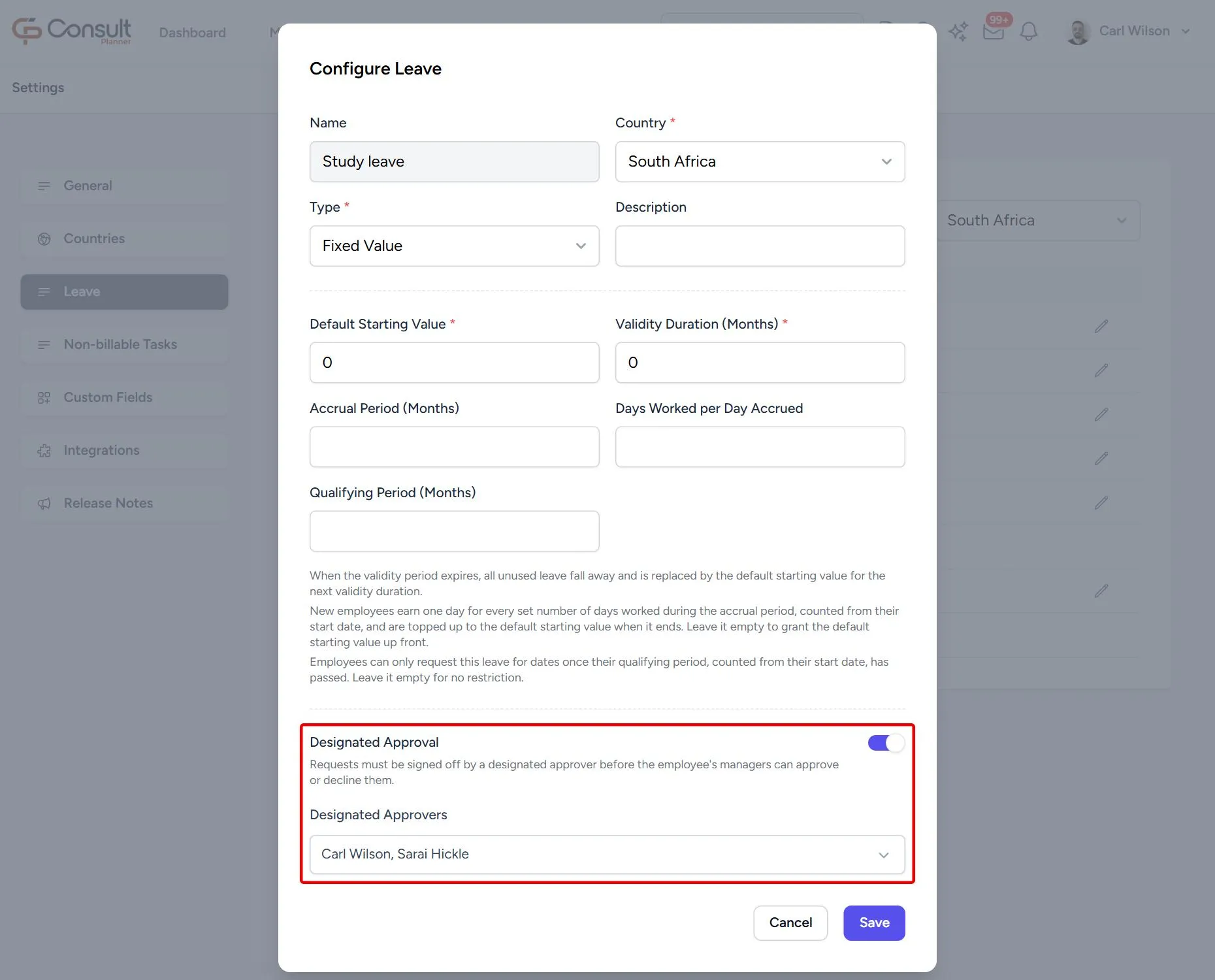
-
Click Save.
The setting applies to one leave type in one country, so switch it on for each country that needs it. A request uses the setting for the employee’s country and the leave type requested.
Any active user can be chosen as a designated approver. At least one approver is needed while the switch is on, and turning the switch off clears the list.
How a request moves through approval
When an employee requests leave of a type that needs designated approval, the request goes through two stages:
-
Sign-off: The designated approvers are notified of the new request, and it appears in their inbox under Leave Requests, with Approve and Decline:
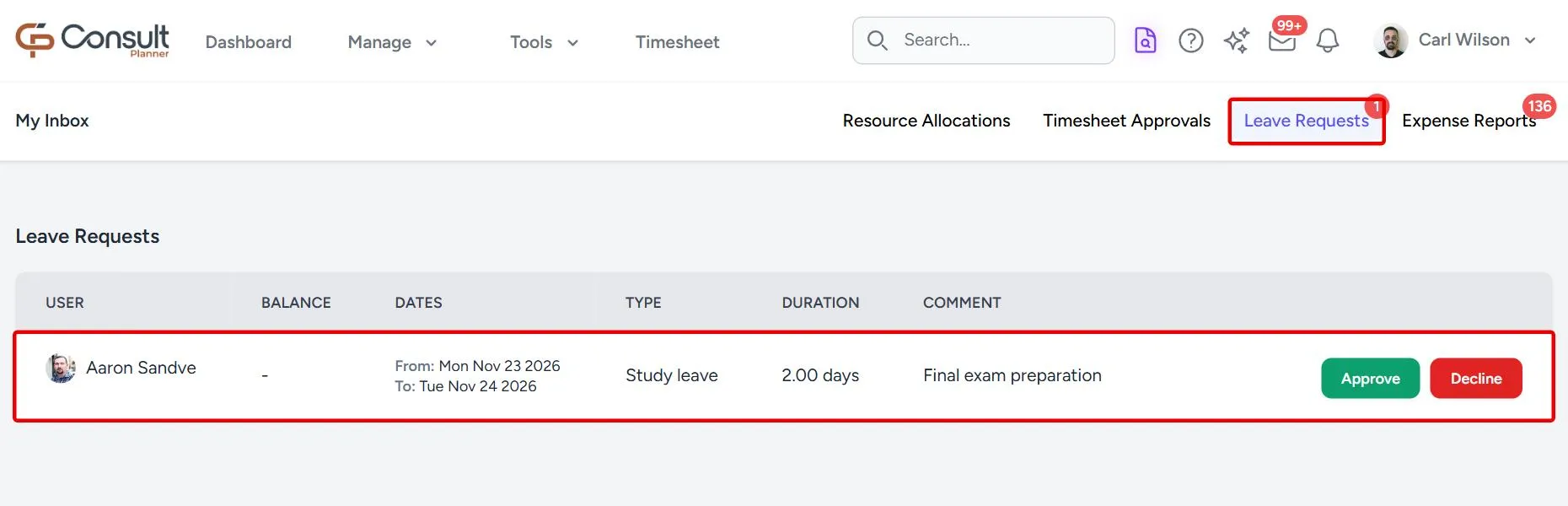
The employee’s managers see the request too, but cannot approve or decline it yet.
-
Manager approval: Once a designated approver approves, the request is signed off and the managers are notified that it is ready for their approval. From here, the managers approve or decline it as usual.
Sign-off from one designated approver is enough. Once a request is signed off, it leaves every designated approver’s inbox.
A manager who is also a designated approver signs off and approves as two separate steps.
Statuses
The request shows these statuses on the employee’s leave list and on leave approvals:
| Status | Meaning |
|---|---|
| Awaiting Sign-off | Waiting for a designated approver. Hover over the status to see who can sign it off. |
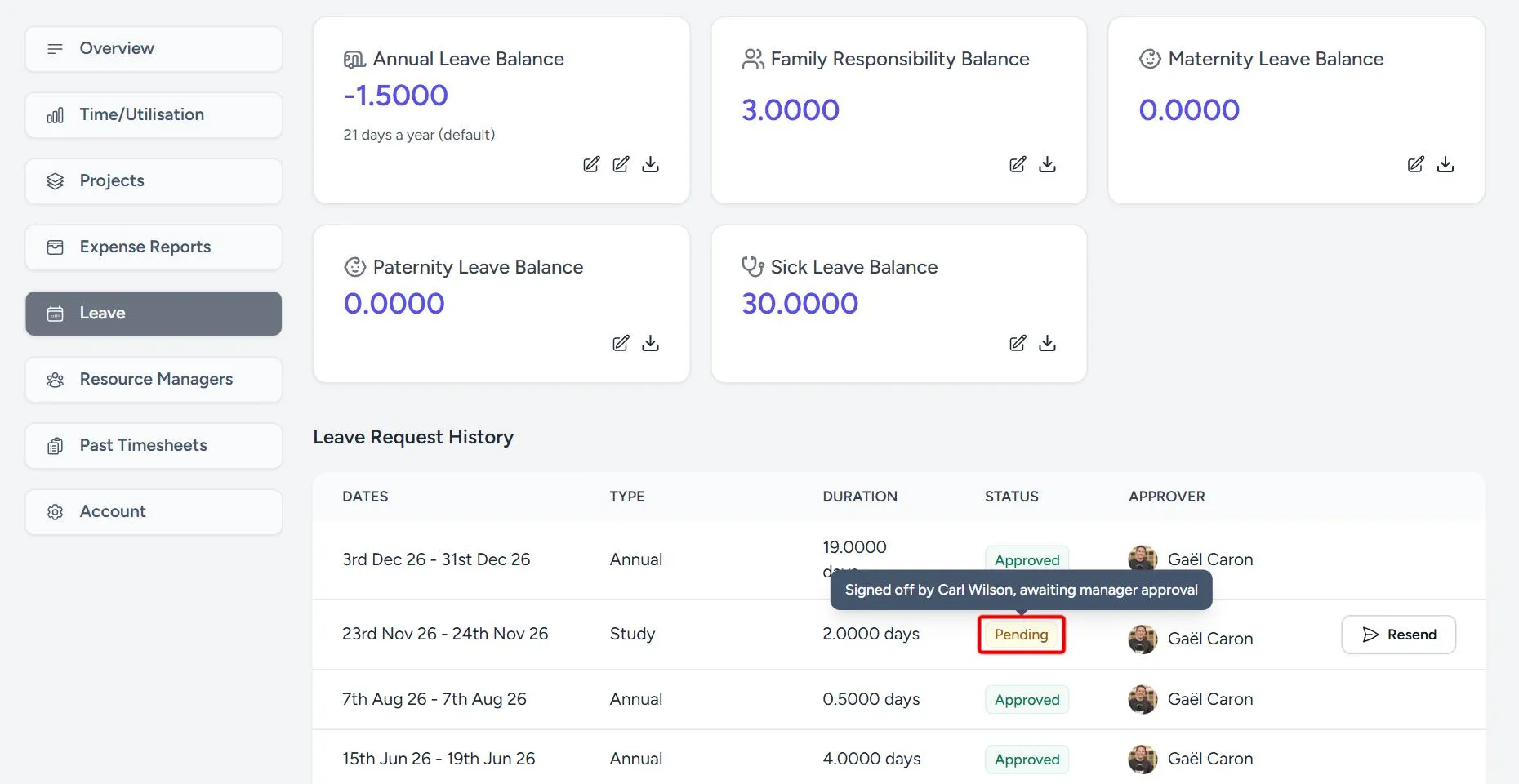
| Pending | Signed off and waiting for a manager. Hover over the status to see who signed it off. |
| Approved | Approved by a manager. |
| Declined | Declined by a designated approver or a manager. The reason, where one was given, is shown under the status. |
| Cancelled | Withdrawn. |
While a request is awaiting sign-off, hovering over its status lists the designated approvers:
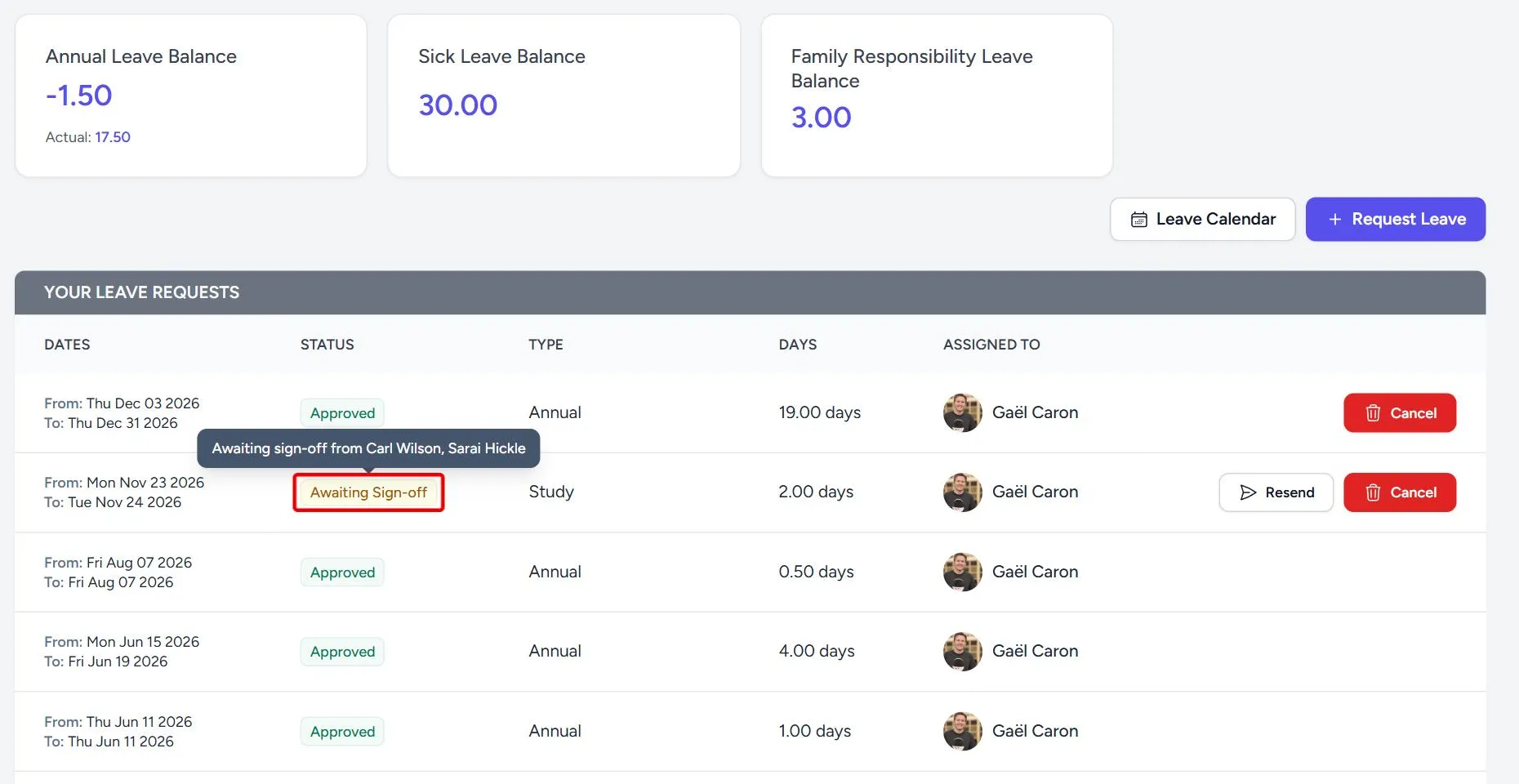
Once it is signed off, the status changes to Pending, and hovering over it shows who signed it off:
Declining a request
A designated approver who declines a request must give a reason, so that the employee knows what to change before applying again:
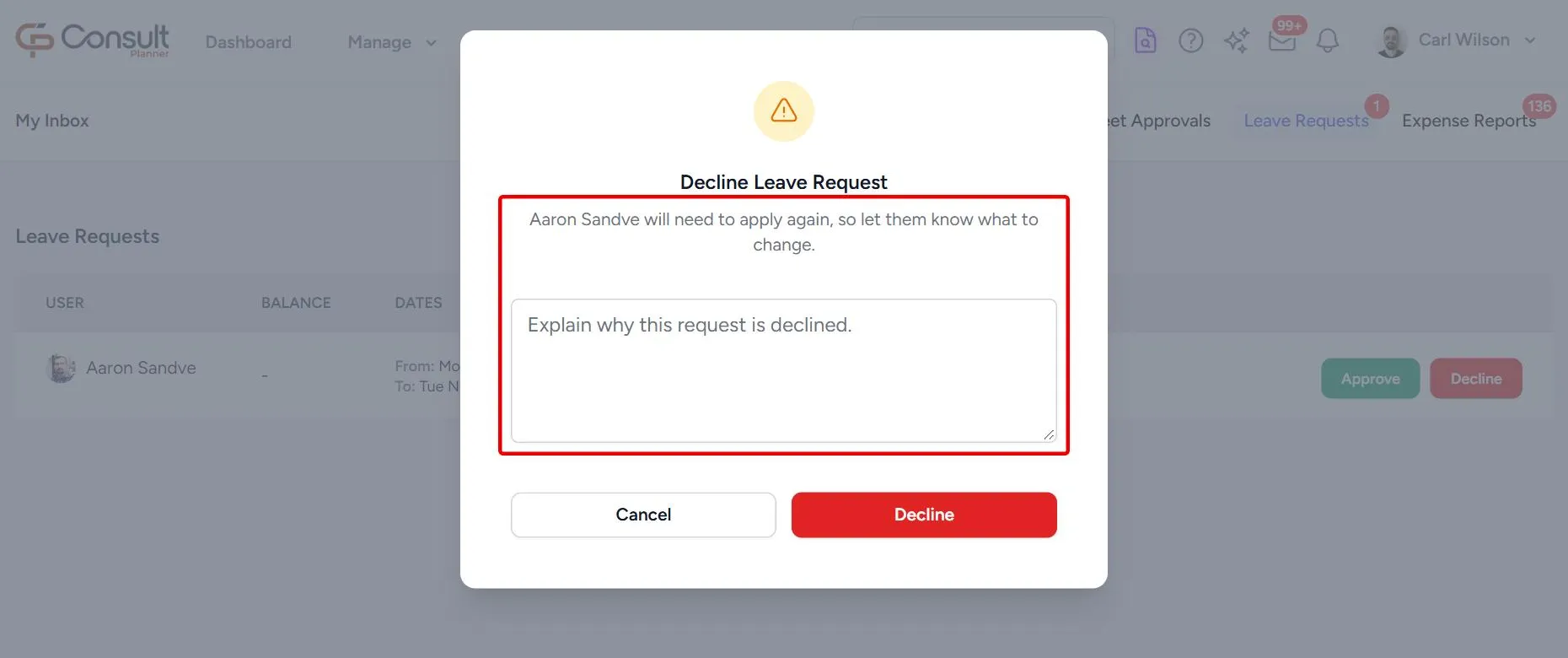
A manager can decline with or without a reason.
Either way, the request is declined, the leave days are released, and the employee is notified.
Reminders
When the employee clicks Resend to send a reminder about a request, it goes to whoever can act on it at that stage: the designated approvers before sign-off, or the managers after it.
Rules and edge cases
- Nobody can approve or decline their own leave, at either stage. A designated approver who requests leave of that type is left out of the approvers for their own request. If they are the only designated approver, the request goes straight to the managers.
- Administrators cannot approve or decline at either stage unless they are a designated approver or one of the employee’s managers.
- Changes to the approver list apply straight away to requests that are still awaiting sign-off, including switching the setting off or deactivating an approver. If no active designated approver is left, the request moves on to the managers.
- Approved leave can only be cancelled by the employee or a manager, not by a designated approver.
See leave types for the leave types and how each is treated.