
Manage application roles
Configure user roles and assign the rights that control what each role can access in Consult.
This guide explains how to configure user roles and assign rights to them.
Note: This functionality is only available to users who have the Manage Users right, such as an admin or director.
Access the management interface
To configure the user roles for the Consult app:
-
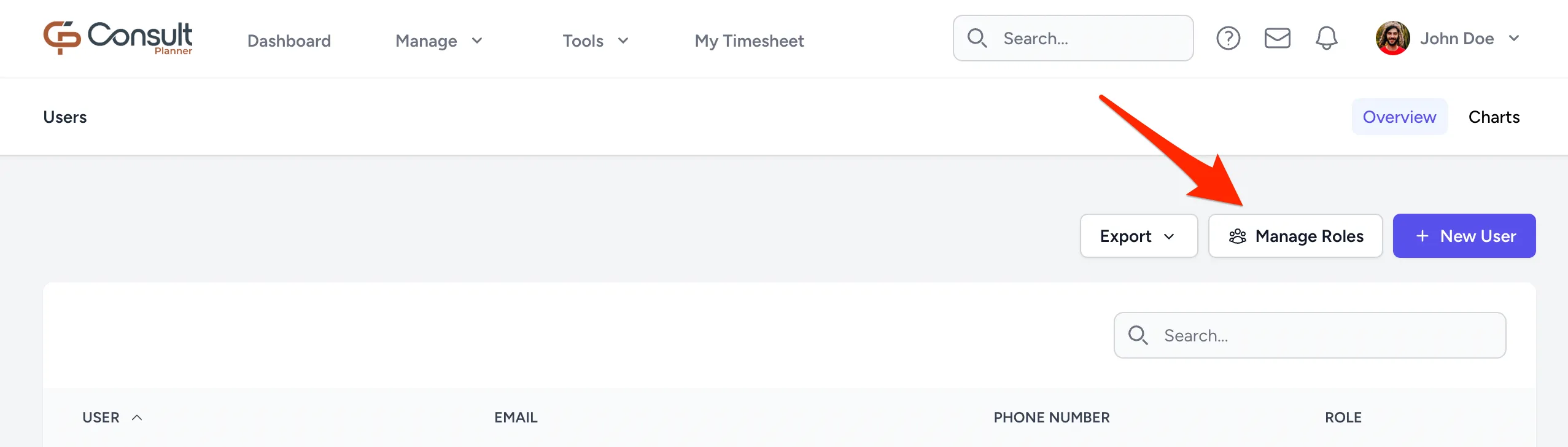
On the navbar, select Manage > Users.
-
Click MANAGE ROLES:
A default set of user roles is displayed:
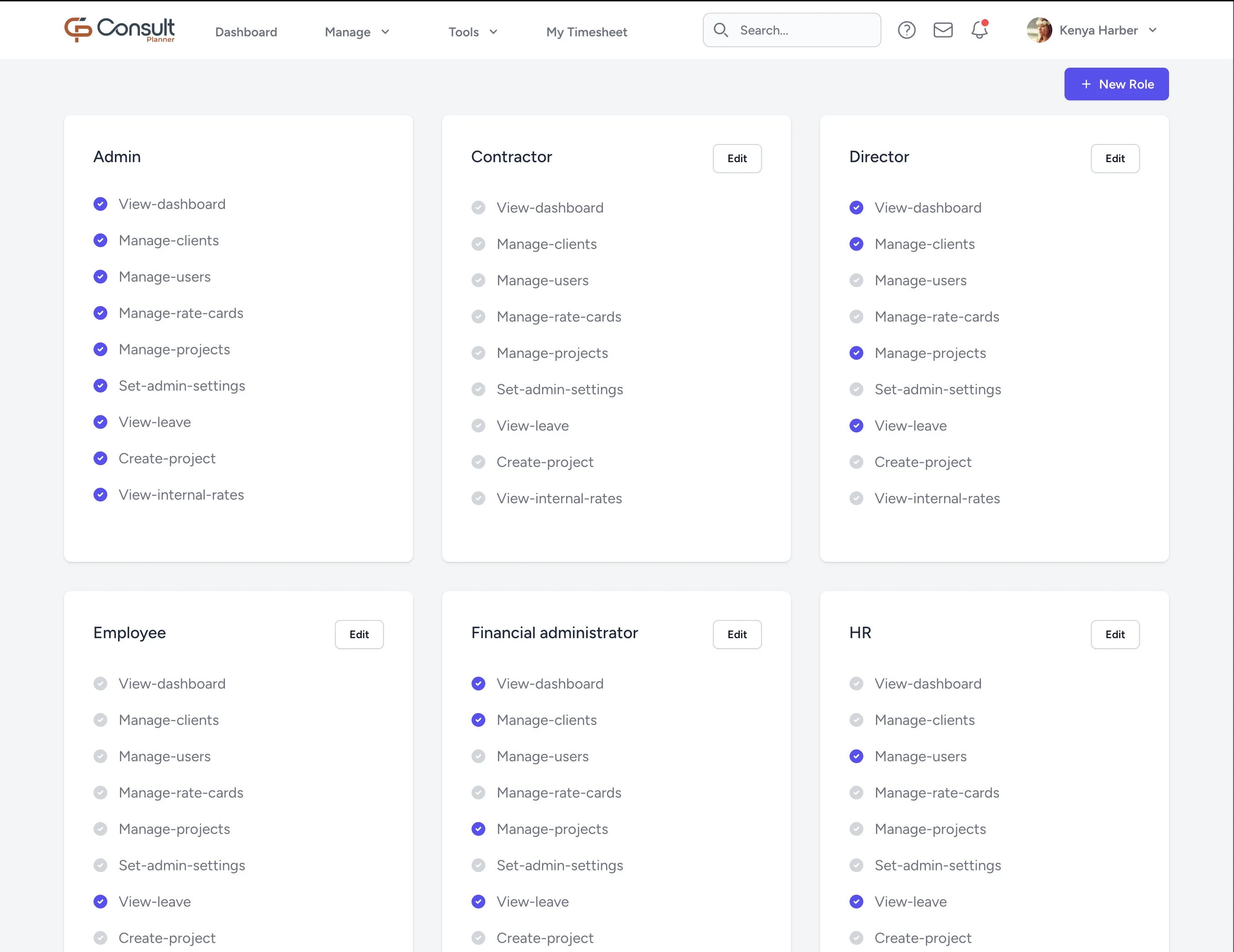
From here, roles can be edited and new roles can be added.
Note: The Admin role includes all rights and cannot be edited.
Assign rights to roles
When creating a new role, the following rights can be added:
| Right | What it allows |
|---|---|
| View-dashboard | Access the main dashboard and see key financial metrics and project summaries. |
| Manage-clients | View, create, update, and delete client records. |
| Manage-users | View, create, update, and delete users and their roles. |
| Manage-rate-cards | View, create, update, and delete rate cards. |
| Manage-projects | View, create, update, and delete projects. |
| Manage-all-project-invoices | View every project, and create and edit invoices on any project that has a client, is Sold, In Progress, or Completed, and is not archived. It does not allow deleting or exporting invoices, or seeing the project’s financials. |
| Manage-expenses | View, check, approve, and mark as paid every expense report. |
| Set-admin-settings | Change global admin settings and configurations. |
| View-leave | Access the leave section and submit leave requests. |
| Create-project | Create new projects from scratch. |
| View-internal-rates | View internal rates, allocations, and user statistics. |
| Export-invoices-to-accounting | Export invoices to Xero, QuickBooks, or Sage, and raise credit notes in Xero. |
Note: Exporting an invoice to an accounting system used to be open to anyone who could edit the invoice. It now needs Export-invoices-to-accounting, so tick it on any role whose users export invoices. The Admin role already includes it. Without it, a user who can edit an invoice can still prepare it for Xero and save it for someone with the right to export.