Manage user-specific leave
Open an employee's leave management screen and make manual adjustments to their leave balances.
This guide explains how to open an employee’s leave management screen and make manual adjustments to their leave balances.
Note: Employee leave balances are determined primarily by the global leave settings. Although manual adjustments can be made, the global settings still determine when and whether leave balances are updated over time.
Access the employee leave interface
To configure leave for an employee:
-
In the navbar, select Manage > Users.
-
Click the employee’s name in the table.
-
Click Leave in the left-side menu.
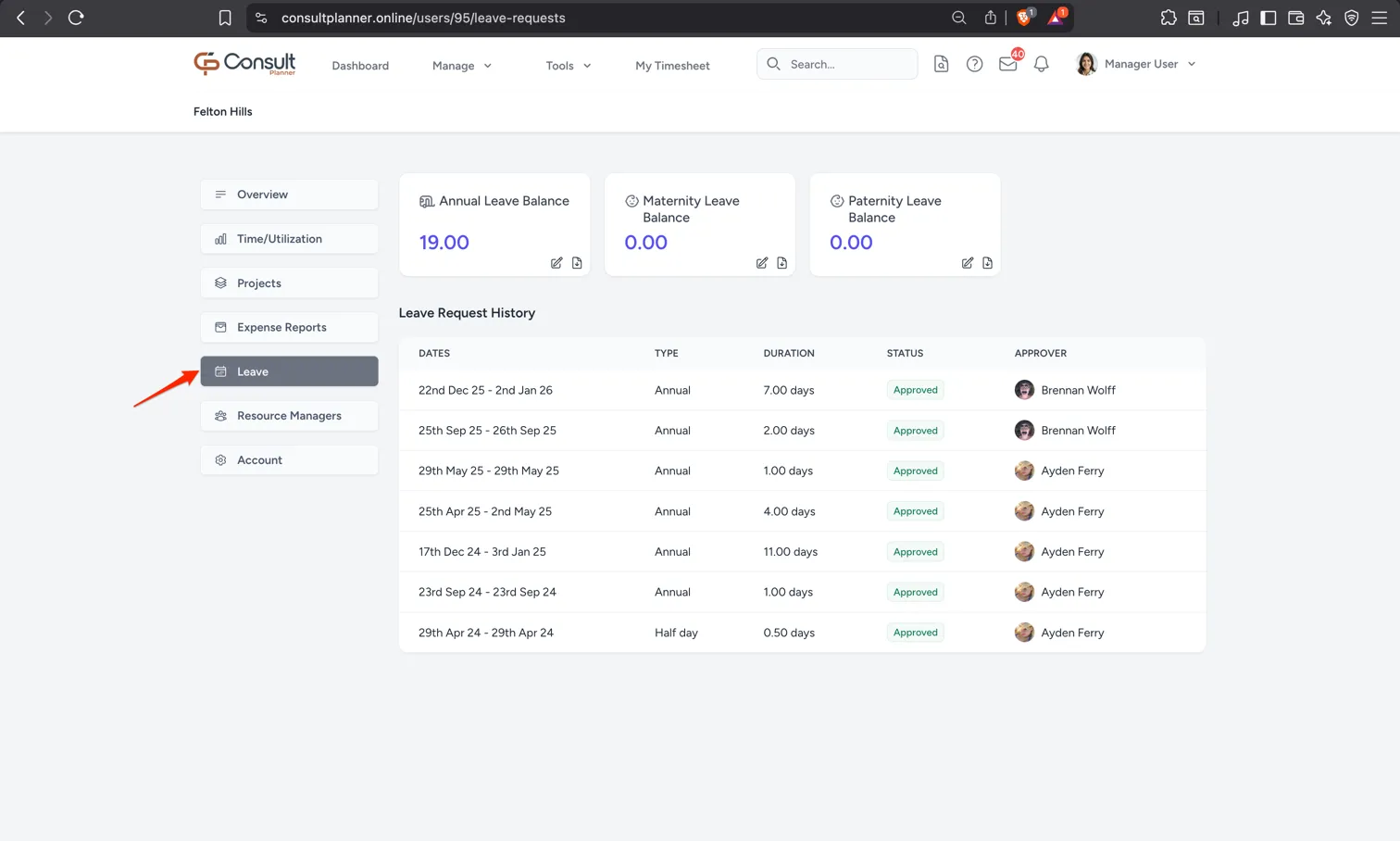
Manage employee leave balances
Leave cards are displayed at the top of the page for every leave type that has a leave balance enabled. By default, Consult only tracks leave balances for annual leave. To enable leave balances for the other leave types, see the Configure admin settings page.
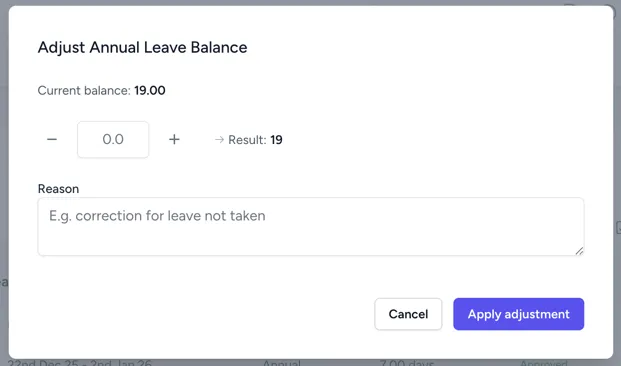
To adjust an employee’s leave balance:
- Click the pencil icon on the relevant leave card.
- Enter the amount to increase or decrease the balance.
- Provide a reason for the adjustment.
- Click Apply adjustment to save the change.