
Update your profile
View and manage your profile photo, personal details, password, and active projects.
The Profile page is where you view and manage your profile picture, personal information, password, and active projects.
Access your profile settings
To open your profile settings:
-
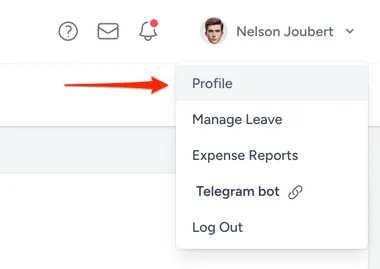
Click the user profile icon in the top right corner.
-
Select Profile:
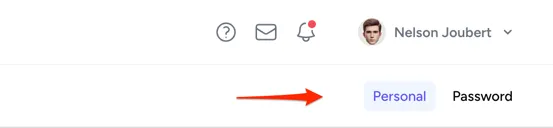
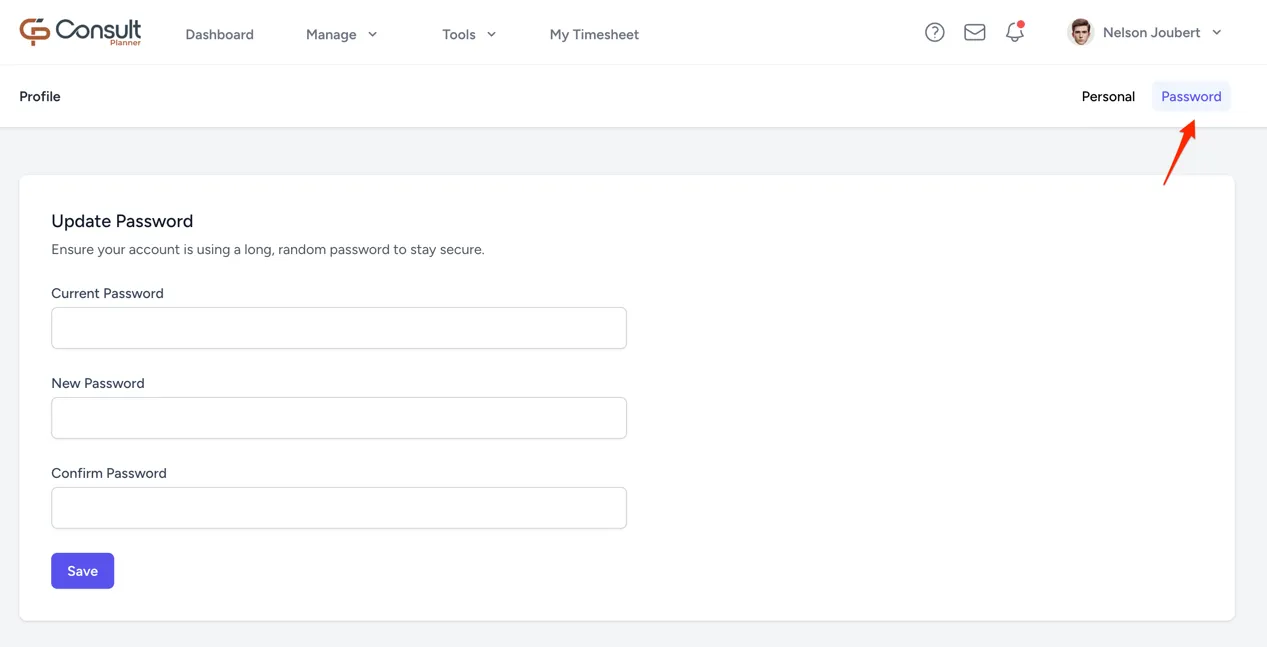
The profile page has two main sections, Personal and Password. You can switch between them using the navigation tabs at the top of the page:
Personal information
To update the profile photo, click it and select a new image from the computer.
The personal details are as follows:
- Email: Used for login and notifications.
- Phone Number: Not used by Consult and optional. It is only visible to you and the Consult admins.
- Birthday: Used in the events calendar on the resource dashboard.
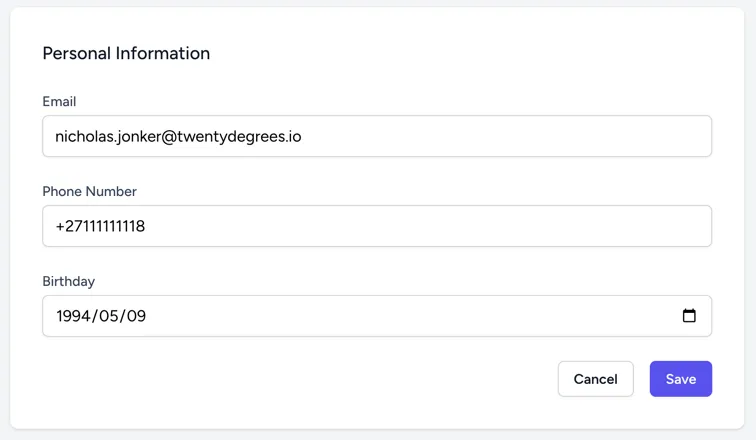
Note: If the email is unverified, a notice appears with a button to resend the verification link.
Active projects
This section displays the projects you are currently involved in, showing the project name and project status.
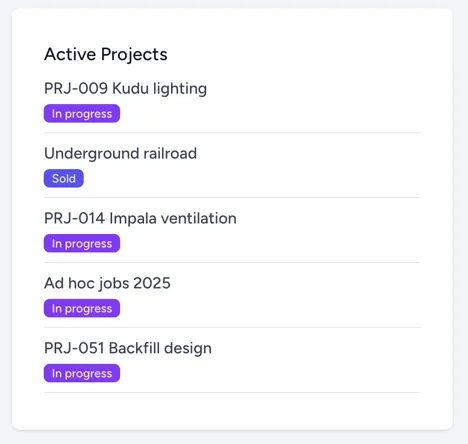
Note: If there are no active projects, a placeholder message is shown.
Password
To update the account password:
- Current Password: Required for confirmation.
- New Password: A strong, unique password.
- Confirm Password: A re-entry of the new password.
Tip: Use a combination of letters, numbers, and symbols for a strong password.
Save the changes in each section to keep the information up to date.