
Set up company organogram
Configure the CEO node and primary resource managers so the company organogram renders correctly.
The company organogram needs two things configured, otherwise it will either not show (a white screen) or return an error.
Set the CEO or managing director
This user is the first node on the organogram.
Set the Job Title field to one of CEO, Managing Director, or MD.
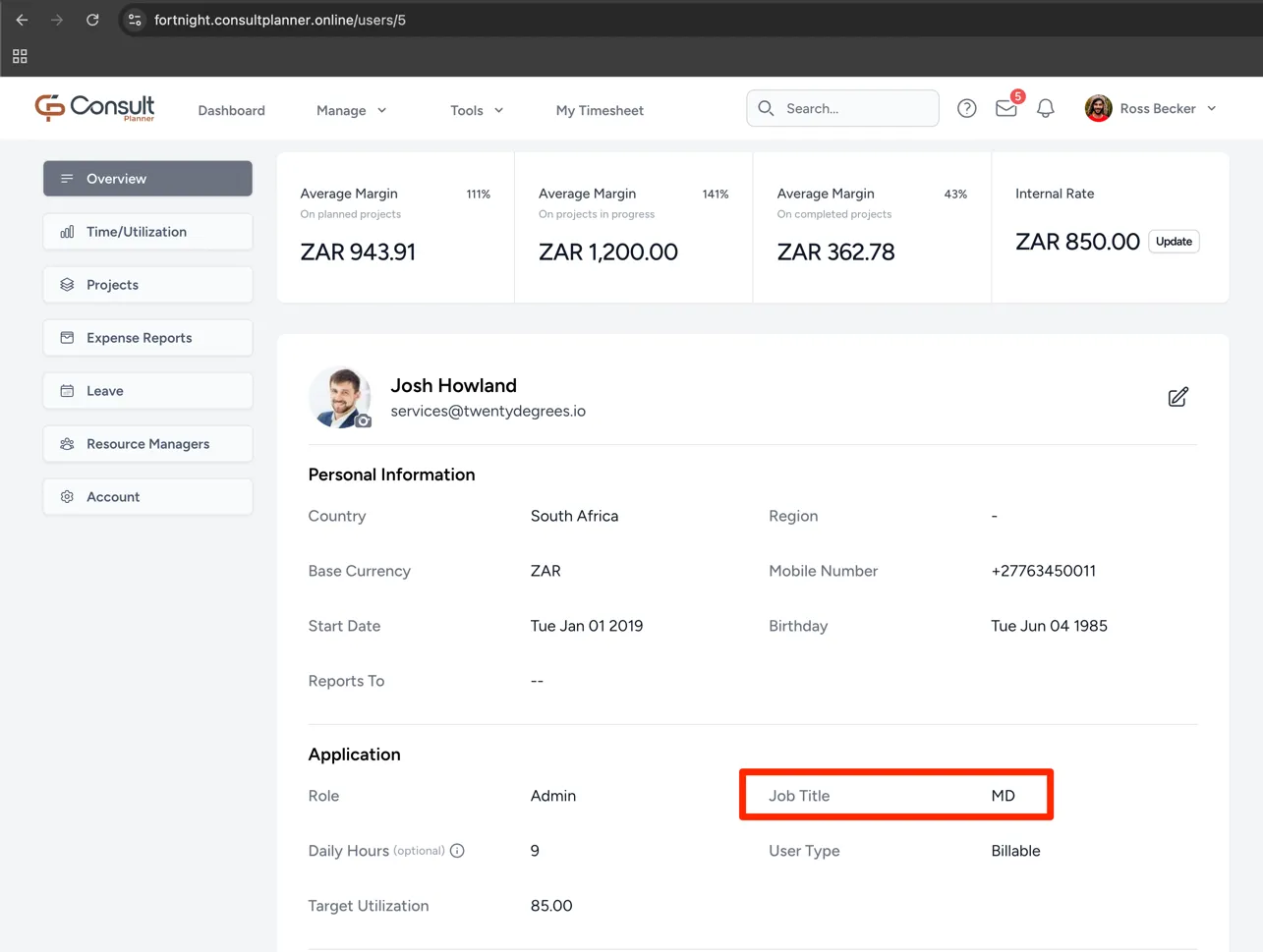
Once this field is set for one user, the organogram shows that user on the next load.
Assign primary resource managers
For the rest of the company to appear on the organogram, each user must be assigned a primary resource manager on the resource managers view.
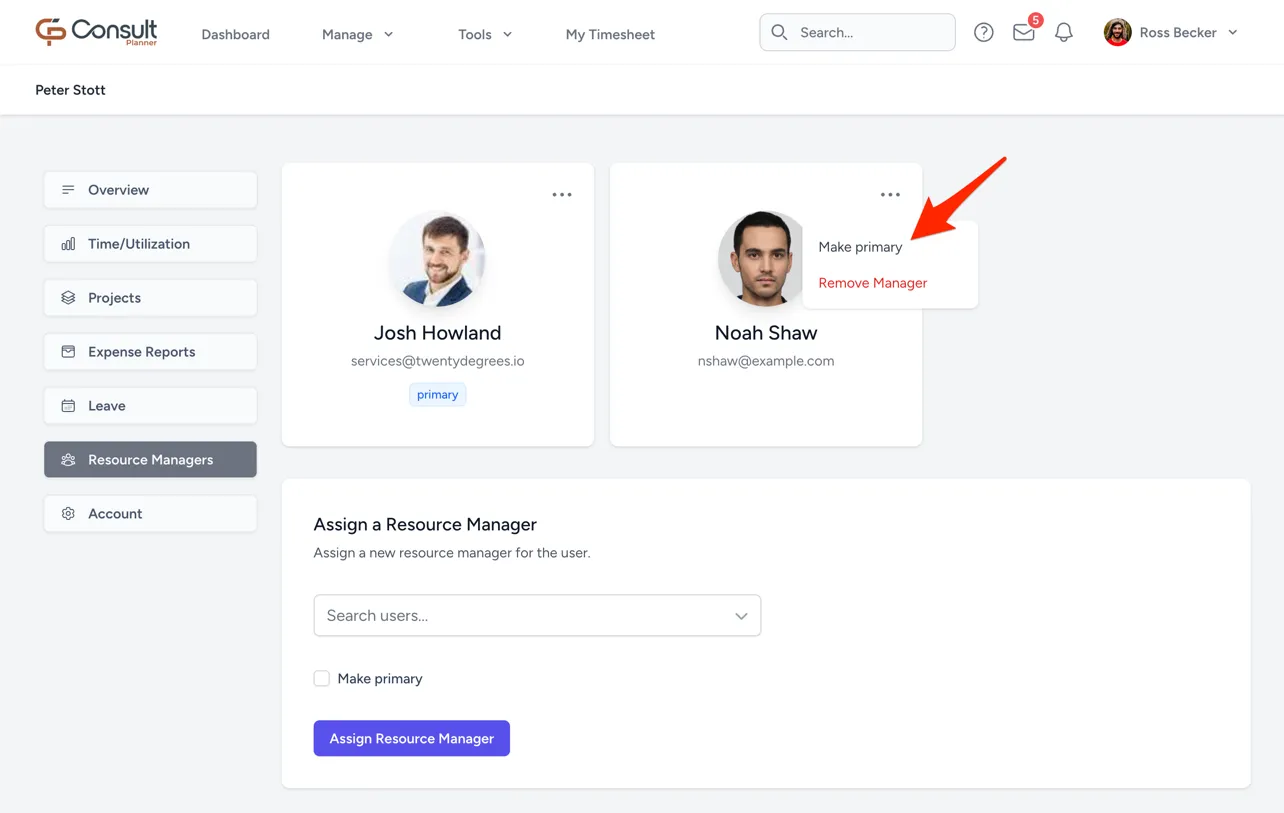
If a user does not appear on the organogram, it is likely that either the user or their primary resource manager does not have a line of resource managers that reaches all the way back to the CEO or managing director.