
Log an expense
Create an expense report, add expenses and mileage claims, and submit it for approval.
An expense report can contain a single expense or a group of expenses related to a specific event.
To log an expense report:
-
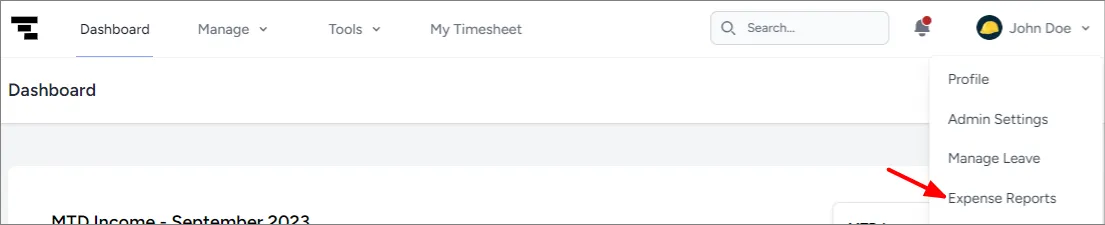
Click your name in the top right and select Expense Reports:
-
Click + EXPENSE REPORT to open a new expense report.
-
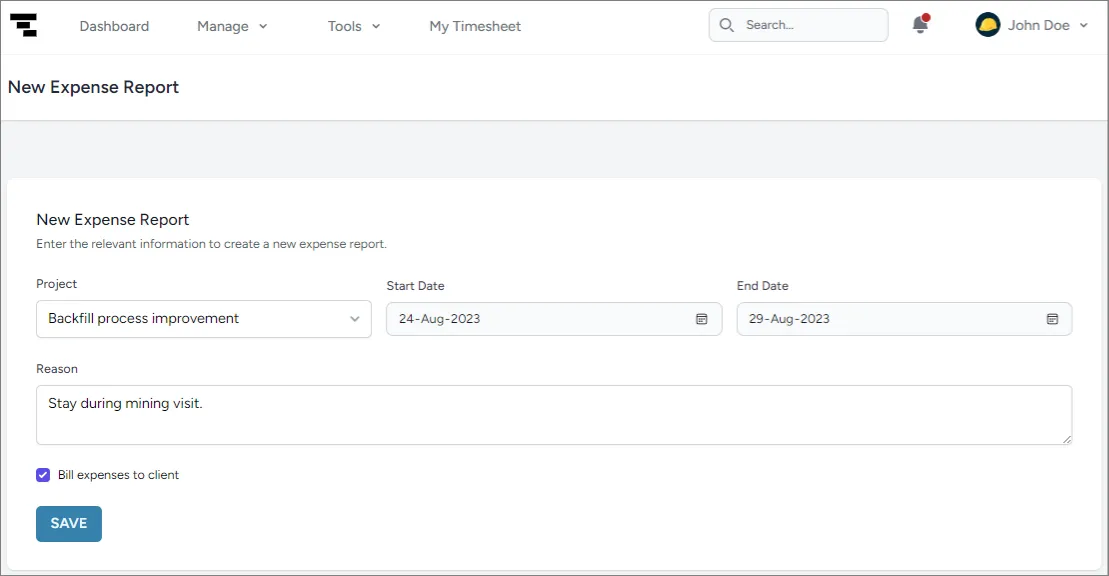
Complete the details for the report. For an expense that is not project-related, leave the Project selection at No Project:
-
Click Save. The expense report shows three sections on the side:
- Overview: The reference number for the expense report.
- Expenses: The individual expense items.
- Mileage claims: Mileage accrued during this period.
-
Complete each section, attaching any supporting documents to the individual expenses, such as pay slips.
Once the details are complete, the report can be submitted to start the approval process. For the approval workflow, see expense logging.