
Approve expense reports
Work through employee expense reports stage by stage from the Inbox, and approve, reject, or reopen them.
Managers approve or decline employee expense reports directly from the Inbox page.
To open the Inbox page:
- Click the inbox icon in the top navigation.
- Open the Expense Reports tab.
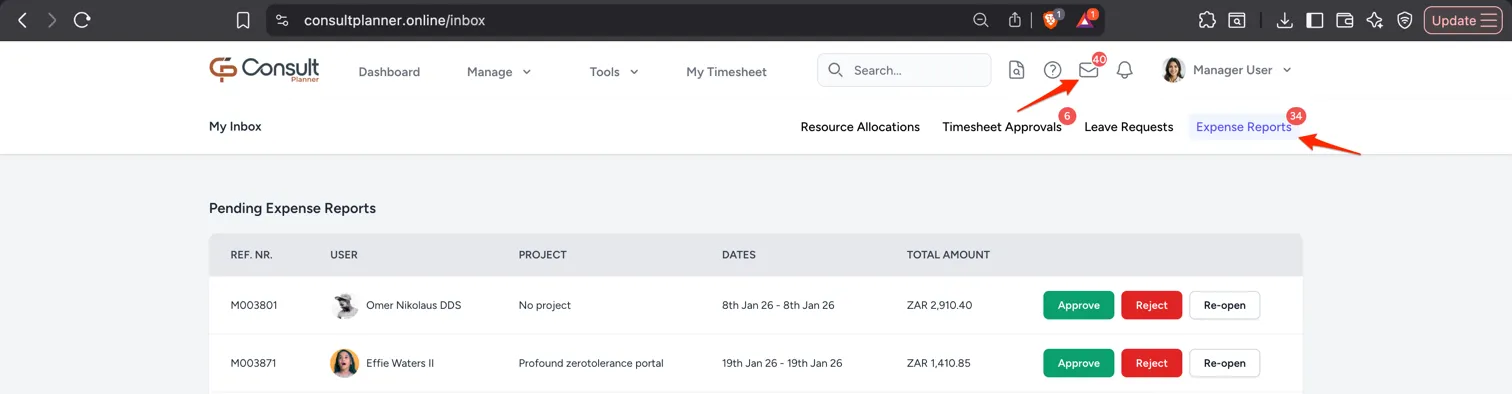
Expense report stages
The Expense Reports tab is split into three sub-tabs, one per stage of the review:
| Sub-tab | What it holds |
|---|---|
| Unchecked | Reports that have been submitted but not yet checked. |
| Pending Approval | Reports that have been checked and are waiting for your decision. |
| Unpaid | Reports that have been approved but not yet marked as paid. |
Each sub-tab carries its own count, and only the table for the selected sub-tab is shown.
A stage with nothing in it shows 0 in grey rather than red, so an empty stage reads as nothing to do rather than as something needing attention.
The count on the Expense Reports tab itself is the three stage counts added together.
Consult opens the first stage that has something in it, and remembers the stage you last had open.
Note: Updating a report moves it to the next stage. For example, approving a report moves it from Pending Approval to Unpaid and the two counts change together.
Action a report
Click any row to open the full expense report, or use the buttons at the end of the row to action it without leaving the Inbox.
The buttons available depend on the stage:
- Unchecked: Checked confirms the details and supporting documents are complete, which moves the report to Pending Approval.
- Pending Approval: Approve accepts the report and moves it to Unpaid. Reject opens the Reject Expense Report modal, where a reason is required before the rejection can be sent; Nevermind closes the modal without rejecting.
- Unpaid: Paid marks the report as processed, after confirming “Are you sure you want to mark this expense as paid?” in the Mark as Paid dialog.
Every stage also offers Re-open, which returns the report to draft so the employee can edit it and submit it again. It clears the check, approval, and rejection already recorded against the report, so a reopened report starts the review from the beginning.
Expense report statuses
An expense report can have one of the following statuses:
- Draft: The report has been created but is only visible to the employee.
- Submitted: The report has been submitted by the employee and is visible to their resource managers and to users with the manage-projects permission.
- Checked: A designated user has reviewed the report to confirm that the required details and supporting documents are complete and correctly formatted.
- Approved: The report has been approved by a manager and is ready for payment processing.
- Rejected: The report has been declined by a manager and requires changes before it can be resubmitted.
- Paid: The approved report has been processed.
After approval
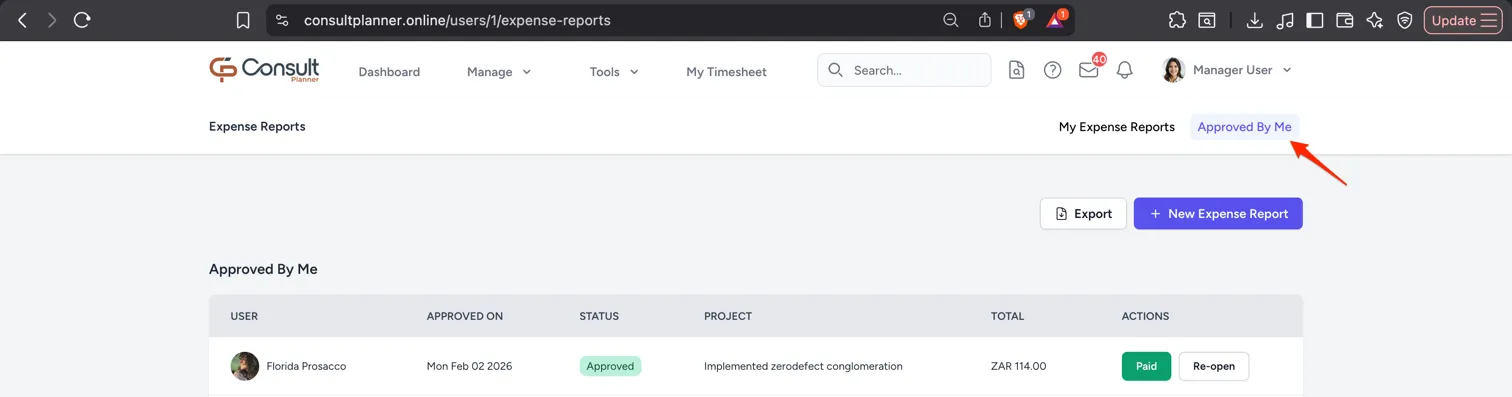
An approved report moves to the Unpaid sub-tab, where it stays until someone marks it as paid:
Rejected expense reports
When an expense report is rejected, the employee can re-open it, make the necessary changes, and submit it again. The reason captured on the Reject Expense Report modal is sent to the employee, so it should say what needs to change. See expense report rejected for what they receive.