WBS with Deliverable Scheduling example employee training
Use a WBS with Deliverable Scheduling project to schedule and track employee training time against training programs.
Although the WBS project format is designed with deliverables in mind, it can be used in various ways. This guide explains how a WBS with Deliverable Scheduling project can schedule training time for employees.
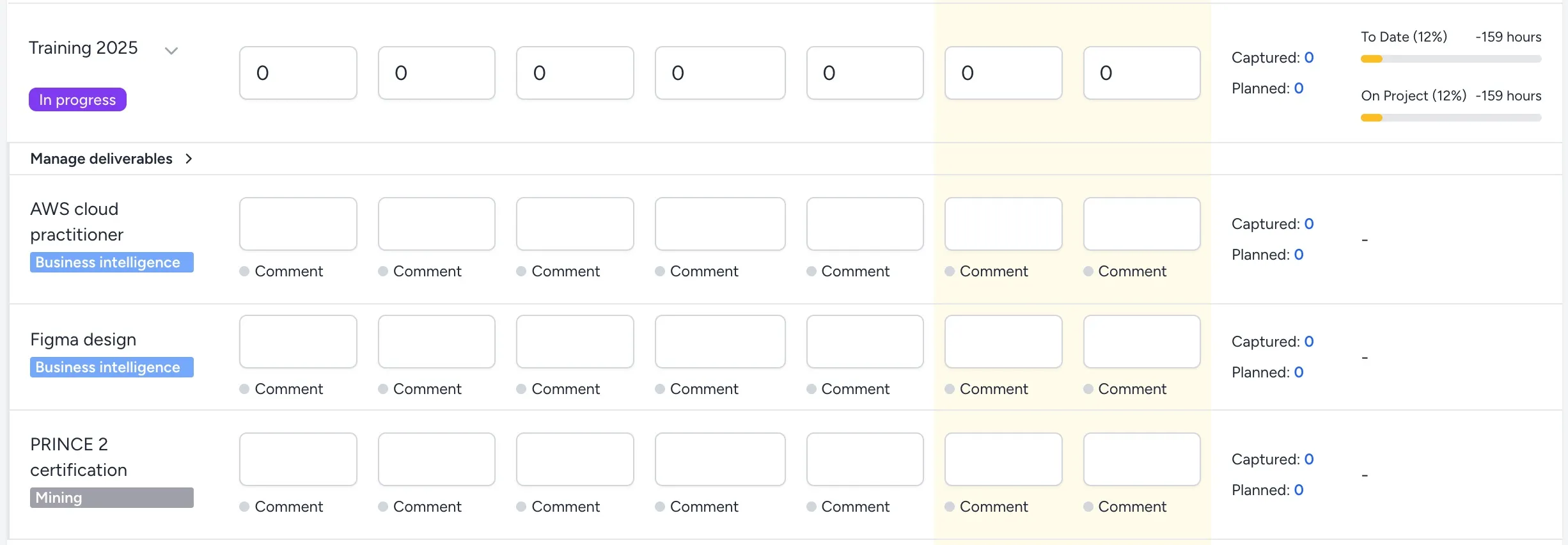
Once the steps are complete, the applicable employees see a project like this in their timesheets, showing how much time is scheduled for each training program that week:
Create a training program
Having created a WBS with Deliverable Scheduling project, see create a new project, complete these steps to add a training program:
-
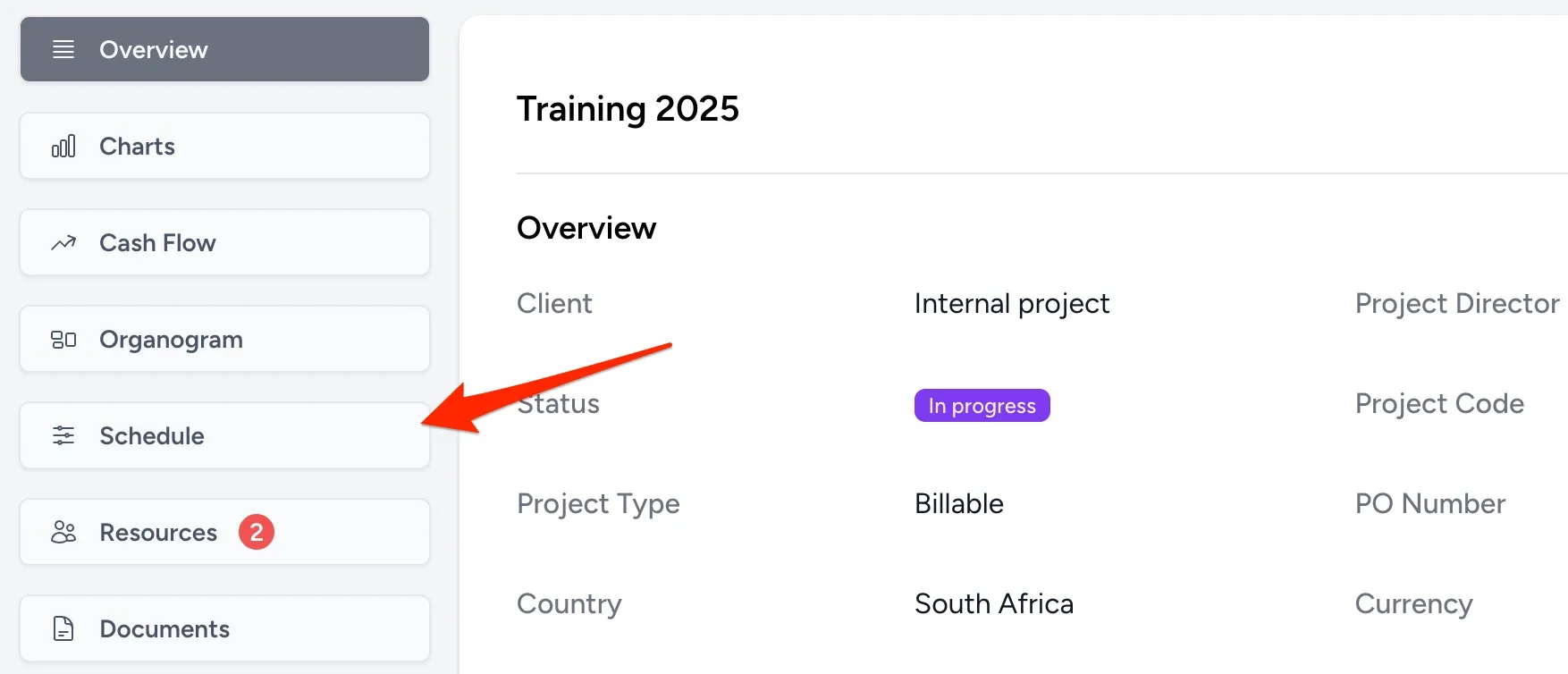
Go to the schedule view.
-
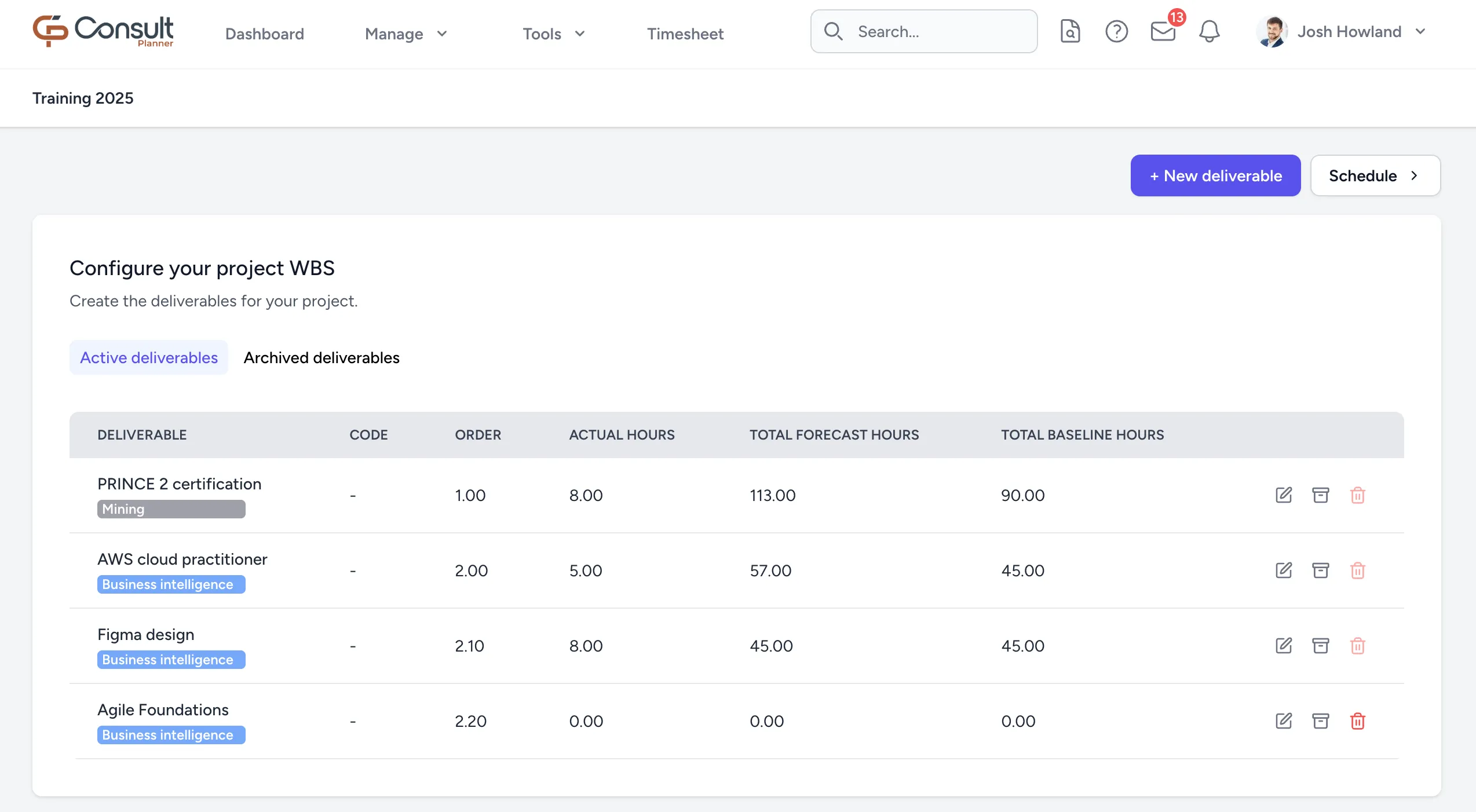
Click Deliverables in the top-right corner. This opens the deliverable management view:
-
Select + New deliverable.
-
Complete the fields in the form:
-
Name: The program name, such as
Agile Foundations. -
Phase: The department the program applies to, such as
Business Intelligence. -
Start Date: The expected start date of the program.
-
End Date: The expected end date of the program.
-
Total Hours: An estimate of how many hours the program will take, such as
40. -
Order: A value such as
2.2.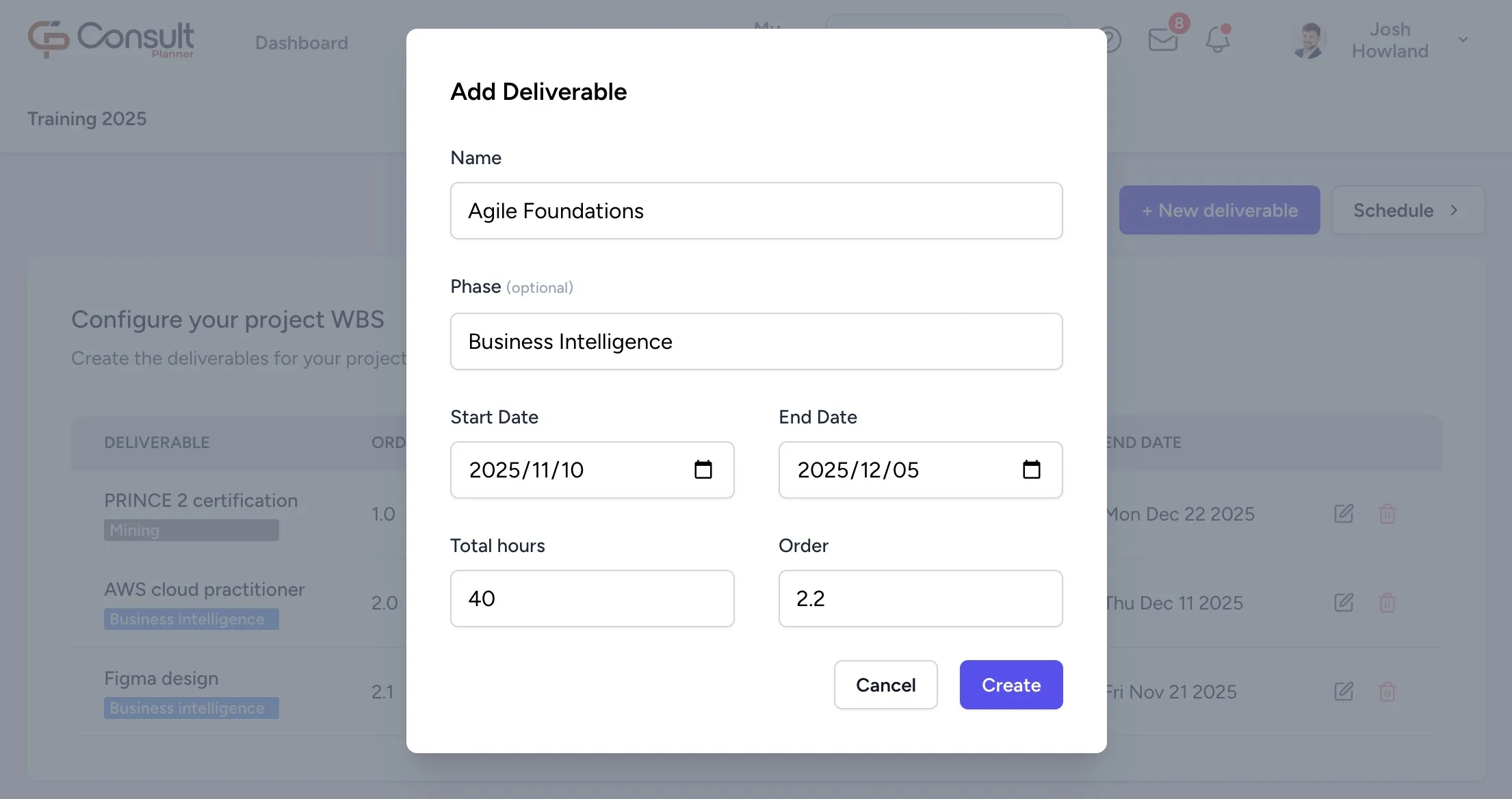
-
-
Click Create. These values map to the timesheet like this:
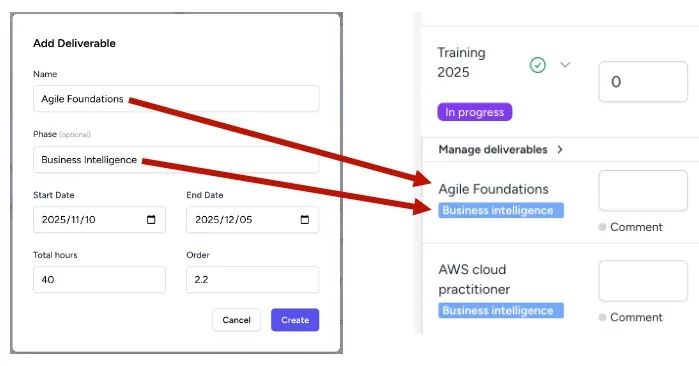
Once the program is created, you can assign it to a resource on the project and build the schedule.
Assign the program to an employee
To assign the program to an employee:
-
From the deliverables view or project overview, click Schedule.
-
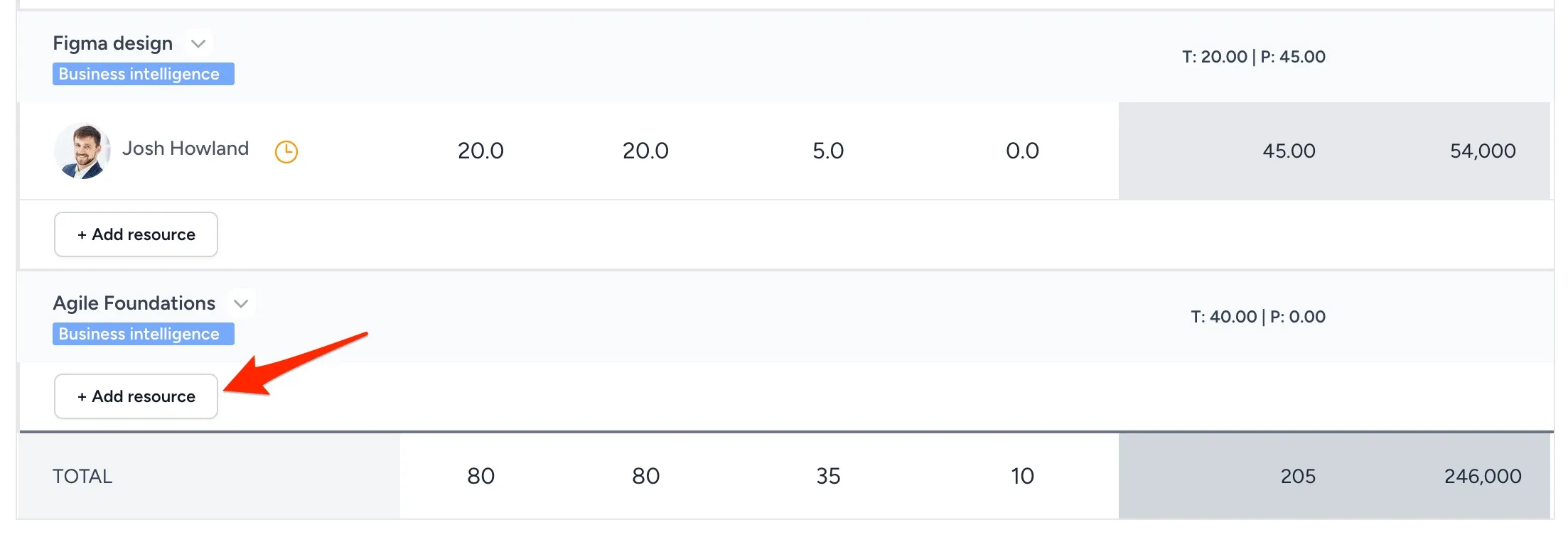
Under the deliverable, click + Add resource.
-
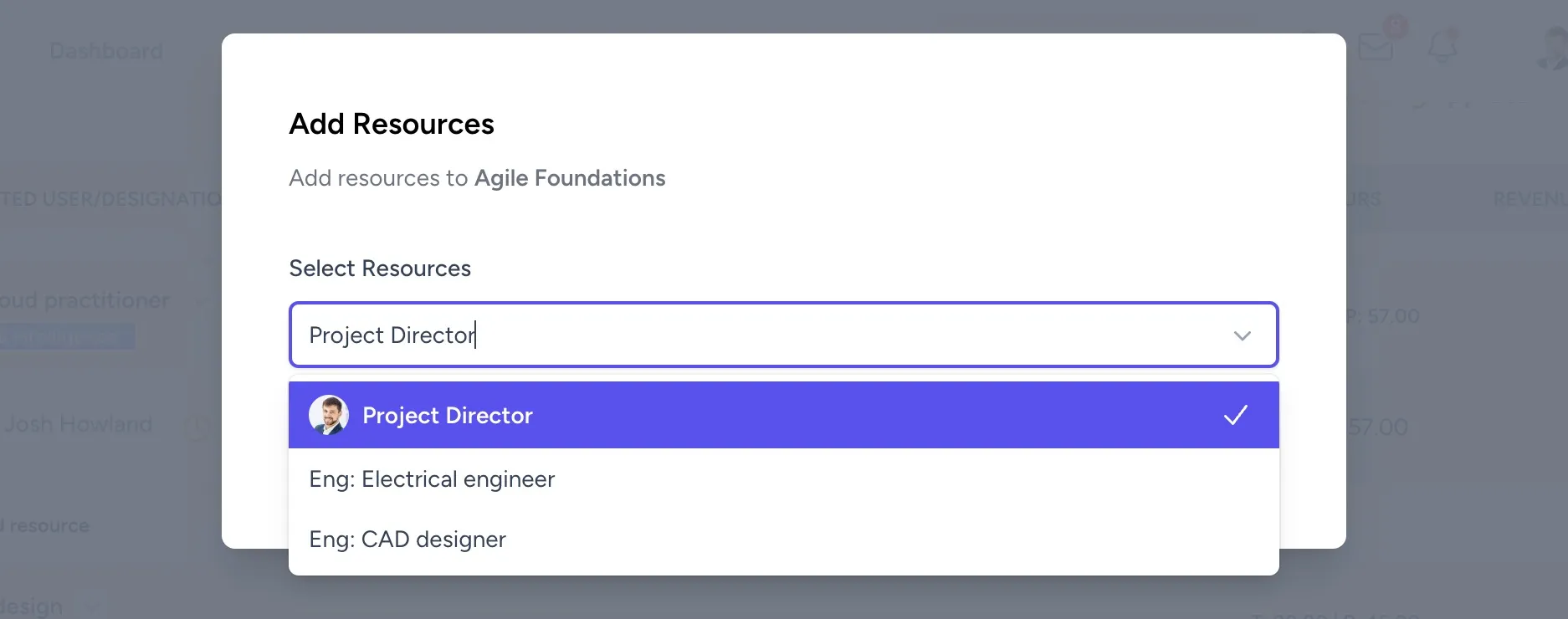
Click Add resource in the top-right corner.
-
Select the user from the dropdown.
-
Click Add resources.
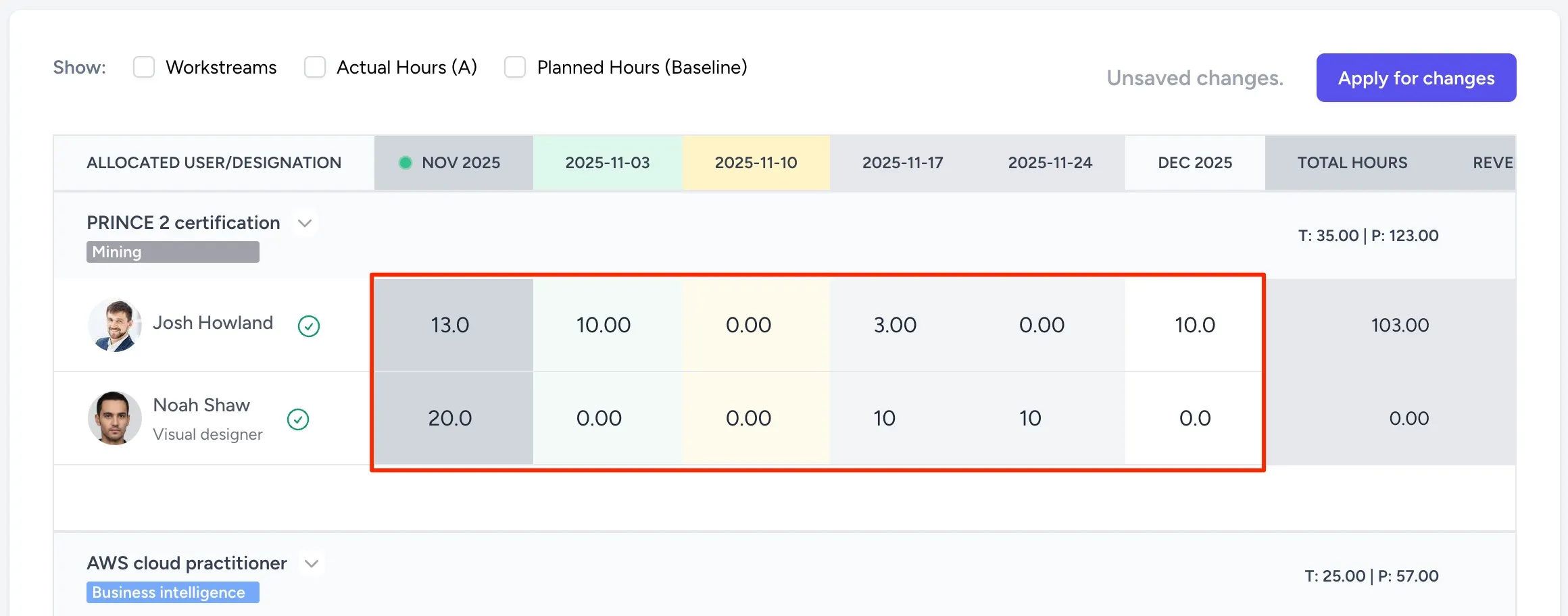
Once the user is allocated, you can schedule hours for them in the schedule view: