
Approve resource requests
Review and action resource allocation requests, and understand when allocations are approved automatically.
Resource managers review and action resource allocation requests in Consult. These requests are created when a project manager allocates a user to a project and the allocation cannot be approved automatically. For the project manager side of this workflow, see Assign work to resources.
A request goes to the allocated user’s active resource managers, and appears in their My Inbox. Where the user has no active resource manager, it goes to the organisation’s administrators instead, so a request is never left without someone who can action it. An administrator is not made the approver of their own allocation, unless they are the only administrator.
Note: Administrators who receive a request this way are not emailed or notified about it. It appears only in the Resource Allocations tab of their inbox.
If a resource manager is assigned to the user later, they are added to the user’s pending requests alongside the administrators.
Review a resource request
To open a request:
- Click the inbox icon in the top navigation bar.
- Open the Resource Allocations tab.
- Find the request and click Review.

The review modal shows the requested project together with the employee’s overlapping projects for the same period. Beneath the project rows are:
- Leave: The employee’s leave in each week.
- Public Holidays: The hours of any public holiday that falls on a weekday, at the employee’s required daily hours per holiday. The row is only shown when there is a public holiday in the period, and each week header notes how many there are, such as “(Public Holidays: 1)”.
- Total: The forecast hours, leave, and public holiday hours together, so the total can be checked against the rows above it.
Public holidays that fall on a weekend are not counted in either the header or the totals.
To action the request:
- Review the forecast hours across the affected projects.
- Click a month heading to expand the weekly breakdown.
- Update the forecast hours directly in the cells if capacity needs to be moved between projects.
- Click Fill Hours to distribute the hours more quickly across the visible period.
- Click Approve to accept the request, or Reject to decline it.
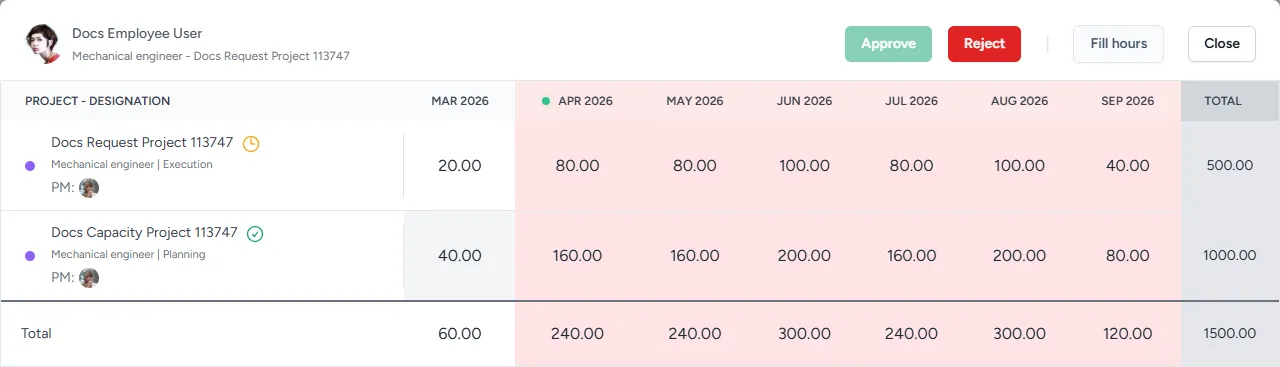
You can change the hours for any project shown in the modal before approving the request. This makes it possible to reduce hours on one project and free capacity on another.
Warning: The modal can include projects where the resource manager is not the project manager. Discuss any hour changes with the relevant project manager before saving or approving the request.
If a new allocation request is rejected, the user is removed from the requested project resource. If the request is for changes to an already approved allocation, the pending hours revert to the last approved values.
Allocation status tiers
The hours a company expects a person to work and the maximum they are allowed to work are two different numbers, so an allocation falls into one of three tiers rather than simply being available or in conflict:
| Tier | Meaning |
|---|---|
| Within expected | Forecast hours are at or below the expected weekly hours. |
| Above expected | Forecast hours are above what is expected, but below the maximum allowable. |
| Above max | Forecast hours are above the maximum allowable, after leave and weekday public holidays. |
The tier is worked out for each week, and the worst tier in the period decides the tier for the request as a whole. It is judged on the forecast hours alone, so the colour of a Total cell in the review modal reflects the forecast hours rather than the total shown, which also includes leave and public holidays.
In the Resource Allocations tab, the status column shows the tier as a coloured chip: a green Available chip for within expected, an orange Above expected chip, and a rose Has conflicts chip for above max.
Inside the review modal, the same three tiers colour the months and weeks, so it is clear which weeks are driving the request. Green is within expected, orange is above expected, and red is above max.
Approving an allocation that is above expected asks for confirmation first, explaining that “The current schedule requires the resource to work more hours than the company expects, but less than their maximum allowable.” and then asking “Are you sure you want to proceed with approval?”. Click Approve to continue, or Nevermind to go back and move hours around instead.
Weeks that have already passed are always treated as within expected, since capacity that has already been used cannot be planned differently.
Note: A user in a Contractor role who has no required daily hours configured is never treated as above expected, because the company’s expected weekly hours do not apply to them. They can still be above max, which still blocks the allocation.
Automatic approvals
Consult does not always send resource allocations to the resource manager for manual review. An allocation is approved automatically in the following situations:
- The allocation is within expected for every week, and the person making the allocation is also that user’s resource manager.
- The allocation is within expected for every week and the user has no active resource manager.
- The user is allocated before any hours have been forecast for that role on the project.
- Hours are edited on an existing allocation and the updated hours still meet one of the conditions above.
When an allocation is approved automatically, it does not create an item under My Inbox > Resource Allocations. An allocation that is above expected or above max does not qualify, so it is sent to the resource manager for review even when the person making it manages that user. Where the user has no active resource manager, it is sent to the administrators instead.
Editing forecast hours in a week that has already passed does not clear an existing approval or raise a new request. The current week is not a past week, so a change there is still subject to the approval workflow.