
Approve timesheets
Review and approve or reject submitted timesheets from the Inbox, as a resource manager or as a project manager.
Timesheet approval is required only when the Timesheet Submission admin setting is enabled. When a timesheet is submitted, an approval request is sent to the resource manager.
Where project manager timesheet approval is also switched on, for the organisation and for the project, the time on each billable project is first approved by that project’s manager. The resource manager receives the submission once every project on it has been approved. See approve project hours as a project manager.
Note: Consult submits the timesheet itself, every Thursday at 12:30, for anyone whose working days that week are all covered by leave or public holidays. These arrive with the subject “Timesheet automatically submitted for Josh Howland (week of Apr 6, 2026)”, so they are not mistaken for one the employee sent, and are approved in the same way.
Approve a timesheet
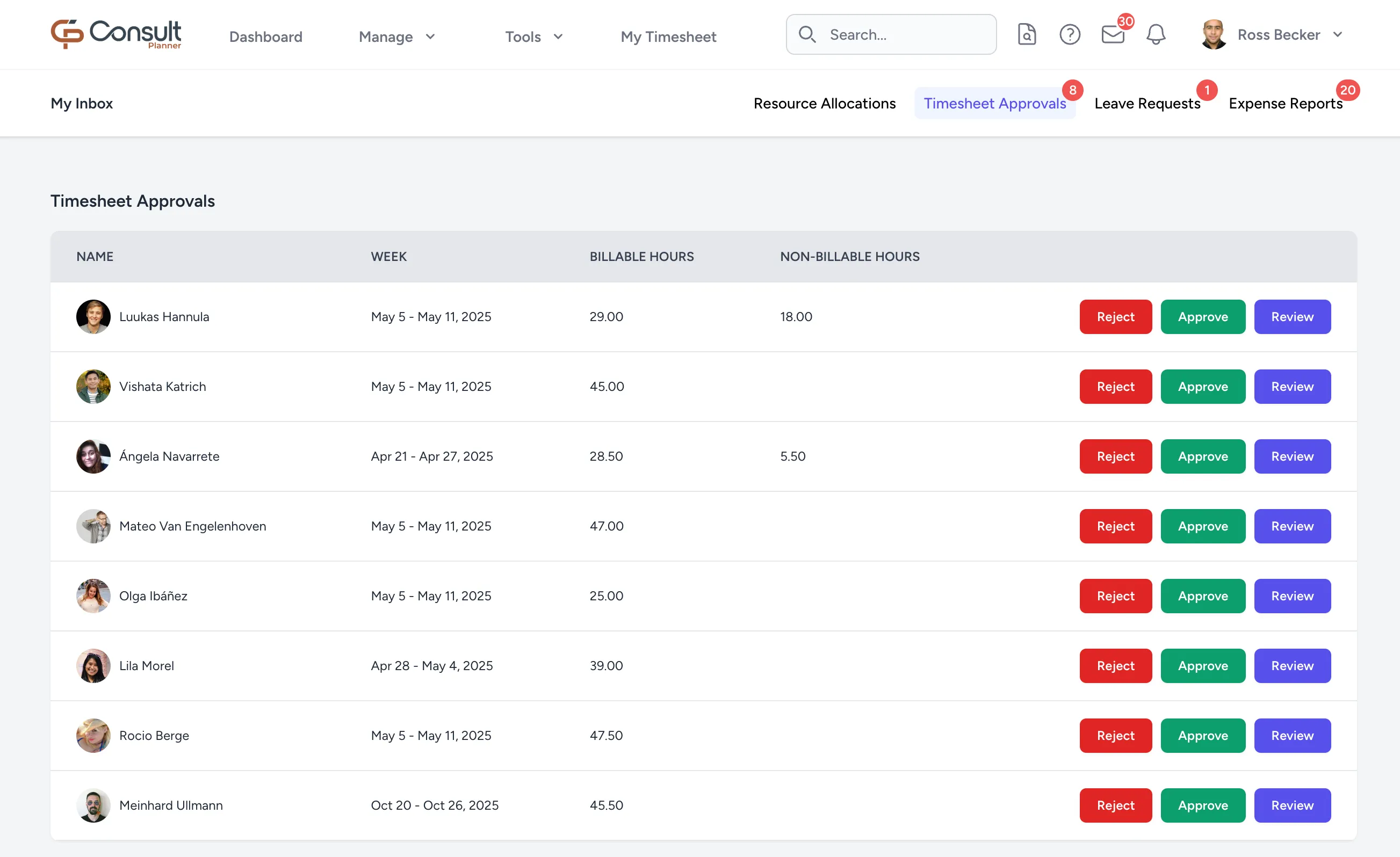
To review a submitted timesheet:
-
From the top navigation bar, click the inbox icon.
-
Select the Timesheet Approvals tab. This lists the submitted timesheets awaiting approval.
-
Click Review to see the complete timesheet with all the comments made by the user. If the timesheet meets expectations, click Approve. Otherwise, click Reject.
Note: When Reject is clicked, Consult prompts for a reason.
When a timesheet is rejected, the employee is notified with the rejection reason. The employee can then update the hours or comments and resubmit the timesheet for approval.
Reopen an approved timesheet
Approving a timesheet locks the week, but the approval can be undone when hours were approved in error or need correcting after the fact.
Reopening is restricted to resource managers, and only for the people they manage. A Reopen button appears next to approved submissions in the Timesheet Approvals tab and on the timesheet submissions page of a user you manage. Nobody else sees it.
To reopen an approved timesheet:
- Find the approved submission, either in the Timesheet Approvals tab or on the user’s timesheet submissions page.
- Click Reopen.
- Confirm in the Reopen Timesheet dialog, which asks “Are you sure you want to reopen this timesheet? The employee will be able to edit and resubmit it.”.
Consult confirms with “Timesheet reopened”.
Confirming discards the submission along with any project manager approvals recorded against it. The week returns to draft, so the employee can edit their hours and must submit the week again for it to be approved.
Warning: Reopening cannot be undone from the app. The week has to go through submission and approval again, which also means it is no longer counted as compliant until the employee resubmits.
Approve project hours as a project manager
Where project manager timesheet approval is switched on, the time an employee captured on a billable project goes to the project’s primary project manager for approval, or to every project manager on the project where there is no primary. You are emailed “Timesheet Awaiting Your Approval: Josh Howland — Week Apr 6 - Apr 12, 2026”, with a Review & Approve button that opens the inbox.
To review the hours:
- From the top navigation bar, click the inbox icon.
- Select the Timesheet Approvals tab. The approvals waiting on you as a project manager are listed under PM Timesheet Approvals, above any timesheets waiting on you as a resource manager. Each row shows the Employee, Project, Week, Forecast Hours, and Actual Hours, with the actual hours in red where they exceed the forecast.
- Click View detail on a row to see the employee’s time on the project day by day, without leaving the inbox. Click Hide detail to collapse it again.
- Click Approve, or click Reject and give a reason in the Reject Timesheet dialog. To approve several rows at once, tick them and click Approve selected.
The detail lists each day as one block, with the following columns:
- Day: The day the time was captured, such as “Monday 15 Sep”.
- Actual Hours: The hours on each entry. Entries with no hours are left out, while correcting entries with negative hours are kept, so the day-by-day figures add up to the actual hours on the row.
- Deliverable: The deliverable the time was booked to, blank where it was not booked to one. The column is only shown on projects that use one of the WBS formats.
- Role: The designation the employee holds on the project.
- Comments: The comment the employee entered, or “No comment” in amber where they left none.
If the detail cannot be loaded, “Could not load detail.” is shown, and Retry tries again.
A rejection rejects the employee’s whole week, and the employee is emailed your comment so they can correct their time and resubmit. The projects that were already approved stay locked, so only the rejected project and any non-billable time can be edited again.
Note: On a project with a primary project manager, the approval is only shown to the primary. The other project managers keep their access to the project, but do not see the approval in their inbox or receive its email.