
Log and submit timesheets
Record hours worked, use the timesheet tools, and submit a weekly timesheet for approval.
Timesheets record the hours worked on projects or deliverables throughout the week. Once the required hours have been captured, and assuming approvals are enabled, the timesheet can be submitted for approval by a resource manager.
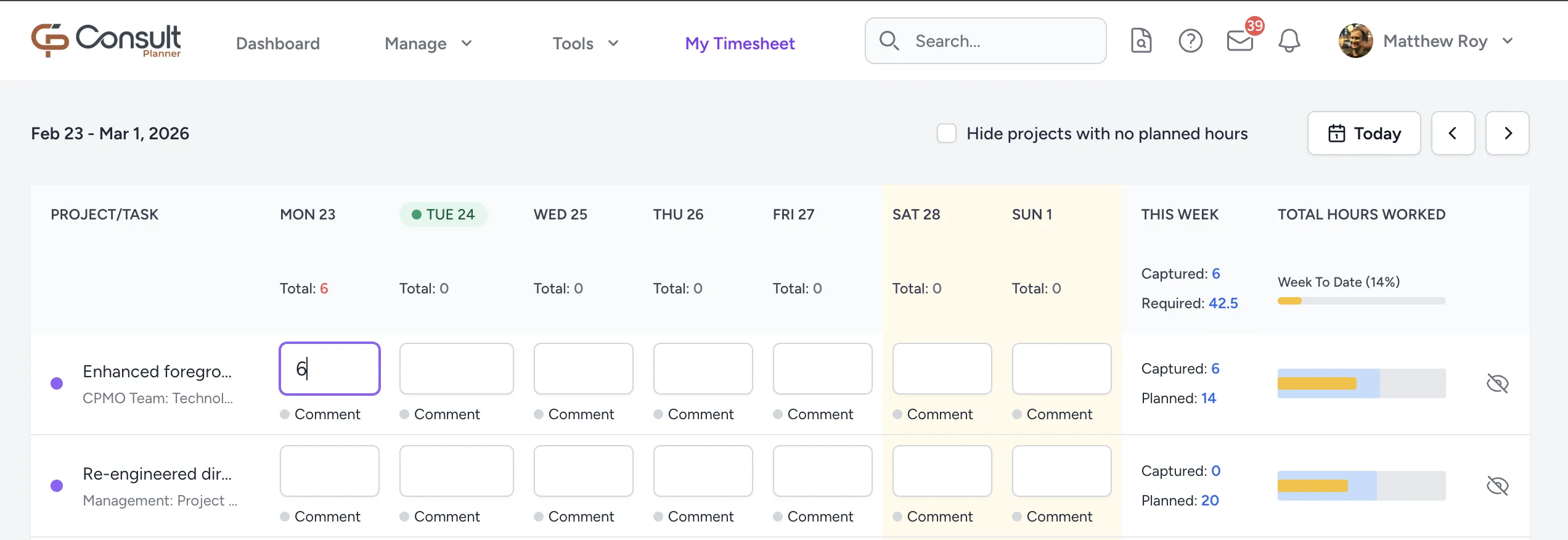
Standard projects
For a standard project, hours are entered directly on the project row.
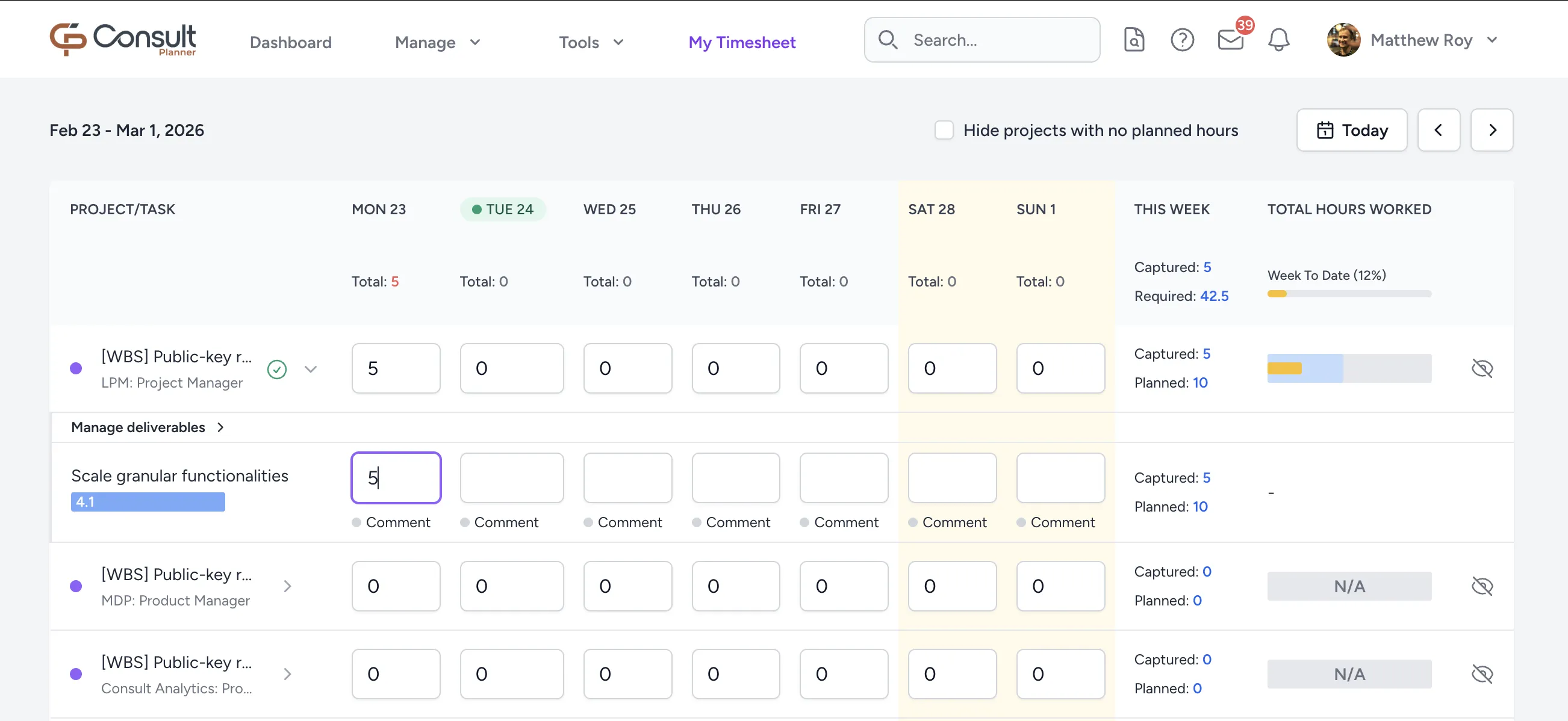
WBS with Deliverable Scheduling projects
A WBS with Deliverable Scheduling project groups work into deliverables, which are shown under the project in the timesheet view.
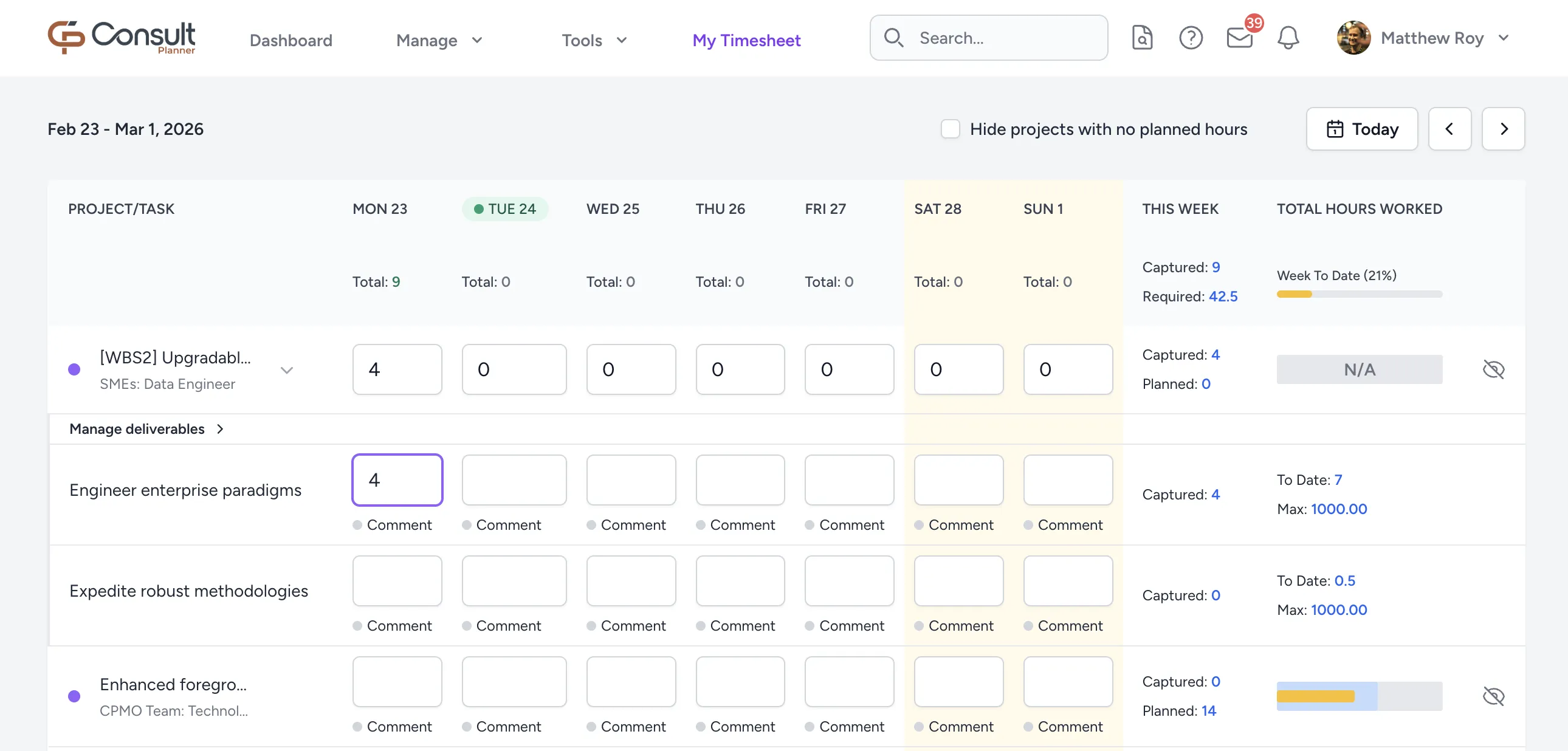
WBS with Resource Scheduling projects
A WBS with Resource Scheduling project also breaks work into deliverables under the project in the timesheet view. Each deliverable has two properties:
- Max: The designated number of hours to be worked on the deliverable.
- To date: The number of hours that have been captured already.
Timesheet features
Copy and paste
Consult supports copying a timesheet entry from one cell and pasting it into another. When hours are filled in, the copy icon becomes available at the bottom right of the cell:
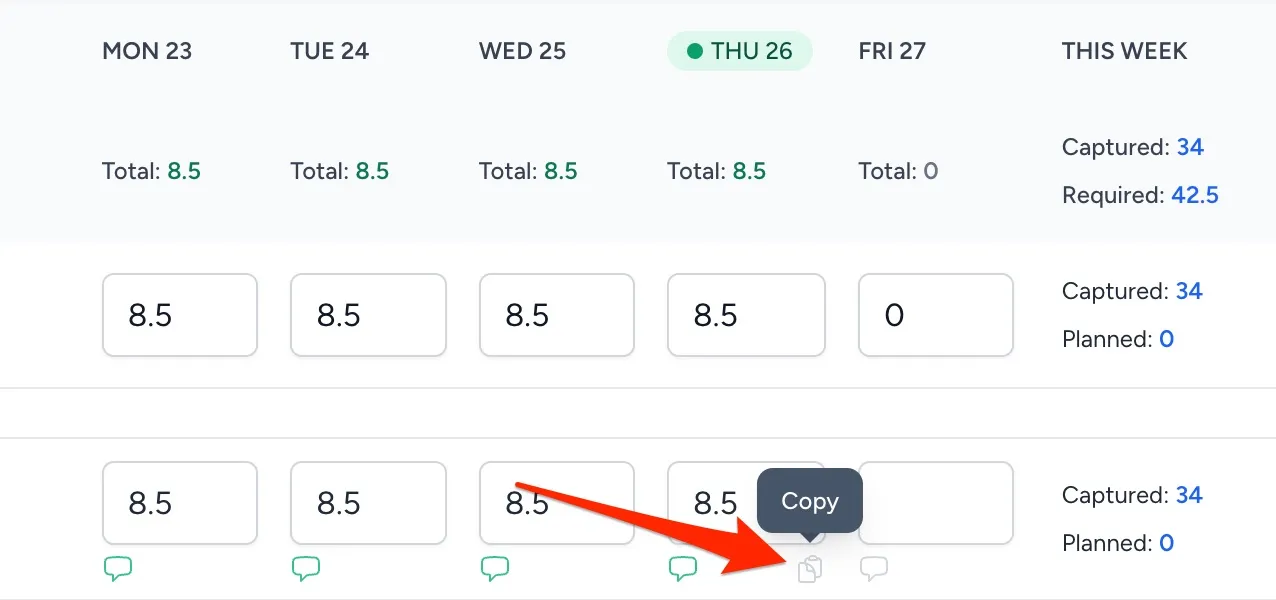
Click the copy icon to copy the cell’s hours and comments. To paste, select the target cell:
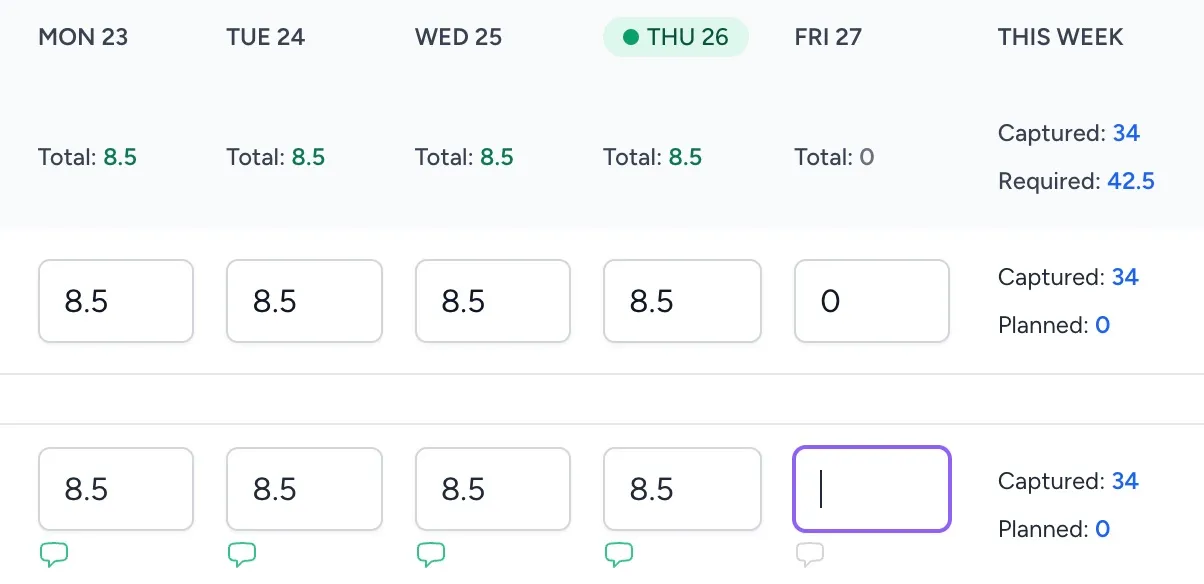
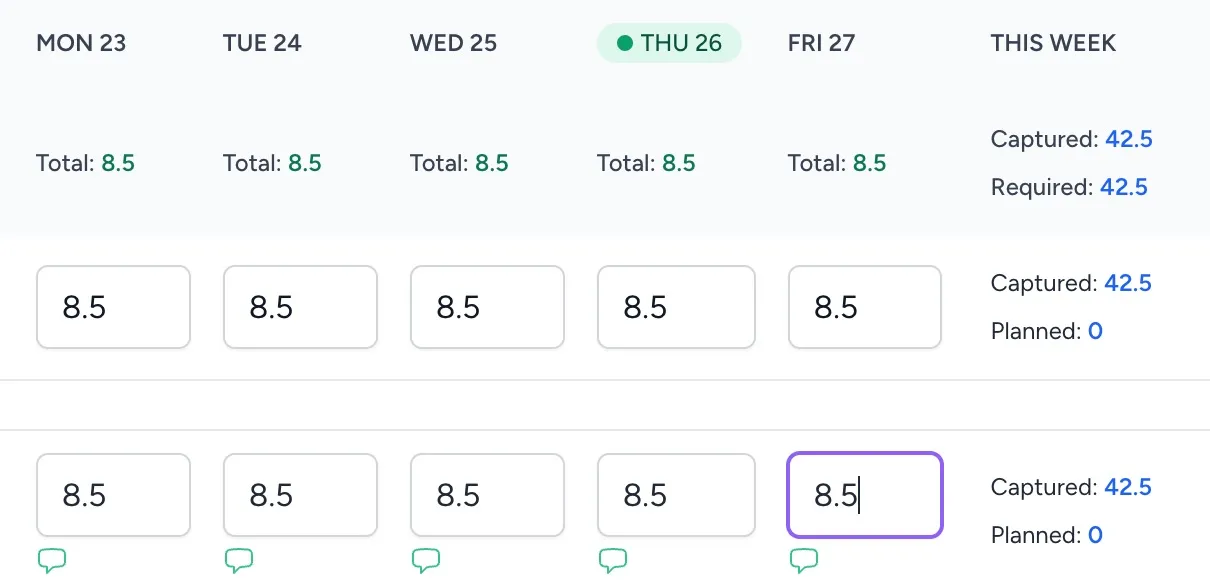
Then paste the hours and comments with CTRL+V:
Hours progress visualiser
The progress visualiser shows progress on the hours being logged on the timesheet:
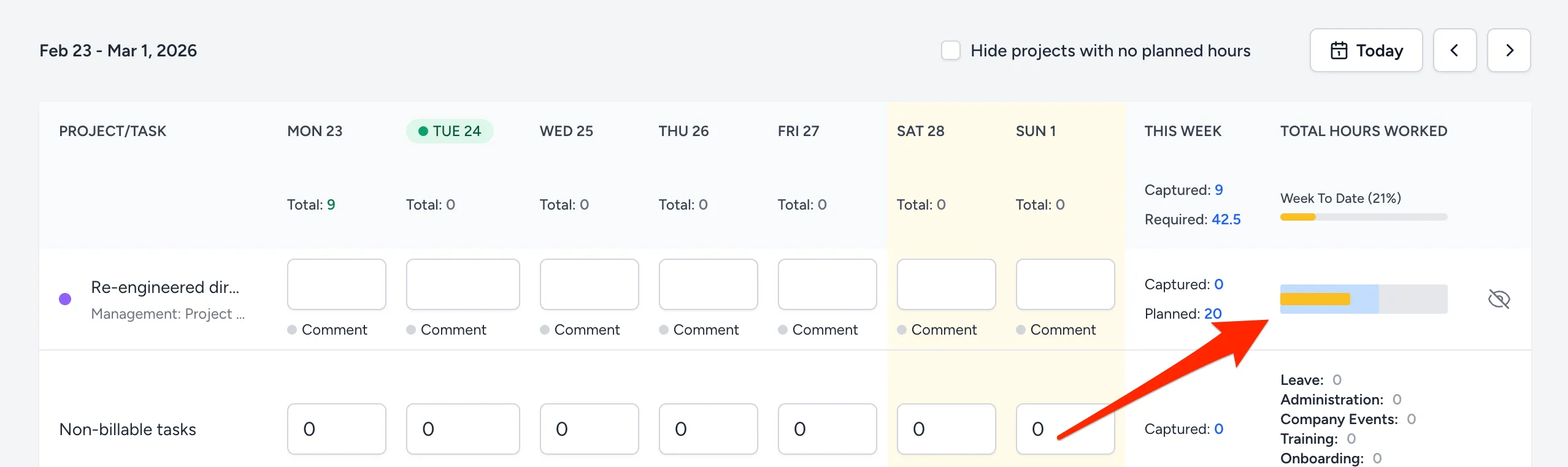
The progress visualiser shows the following:
- Planned hours baseline total in grey: The total number of planned hours allocated to this project.
- Planned hours baseline to date in blue: The number of hours allocated to this project to date.
- Actual hours in yellow, green, or red: The number of actual hours captured for this project. Yellow means fewer hours than scheduled, green means on schedule, and red means more hours than scheduled.
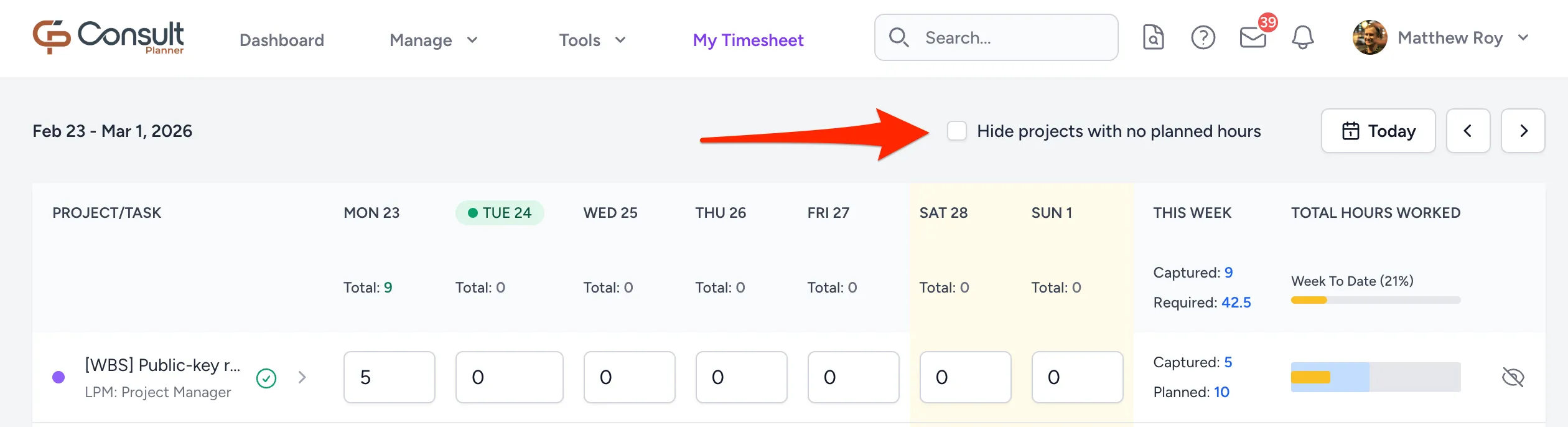
Hide projects with no forecast hours
This option removes projects that do not have forecast hours for the selected week:
Hidden projects
Projects can be hidden to reduce clutter in the timesheet.
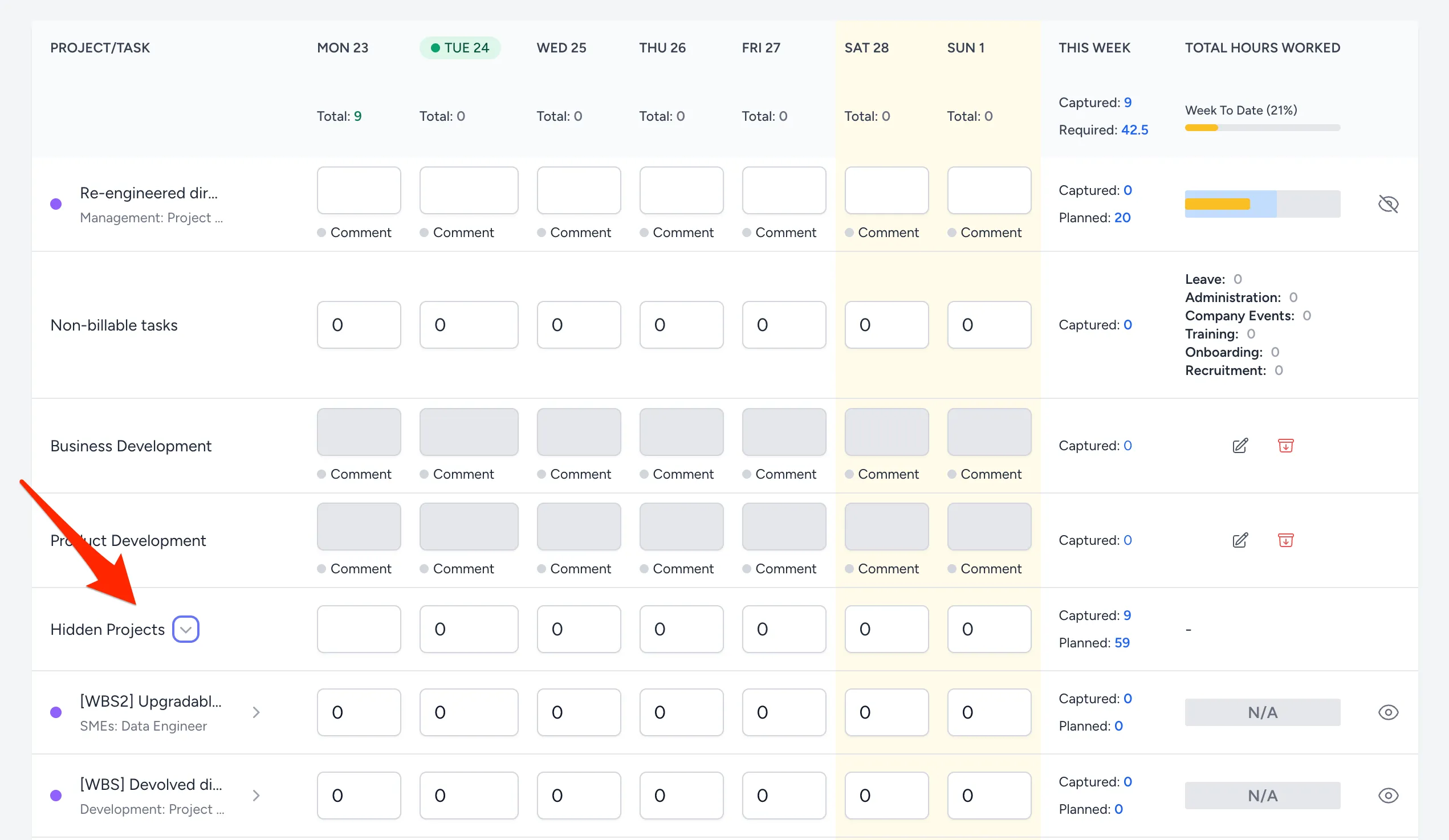
When a project is hidden, it moves to the Hidden Projects section, where it can be shown again whenever needed. Time can still be logged on a hidden project. This is useful for projects that are not used regularly.
Submit a timesheet
This functionality is only available when the Timesheet Submission option is enabled in the general Admin Settings.
The Submit button sends the completed timesheet for approval. A timesheet can only be submitted when the required number of hours for the week has been captured, there are no incomplete or invalid entries, and the submission window is still open. If the required hours have not yet been reached, the submit option remains unavailable.
If hours need correcting after approval, ask your resource manager to reopen the week, which returns it to draft so it can be edited and submitted again.
A week made up entirely of leave and public holidays does not need to be submitted. Consult submits it for you every Thursday at 12:30, and tells your resource manager it was submitted automatically.
Export a timesheet
Exporting downloads the current timesheet data for offline review and editing.
To export a timesheet:
- Click Export in the timesheet view.
- Select the projects to export.
- Select the Period.
- Click Export.
Import a timesheet
Importing uploads updated timesheet data back into Consult.
To import a timesheet:
- Click Import in the timesheet view.
- Upload the updated file.
- Click Import to save the changes.
The timesheet then updates with the imported values.