
Create a new project
Create a project, set up its organogram, and add resources with their rates and reporting lines.
This guide explains how to create a new project in Consult.
Who can create projects
Only users whose role includes Manage Projects can access this.
Note: If you can reach Manage > Projects in the navbar and see the New Project button, you have sufficient permissions.
Create a project
To create a new project:
- From the navbar, go to Manage > Projects.
- Click New Project.
- Complete the project details.
For each field, see the project field reference.
Any fields your administrator has added for projects appear at the bottom of the form under Custom Fields, and those marked with
*must be completed. Where Xero is connected, you can also tick Project invoices will be exported to Xero and set the project’s Xero defaults, described under Xero billing. - Click Next to create the project.
The project format selection page opens next. See choose the project format.
Set up the organogram
After selecting the project format, the Organogram view opens. The organogram defines who works on the project, their effective rate, and their reporting lines.
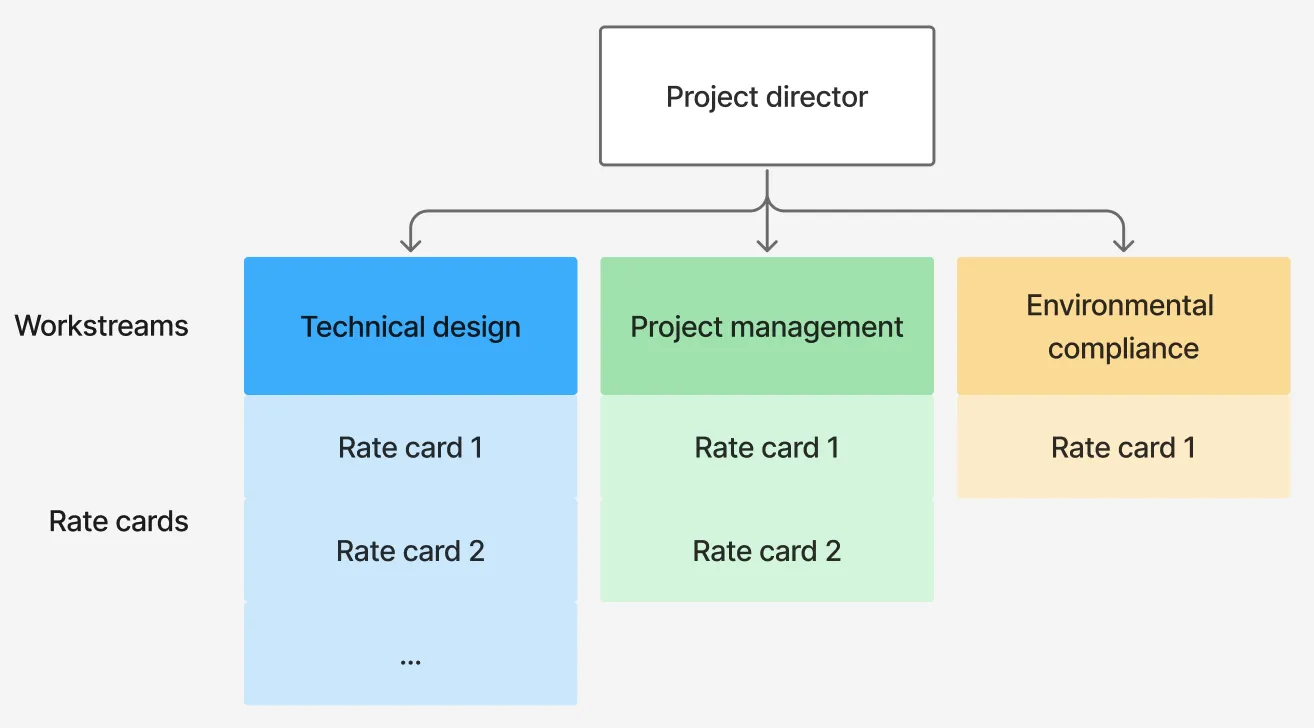
To change the project director’s rate, click the value below Project Director.
To add a workstream:
- Click + Workstream.
- Enter a name for the workstream.
- Click Create.
The new workstream appears beneath the project director box in the organogram. To manage a workstream, use the icons on it:
- Pencil: Edit the workstream name.
- User+: Add a resource to the workstream.
- Trash: Delete the workstream.
Note: Only users with the
View Financialspermission on the project can view the financial fields. On non-billable projects, rates are disabled and default to0.
Add a resource
When you add a resource, the following fields are shown:
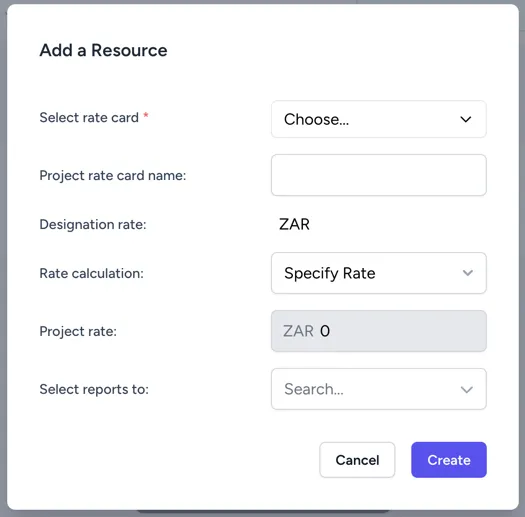
- Select rate card: The designation, or rate card, assigned to the resource. The options are filtered by the project’s offerings.
- Project rate card name: The name of the selected rate card for this project.
- Designation rate: The recommended rate for the chosen designation in the project’s currency.
- Rate calculation: How the project rate is determined, applicable only on billable projects.
- Percentage discount: The discount percentage applied to the designation rate when Specify Discount is used.
- Project rate: The effective hourly rate for this resource when Specify Rate is selected.
- Select reports To: The person or role that this resource reports to within the project.
Replicate deliverables from another project
Projects that follow a standard delivery structure can copy their deliverables from an existing project instead of building them one at a time. This is available on both WBS with Deliverable Scheduling and WBS with Resource Scheduling projects.
To replicate deliverables:
- From the Schedule interface, click Deliverables in the top-right corner.
- Click Actions > Replicate from.
- In the Replicate Deliverables modal, search the Select Source Project field and choose the project to copy from.
- Click Replicate.
A confirmation reads “Successfully added 12 deliverables, replicated from Atlas Migration”.
Consult copies the name, code, phase, order, start date, and end date of every deliverable on the source project that has not been archived.
The copies are added after any deliverables the target project already has, so nothing is replaced.
Where a copied code is already in use on the target, Consult appends -COPY to it, then -COPY-2 and onwards for any further clash.
Only projects that use WBS with Deliverable Scheduling or WBS with Resource Scheduling can be chosen as a source.
Note: Only the deliverable structure is copied. Resource assignments, forecast hours, and rates are not, so the schedule still has to be built on the target project.