
Auto rollover hours
Enable automatic weekly rollover of unworked forecast hours into a resource's upcoming schedule.
This guide explains how to enable and use auto rollover hours on a project.
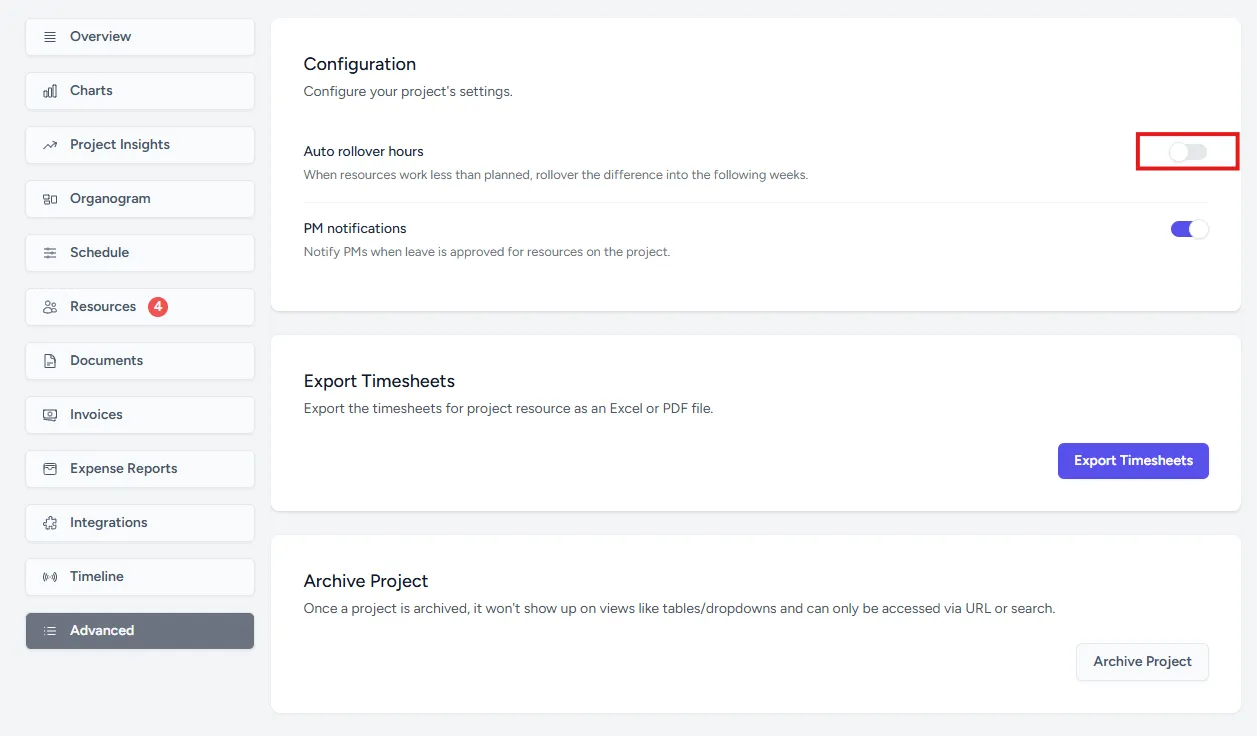
Enable auto rollover hours
Go to the project, open the Advanced section, and switch on Auto rollover hours.
How auto rollover hours works
Auto rollover hours behaves as follows:
- It runs automatically each week on Sunday.
- It checks each assigned resource’s forecast hours against their actual hours worked for the previous week.
- If a resource worked fewer hours than forecast, the unworked hours are added to that resource’s upcoming forecast hours.
- Consult spreads the rolled-over hours across the next few scheduled weeks rather than adding everything into one week.
- Past forecast hours are not changed to match actual hours. Only future forecast hours are adjusted.
- If the upcoming weeks do not have enough room to absorb the extra hours, the rollover may not complete automatically and the schedule may need a manual review.
Note: Auto rollover hours is enabled per project, not globally. If the resource’s remaining scheduled weeks cannot absorb all rolled-over hours, Consult does not apply a partial rollover. It leaves the future forecast hours unchanged and notifies the project managers, or only the primary project manager where one is set.