
Export invoices to Xero, QuickBooks, and Sage
Prepare and export a project invoice to Xero, QuickBooks, or Sage, update an exported Xero draft, and follow its payments and credit notes in Xero.
Once an invoice has been created and reviewed in Consult, it can be exported to the accounting system your organisation uses: Xero, QuickBooks, or Sage. An administrator connects these in the integration settings.
Exporting to an accounting system needs the Export-invoices-to-accounting right as part of your role.
Once an invoice has been exported, its settings can no longer be changed, and the Settings and Sent buttons are hidden. The one exception is an invoice that is still a draft in Xero, as described in update an exported Xero draft.
Prepare and export an invoice to Xero
Preparing an invoice for Xero and exporting it are separate steps. Anyone who can edit the invoice can prepare it and save the preparation, but only a role with the Export-invoices-to-accounting right can send it to Xero. A project manager can therefore get the Xero invoice ready for a finance user to check and export.
To prepare and export an invoice:
-
From the invoice view, go to Export > Export to Xero. Without the Export-invoices-to-accounting right, the option reads Prepare Xero Invoice instead.
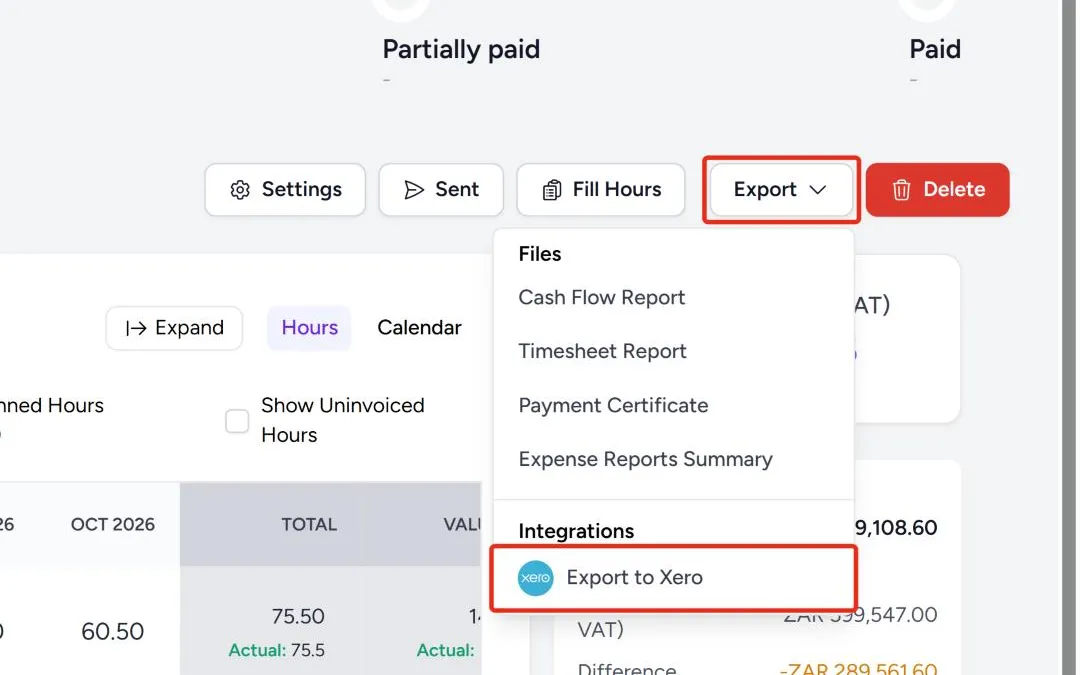
Note: If neither option is available, either Xero is not connected, so ask an administrator to connect it, or the invoice has already been exported.
-
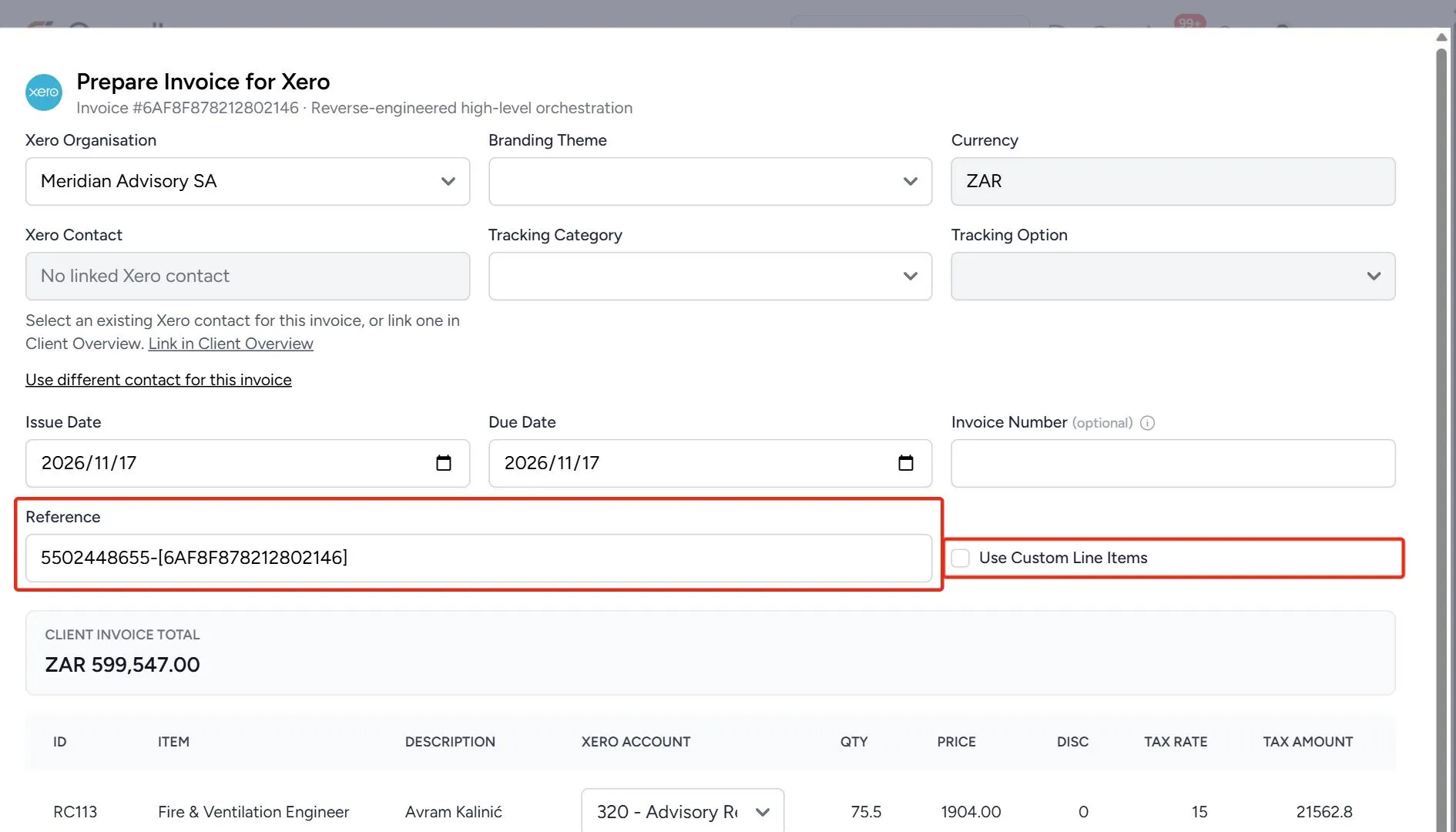
In the Prepare Invoice for Xero modal, review the details used to create the invoice in Xero. They are pre-filled from the invoice’s Xero settings, and any changes can be made on the modal itself or in the project’s Xero Billing section:
- Xero Organisation: Which organisation to create the invoice in, chosen here when more than one is connected.
- Branding Theme, Tracking Category, and Tracking Option.
- Xero Contact: The Xero contact linked to the client in Client Overview. Where the client has no linked contact, the field shows No linked Xero contact; click Link in Client Overview to link one. To bill a different contact on this invoice only, click Use different contact for this invoice, then search for the contact and choose it. Without the Export-invoices-to-accounting right, the client needs a linked contact before you can review the invoice.
- Issue Date and Due Date.
- Reference: Set by Consult to the purchase order number followed by the invoice number, and cannot be changed here.
- Invoice Number: Optional; leave it blank for Xero to create one.
The Currency is shown for reference and cannot be changed here.
If an administrator has switched on Require Xero tracking, and the organisation has an active tracking category, the Tracking Category and Tracking Option are required to export the invoice or update a draft. The preparation can still be saved without them.
-
Choose how the invoice lines are built. There are two methods, and each is explained in its own section further down:
- Standard invoice lines: Leave Use Custom Line Items unticked to send the invoice’s own lines, one for each resource, expense report, and line item.
- Custom line items: Tick Use Custom Line Items to write the lines the client sees yourself, for example as a single fixed-fee line.
If an administrator has switched on Enforce Custom Line Items, Use Custom Line Items is ticked and locked, with “Required by your tenant’s integration settings.” beneath it. The invoice can then only be exported once at least one custom line has been saved and reviewed.
-
Click Save Invoice to keep the preparation without exporting it.
-
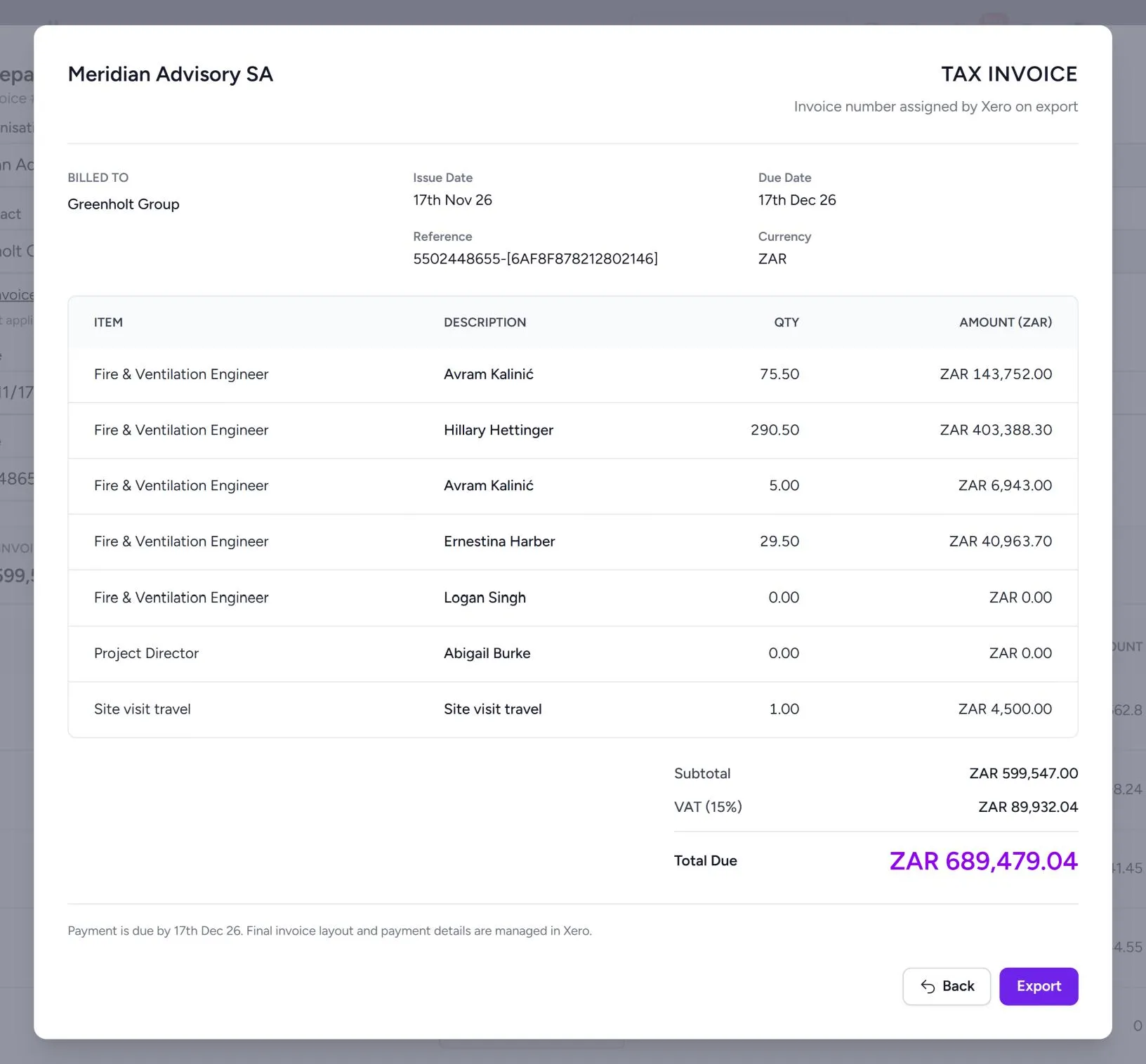
Click Review to save the preparation and preview the invoice as it will be created in Xero. The preview shows the organisation, the Billed To contact, the Issue Date, Due Date, Reference, and Currency, then the lines, the Subtotal, the tax, and the Total Due:
-
Click Export to send the invoice to Xero, or Back to return to the modal and make changes. Export is only shown to a role with the Export-invoices-to-accounting right.
A saved preparation is offered to the next person who opens the modal, so a finance user picks up where the project manager left off. The contact, issue date, and due date can be left blank while preparing, but are required to export, as is the organisation when more than one is connected. Review is unavailable until the invoice has at least one line to send.
Closing the modal with unsaved changes asks for confirmation first. The saved preparation is kept, and only the unsaved changes are lost.
Once the invoice is created, a Xero button is added to the invoice page that opens it directly in Xero:
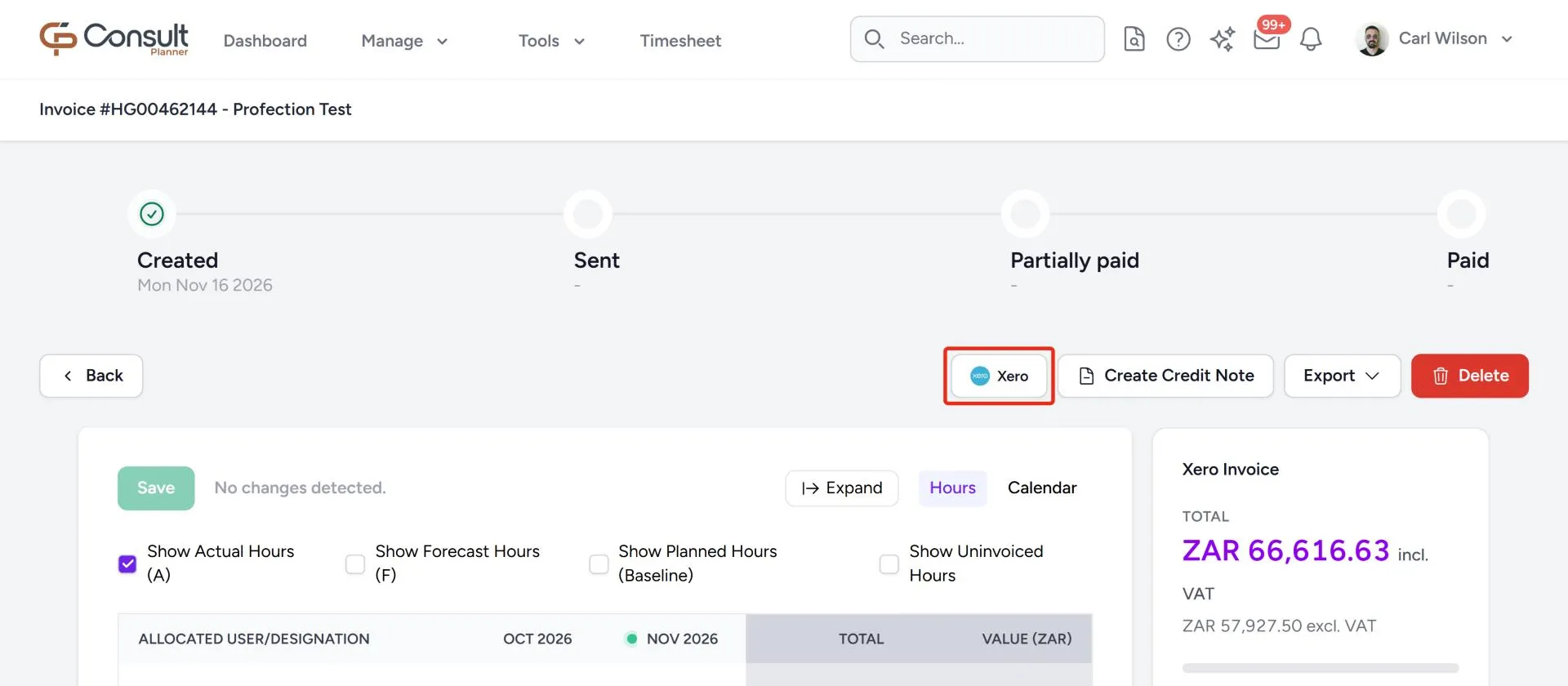
Note: On the exported invoice, the Item and Project columns may appear blank if the corresponding items do not exist in the Xero account. To display these fields on exported invoices, add the items to the Xero account using matching item codes.

Standard invoice lines
Without custom line items, the invoice is sent with a line for each resource, expense report, and line item on it. The Prepare Invoice for Xero modal lists these lines beneath the Client Invoice Total they come to:
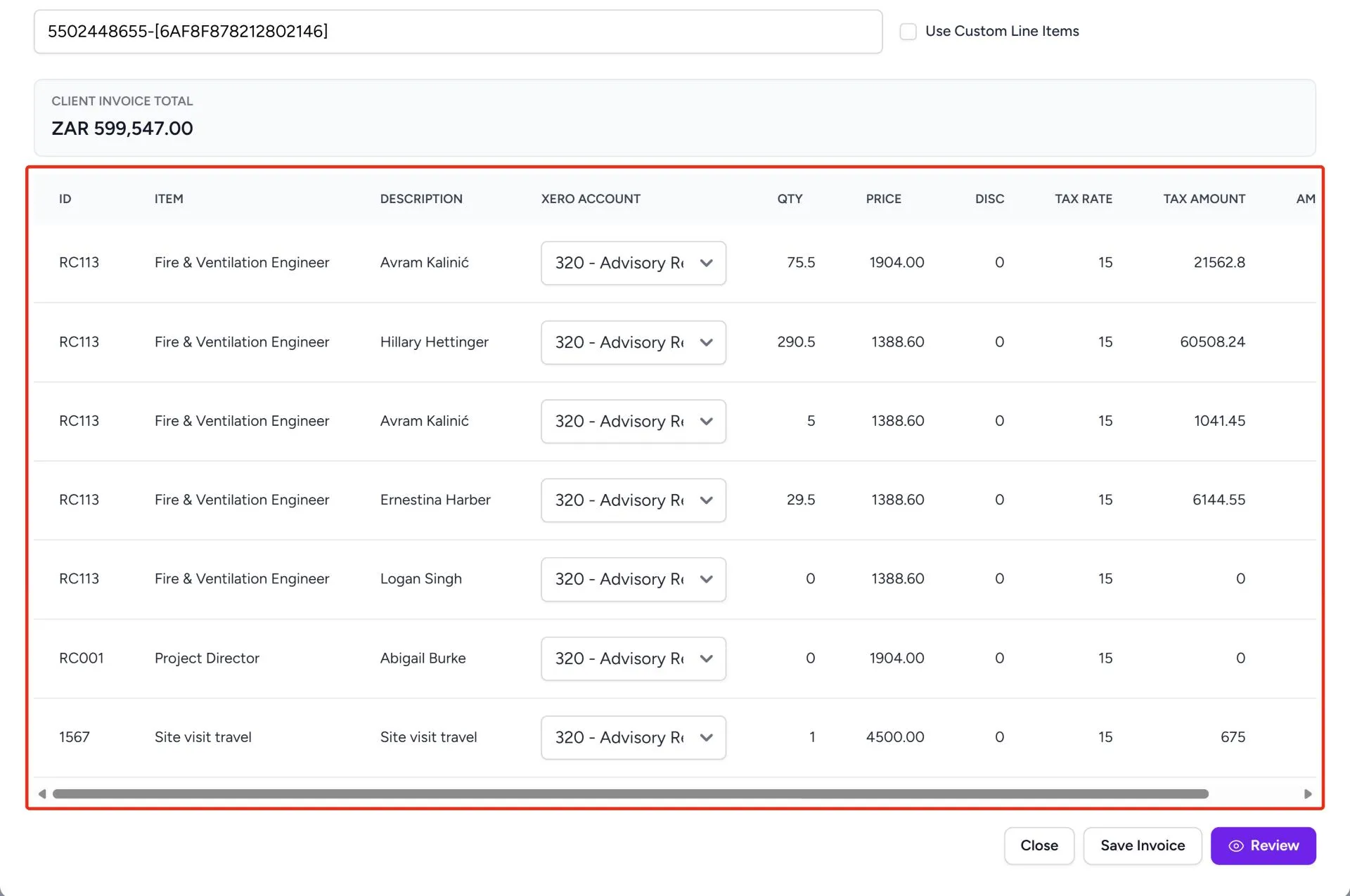
For each line, choose the Xero Account it is posted to, or leave it as Automatic revenue account to use the default revenue account. Scroll the table sideways to see each line’s tax and amount.
An expense report holding expenses marked No VAT is sent as two lines, one with tax and one without.
Xero recalculates each line as quantity multiplied by unit amount, so a resource whose rate changed inside the invoice period cannot be sent as a single line. Consult sends one line per rate the invoice froze instead, each carrying the hours booked at that rate. A resource billed at one rate for the whole period is therefore one line, and a resource whose rate stepped mid-period is two or more.
Each resource line is described by the name of the person assigned, falling back to the resource’s name or its role where no one is assigned.
A line with no value, such as a resource with no hours on the invoice, is sent as a description only, without a quantity, price, item code, account, or tracking.
Use custom line items
Custom line items let you bill the client in your own words and amounts, for example as a single fixed-fee line, while the hours and values behind the invoice stay unchanged in Consult. Each line is linked to the resources it covers, so Consult can compare what the client is billed with the value of the hours captured.
To add a custom line:
-
In the Prepare Invoice for Xero modal, tick Use Custom Line Items. The Client Invoice Lines section replaces the standard lines.
-
Click Add Invoice Line.
-
In the Add Invoice Line modal, enter the Description the client sees on the invoice.
-
Choose the Xero Account, or leave it as Automatic revenue account.
-
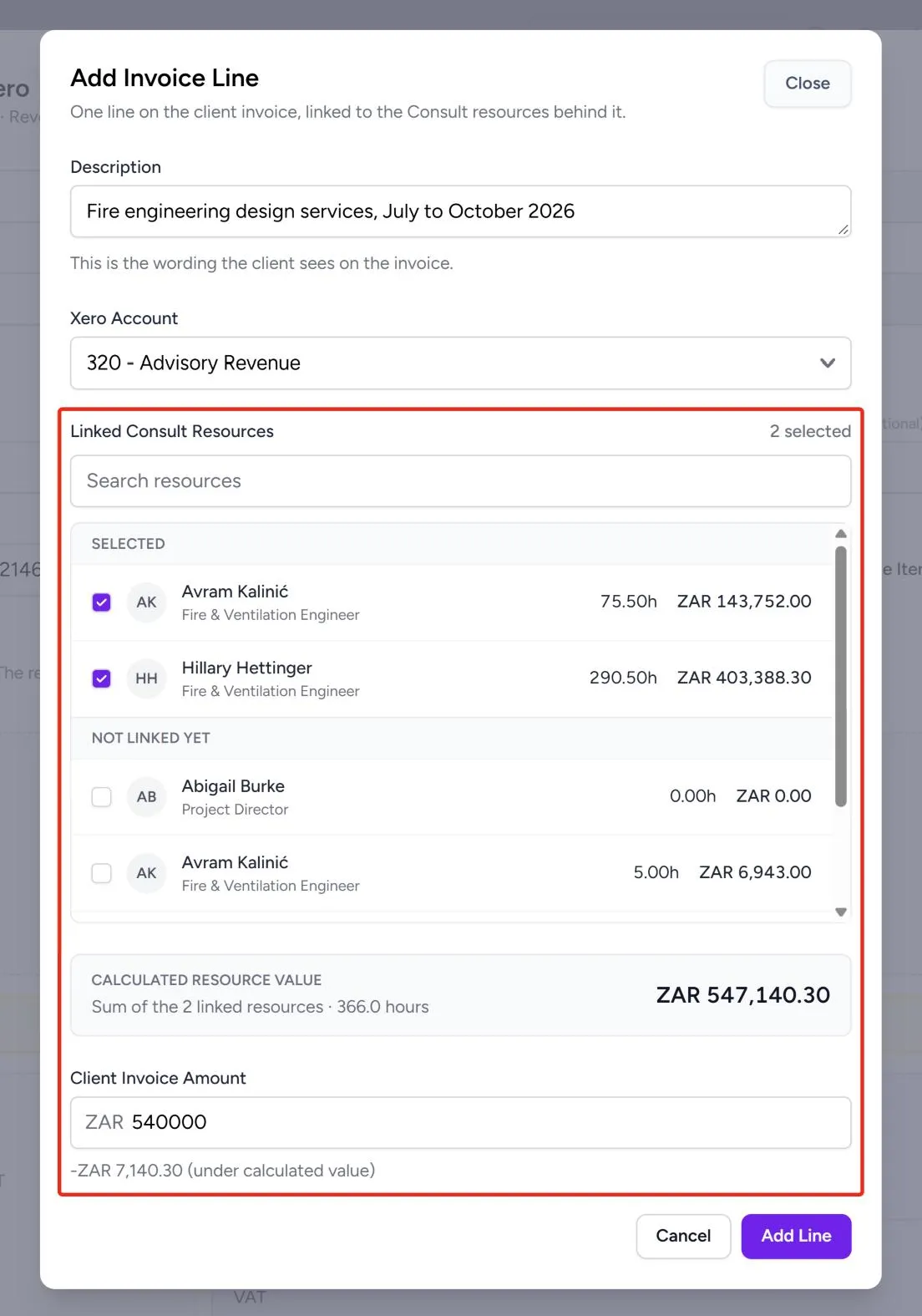
Under Linked Consult Resources, tick the resources the line covers. The Calculated Resource Value shows what their hours on this invoice come to.
-
Enter the Client Invoice Amount, excluding tax. Beneath it, Consult shows how far the amount is over or under the calculated value, or that it matches:
-
Click Add Line.
Every line needs a description, at least one resource, and an amount. A resource can only be linked to one line, so a resource already linked to another line cannot be ticked.
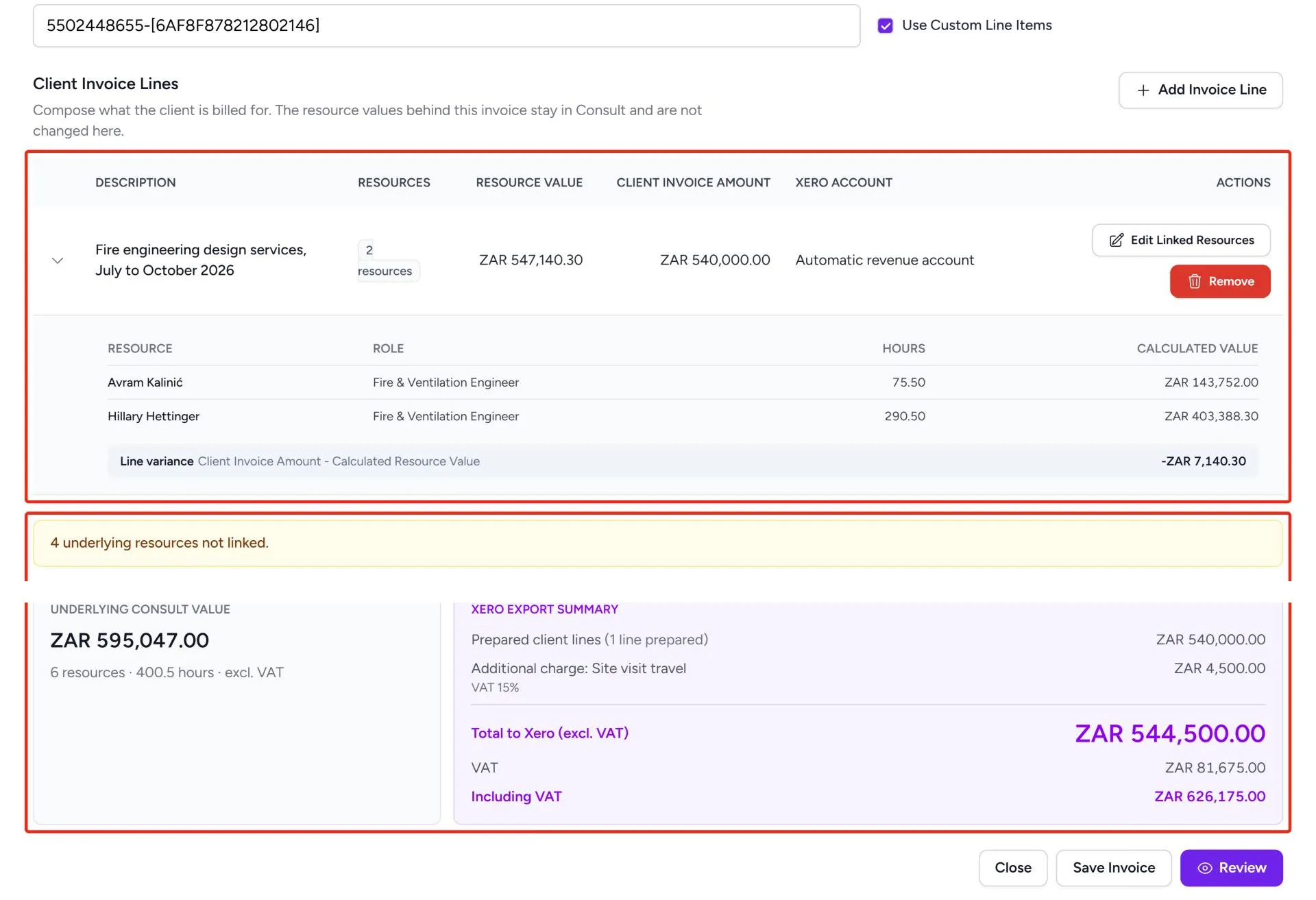
Lines are saved as soon as they are added, edited, or removed. Each line in the table shows how many Resources it links, its Resource Value, its Client Invoice Amount, and its Xero Account. Expand a line to see its resources and its Line variance, which is the client invoice amount less the calculated resource value. Click Edit Linked Resources to change a line, or Remove to delete it.
Beneath the lines, Consult shows how many resources on the invoice are not linked to a line yet, and two summaries, both excluding tax:
- Underlying CONSULT Value: The value of all the hours on the invoice, with the number of resources and hours.
- Xero Export Summary: What is sent to Xero, which is the prepared client lines plus any additional charges, discounts, and billable expenses on the invoice, then the Total to Xero (excl. VAT), the VAT, and the total including VAT.
A resource left unlinked does not stop the export.
Each custom line is sent to Xero with a quantity of 1, the amount entered, the chosen account, the invoice’s VAT rate, and the invoice’s tracking, but no item code. The invoice’s line items and expense reports are still sent as lines of their own, as they would be with standard invoice lines, so do not include them in a custom line’s amount.
To go back to the standard lines, untick Use Custom Line Items, unless custom line items are enforced. Where lines have been added, the Discard Prepared Lines dialog asks you to confirm, since the saved lines are cleared; click Discard Lines to continue, or Cancel to keep them.
The exported invoice in Consult
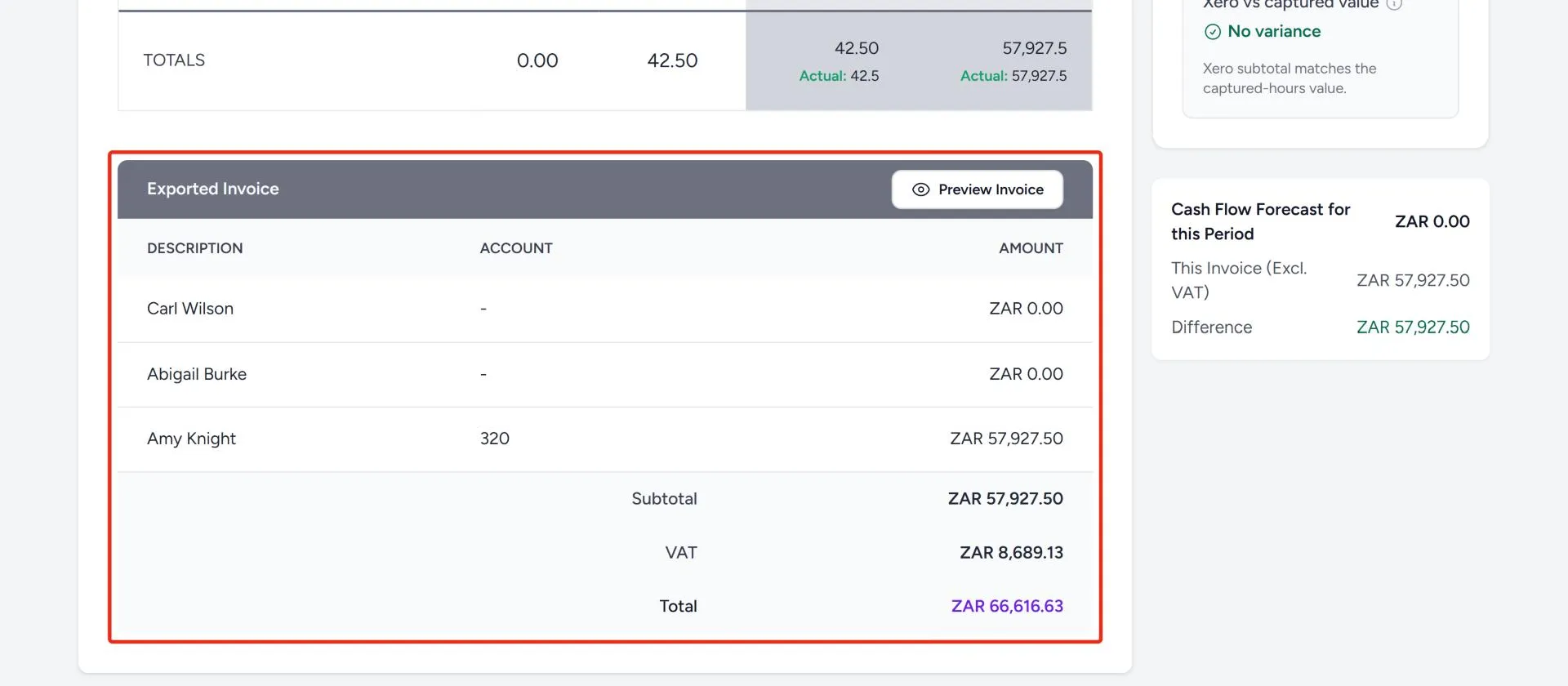
Once the invoice is in Xero, an Exported Invoice table beneath the hours lists the lines as they were sent, with each line’s Description, Account, and Amount, followed by the Subtotal, the tax, and the Total. Click Preview Invoice to see the invoice laid out as it was recorded at export:
Update an exported Xero draft
An exported invoice starts as a draft in Xero. While it is still a draft there, you can change it in Consult and send the changes to the same Xero invoice, rather than deleting it and exporting again.
The invoice can be updated while all of the following hold:
- It is still a draft in Xero, so it has not been approved there.
- It has not been marked as sent or paid in Consult.
- It has not been deleted or voided in Xero.
- The Xero organisation it was exported to is still connected.
To update an exported Xero draft:
-
Change the invoice in Consult, for example its hours or Fill Hours. Consult checks that the invoice is still a draft in Xero before saving the change. Once a change is saved, the Xero Invoice card shows Changes not yet exported.
-
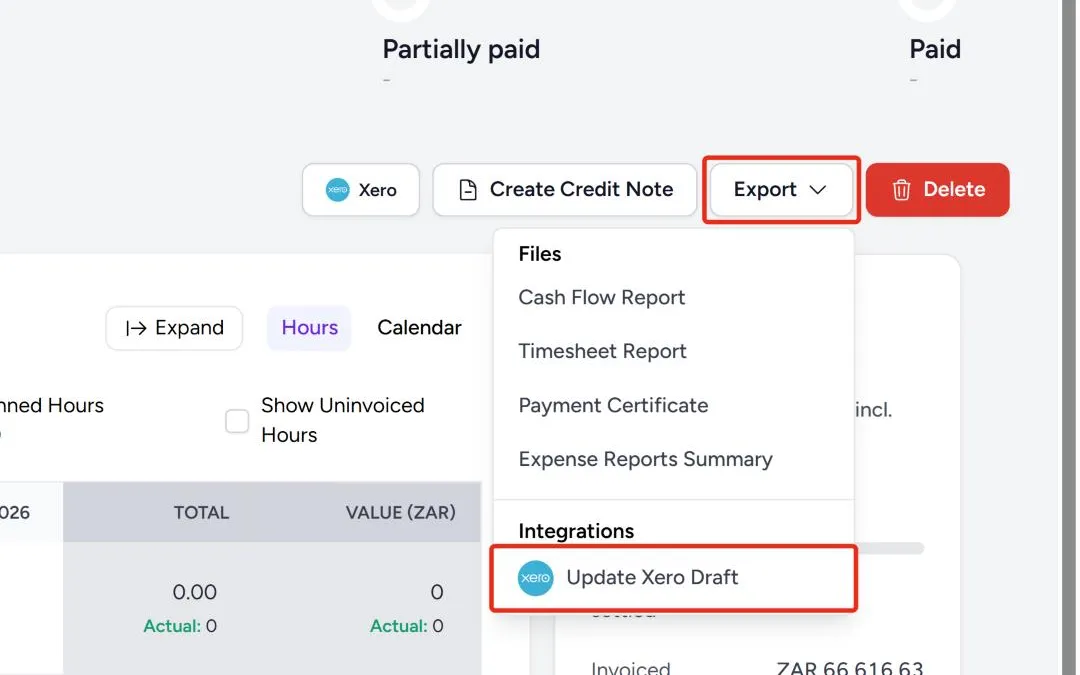
Go to Export > Update Xero Draft. Without the Export-invoices-to-accounting right, the option reads Prepare Xero Draft instead.
-
In the Update Xero Draft Invoice modal, review the details and lines as you would when preparing the invoice. The Xero Organisation cannot be changed, since the invoice is updated in the organisation it was exported to.
-
Click Save Invoice to keep the changes in Consult without sending them, or Review to preview the updated invoice.
-
Click Update Xero Draft to send the changes to the existing invoice in Xero. Update Xero Draft is only shown to a role with the Export-invoices-to-accounting right.
If the invoice uses custom line items and its hours change, the Xero Invoice card shows Invoiced hours changed instead. Your custom line amounts are not changed, so review them before updating the draft.
If the invoice has been approved in Xero in the meantime, Consult does not save the change and reports that the linked Xero invoice is no longer a draft. Make any further changes in Xero itself.
Track payments from Xero
Once an invoice is in Xero, Consult follows what happens to it there and updates the invoice by itself:
- Approving the invoice in Xero marks it as Sent in Consult. An exported invoice starts as a draft in Xero, so it only shows as sent once it has been approved there, unless it was marked as sent before it was exported.
- A part payment moves it to Partially paid.
- Settling it in full in Xero marks it as Paid.
The timeline at the top of the invoice shows these stages as Created, Sent, Partially paid, and Paid, and the status column on the invoices list shows the same.
The Xero Invoice card
An exported invoice shows a Xero Invoice card in place of the usual totals card:
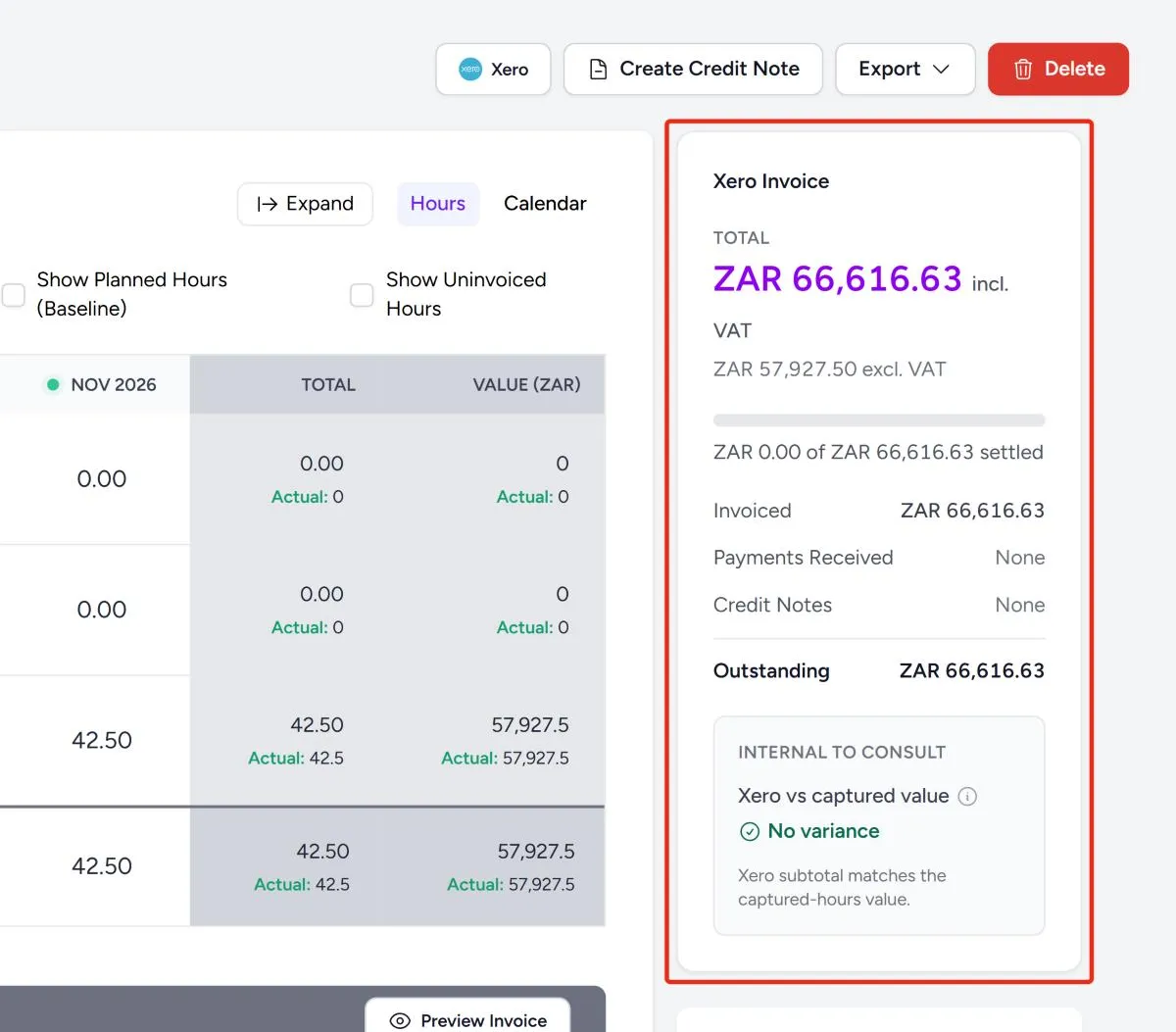
- The invoice Total including tax, with the total excluding tax beneath it.
- A bar showing how much of the invoice has been settled by payments and credit notes together, captioned with the amount settled, for example “ZAR 0.00 of ZAR 66,616.63 settled”, or with Settled in full.
- Invoiced, Payments Received, Credit Notes, and Outstanding, which is the amount Xero says is still due.
- Under Internal to Consult, the Xero vs captured value, which is the Xero subtotal excluding tax less the Consult value of the hours billed on the invoice.
The variance is shown with its percentage, or as No variance when the two match. Expense reports and line items are part of the Xero subtotal but not of the hours value, so they add to the variance, as does any difference between custom line amounts and the hours they cover.
Only payments count towards Partially paid and Payments Received. An invoice reduced only by credit notes does not show as partially paid, and one that is fully credited shows as Paid.
Note: Updates arrive from Xero as they happen, but an open page does not refresh itself. Reload the invoice page to see the latest status.
If the invoice is deleted or voided in Xero
An invoice that is deleted or voided in Xero returns to Created in Consult and is marked Removed in Xero, both on the invoice and in the invoices list. The link to Xero is removed, so Export to Xero is offered again and the invoice can be edited and exported afresh.
Create a credit note in Xero
A credit note can be raised against an invoice in Xero without leaving Consult. The Create Credit Note button is shown on the invoice page when the invoice is in Xero, its Xero organisation is still connected, and your role includes Export-invoices-to-accounting.
To create a credit note:
-
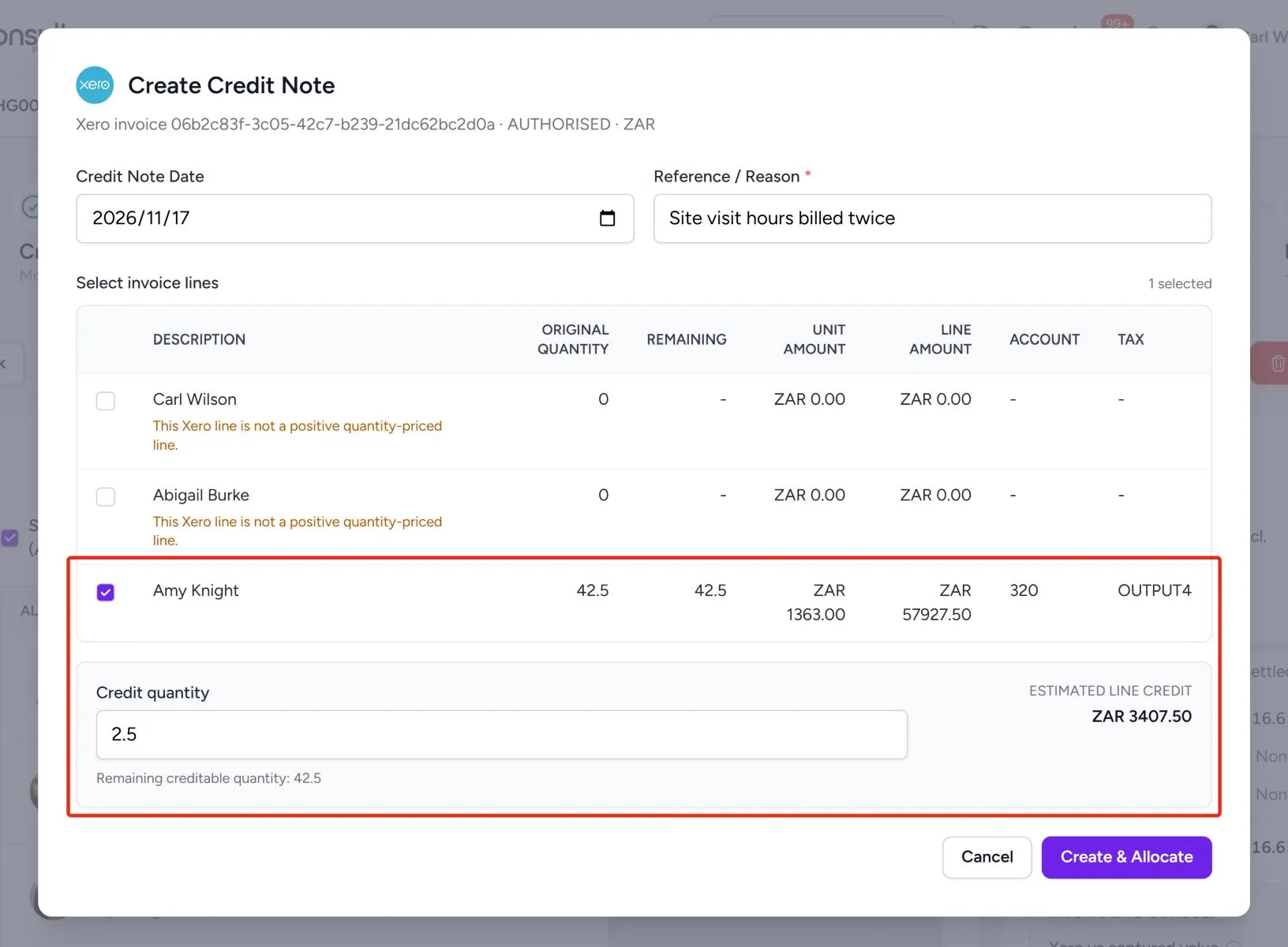
On the invoice page, click Create Credit Note. The Create Credit Note modal loads the invoice’s current lines from Xero.
-
Set the Credit Note Date, which defaults to today.
-
Enter a Reference / Reason, which is required.
-
Under Select invoice lines, select the line to credit. A credit note covers one line, so raise another for each further line.
-
Enter the Credit quantity, up to the Remaining creditable quantity shown beneath it. The Estimated line credit shows what the credit comes to:
-
Click Create & Allocate.
Consult creates the credit note in Xero, allocates it against the invoice, and confirms with “Credit Note created and allocated.”.
A credit note can only be raised while the invoice is approved in Xero and still has an amount due, and it cannot credit more than is outstanding. A line that cannot be credited shows the reason beneath it, for example because it has already been fully credited or is not a quantity-priced line.
Warning: If Consult reports that the credit note was created in Xero but could not be allocated to the invoice, do not create another one. Contact support with the credit note reference shown in the message.
Credit notes raised directly in Xero and allocated to the invoice are picked up automatically. Once an invoice has one of those, Consult no longer lets you credit quantities against it, since it cannot tell which lines that credit covered.
Credit notes on the invoice
The invoice’s credit notes are listed in a Credit Notes table showing each note’s number, Date, Status in Xero, Xero Organisation, Total, Allocated, and Remaining. A credit note that has been voided or deleted in Xero is left out of the table, and no longer counts towards the credited amount.
The Credit Notes row of the Xero Invoice card shows the total credited. Credits are taken off the total including VAT. The amount on the invoices list is unchanged by credit notes.
Export an invoice to QuickBooks
To export an invoice to QuickBooks:
-
From the invoice view, go to Export > Export to QuickBooks.
Note: If this option is not available, either QuickBooks is not connected, so ask an administrator to connect it, or your role does not include the Export-invoices-to-accounting right.
-
In the Export to QuickBooks modal, review the information used to create the invoice in QuickBooks. Any changes can be made on the modal itself or in the project settings.
-
Click Send to QuickBooks.
Once the invoice is created, a button is added to the invoice page that opens it directly in QuickBooks:

Export an invoice to Sage
To export an invoice to Sage:
-
From the invoice view, go to Export > Export to Sage.
Note: This option is only offered once an administrator has connected Sage and selected a Sage company, and your role includes the Export-invoices-to-accounting right.
-
In the Export to Sage modal, review the Contact, Issue Date, Due Date, Invoice Number, Reference, and Currency used to create the invoice in Sage. The Invoice Number is optional; leave it blank for Sage to create one.
-
Click Send to Sage.
Once the invoice is created, a button is added to the invoice page that opens it in Sage.
How exported lines are priced
Both exports price their hour lines from the rates the invoice froze when it was prepared, which is what Consult itself bills. An export therefore reconciles against the invoice total held in Consult, and neither export is restated by a later change to a project rate.
This applies to the standard lines. An invoice sent to Xero with custom line items carries the amounts entered on those lines instead, so it can differ from the Consult total by design; the variance on the Xero Invoice card shows by how much.
An exported total can still differ by a few cents, because Consult totals the invoice unrounded while each export rounds every line to two decimals. A gap of that size is the rounding, not a pricing error.
Note: Sage exports share the Xero line format, so the same pricing applies.